2026 Update: IPTV on Fire Stick in Australia
Introduction
In 2026, Amazon and streaming platforms have increased restrictions on certain IPTV applications, especially those linked to unofficial or unverified content sources.

Because of these developments, choosing legal and stable IPTV apps has become more important than ever for Fire Stick users in Australia. Official apps available through the Amazon App Store now offer better performance, security, and long-term reliability compared to unsupported third-party services.
This guide focuses only on apps that are safe, widely used, and compatible with Fire Stick devices in Australia.
Are you in search of the top IPTV apps for Fire Stick in Australia? You’re not alone. Thousands of Aussies are cutting the cord and switching to IPTV streaming on Amazon’s affordable Fire Stick — but finding the right app can be overwhelming.
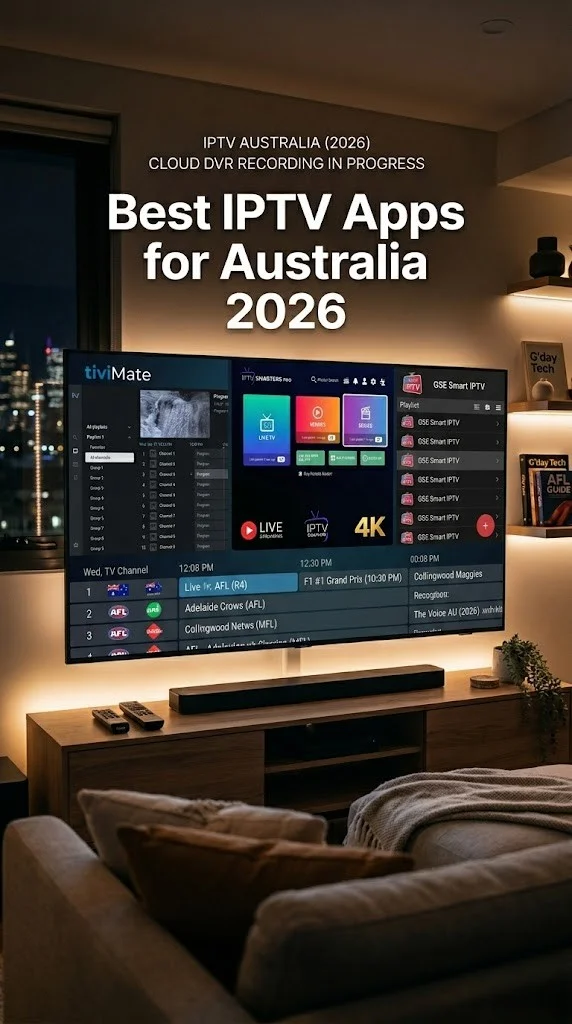
Quick Answer: The top IPTV apps for Fire Stick Australia in 2026 are IPTV Smarters Pro, TiviMate, VLC for Fire, Kodi, and XCIPTV Player. For free and legal options, Pluto TV, SBS On Demand, and ABC iView deliver quality content without any subscription fees.
Whether you’re chasing live sport, international channels, or free-to-air Aussie TV, this guide covers everything — from detailed app reviews and installation steps to legality, speed requirements, and how to choose the right IPTV setup for your household.
If you’re completely new to this technology, our beginner’s guide to IPTV in Australia explains the fundamentals before you dive in.
By 2026, a shift toward more regulated and official streaming apps is being seen by Fire Stick users in Australia. Amazon continues to prioritise apps available on its official App Store while limiting unstable or unverified IPTV services.
Because of these changes, the safest and most reliable IPTV experience now comes from legal streaming apps, trusted IPTV players, and verified content providers that work smoothly on Fire Stick devices.
Best IPTV Apps for Fire Stick Australia – Quick List
Here’s a snapshot of the top-performing IPTV apps. Australian Fire Stick users should know about in 2026:
| Rank | App Name | Type | Cost | Best For |
|---|---|---|---|---|
| 1 | IPTV Smarters Pro | IPTV Player | Free (needs subscription) | All-round best experience |
| 2 | TiviMate | IPTV Player | Free / Premium: $6.99/yr | EPG & channel management |
| 3 | Kodi | Media Centre | Free | Customisation & add-ons |
| 4 | VLC for Fire | Media Player | Free | Simple M3U playback |
| 5 | XCIPTV Player | IPTV Player | Free | Multi-playlist support |
| 6 | Pluto TV | Free Streaming | 100% Free | Free live TV channels |
| 7 | SBS On Demand | Free Streaming | 100% Free | Aussie & international content |
| 8 | ABC iview | Free Streaming | 100% Free | Australian free-to-air |
| 9 | GSE Smart IPTV | IPTV Player | Free | Chromecast + EPG support |
| 10 | OTT Navigator | IPTV Player | Free / Premium | Advanced features |
Detailed IPTV App Reviews for Fire Stick
1. IPTV Smarters Pro
IPTV Smarters Pro is the top-rated IPTV app for the Fire Stick in Australia.
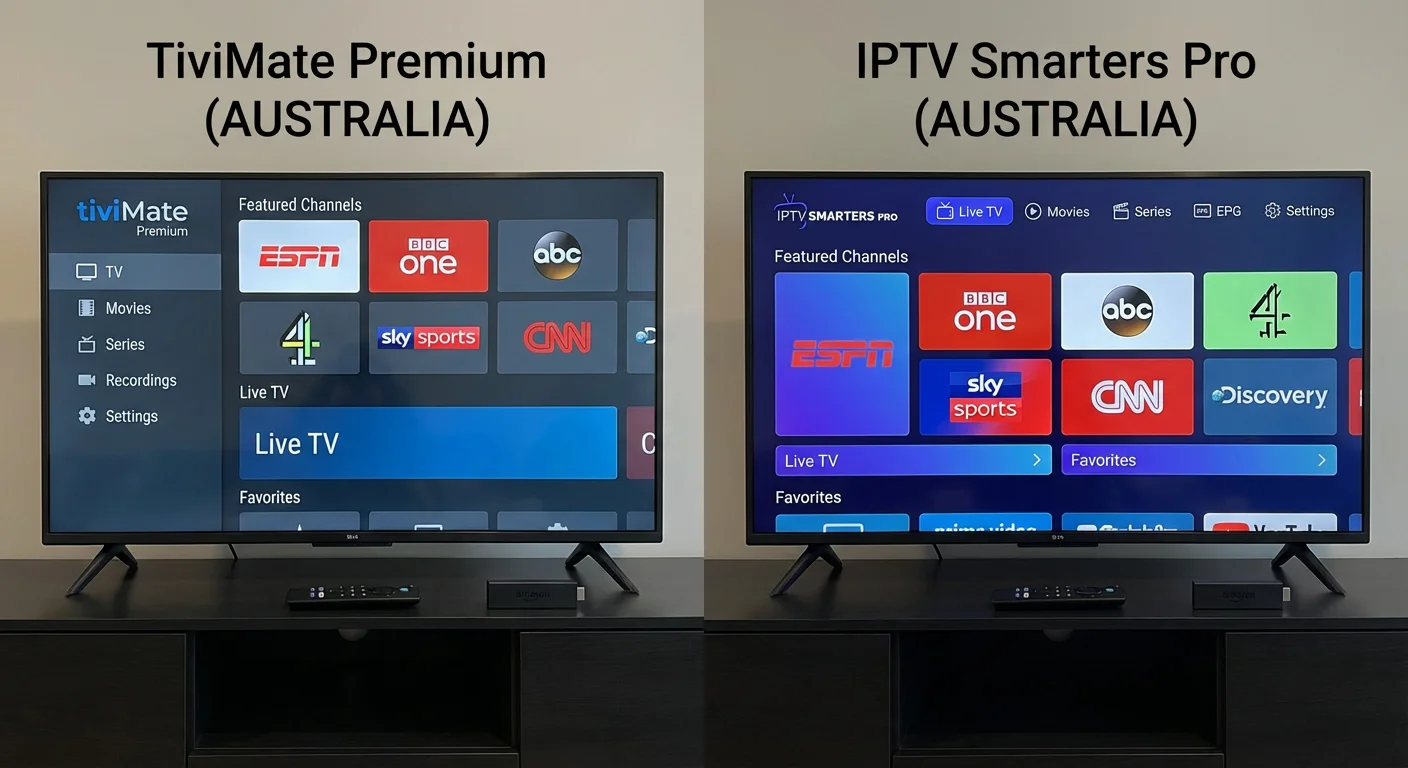
IPTV Smarters Pro remains the gold standard for Aussie IPTV users. It supports the Xtream Codes API and M3U playlists, giving you flexibility to connect to virtually any IPTV service provider.
Key Features:
- Clean, intuitive interface with live TV, VOD, and series sections
- Built-in EPG (Electronic Program Guide)
- Multi-user and parental control support
- Supports external video players
- Works with most Australian IPTV providers
Pros: Easy setup, stable performance, excellent layout
Cons: Requires a separate IPTV subscription; occasionally removed from app stores
If you’re pairing the device with an Australian IPTV provider, check our top IPTV services for Australia for compatible options.
2. TiviMate
Best for EPG and channel management.
TiviMate has earned a cult following among Fire Stick IPTV users in Australia thanks to its television-like interface and robust EPG integration. The free version is functional, but the premium unlock ($6.99/year) is arguably the best value in IPTV.
Key Features:
- Stunning EPG grid view
- Favourite channels and groups
- Catch-up and recording support (provider-dependent)
- Auto-update playlists
- Multiple playlist support (premium)
Pros: Best EPG experience on Fire Stick, fast channel switching
Cons: Premium required for full features; sideload needed
3. Kodi
It’s best for customisations and add-ons.
Kodi is an open-source multimedia centre that transforms your Fire Stick into a powerful streaming hub. While not an IPTV app per se, Kodi’s PVR IPTV Simple Client add-on turns it into a fully featured IPTV player.
Key Features:
- Thousands of add-ons available
- PVR IPTV Simple Client for M3U/EPG
- Supports virtually every media format
- Highly customisable skins and layouts
- Local and network media playback
Pros: Free, open-source, endlessly customisable
Cons: Steeper learning curve, manual setup required
4. VLC for Fire
Best for straightforward M3U playback.
VLC is a trusted name in media playback, and the Fire TV version handles IPTV streams via M3U URLs with ease. It’s not purpose-built for IPTV, but it’s reliable and lightweight.
Key Features:
- Plays M3U, M3U8, and network streams
- No ads, no tracking
- Subtitle support
- Hardware acceleration
Pros: Lightweight, reliable, completely free
Cons: No EPG, no channel organisation, basic interface
5. XCIPTV Player
Best for managing multiple playlists.
XCIPTV Player is a clean, modern IPTV player that handles both Xtream Codes and M3U formats. Australian users who subscribe to more than one IPTV service will appreciate its multi-playlist management.
Key Features:
- Supports Xtream Codes API and M3U
- Built-in EPG
- Favourite channels
- Multiple playlist profiles
- Clean material design interface
Pros: Multi-playlist, intuitive UI, stable
Cons: Occasional buffering with lower-quality providers
6. Pluto TV
Best free IPTV app for Fire Stick Australia.
Pluto TV is 100% free and legal. It offers hundreds of live channels across news, sport, entertainment, and movies — no account required. While the Australian channel lineup is more limited than the US version, it’s still a fantastic free option.
Key Features:
- 250+ free live channels
- On-demand movies and shows
- No sign-up required
- Ad-supported model
Pros: Completely free, legal, no subscription needed
Cons: Limited Australian-specific content, ad-supported
7. SBS On Demand
Best legal free streaming for Australian content.
SBS On Demand is a must-have for any Aussie Fire Stick. It streams SBS channels live, plus a massive on-demand library including SBS World Movies, NITV, and exclusive international dramas.
Key Features:
- Live SBS, SBS Viceland, SBS World Movies, NITV
- Huge on-demand library
- Free with optional ad-free upgrade
- Australian and international content
Pros: Free, legal, excellent content variety
Cons: Some geo-restrictions on international content
8. ABC iview
Best for Australian free-to-air on Fire Stick.
ABC iview delivers live and on-demand content from Australia’s national broadcaster. From news and current affairs to kids’ programming and Australian drama, it’s essential viewing.
Key Features:
- Live ABC channels
- Catch-up TV (up to 30 days)
- Kids’ section with parental controls
- Australian-made content
Pros: 100% free, high-quality Aussie content
Cons: Limited to ABC programming
9. GSE Smart IPTV
GSE Smart IPTV supports M3U, JSON, and Xtream Codes playlists. It includes a built-in player, EPG, and Chromecast support, making it versatile for different streaming setups across Australia.
Pros: Versatile format support, built-in EPG
Cons: Interface feels dated, occasional crashes
10. OTT Navigator
OTT Navigator is a feature-rich IPTV player with advanced EPG, channel grouping, and provider management. It’s ideal for power users who want granular control over their IPTV Fire Stick setup in Australia.
Pros: Advanced features, great EPG, multi-provider support
Cons: Overwhelming for beginners, requires sideloading
How to Install IPTV Apps on Fire Stick (Step-by-Step)
Setting up IPTV apps on your Fire Stick in Australia is straightforward. Here’s how:
Method 1: Install from the Amazon App Store
This method works for apps like Pluto TV, VLC for Fire, SBS On Demand, and ABC iView.
- From the Fire Stick Home Screen, select the Search icon (magnifying glass)
- Type the app name (e.g., “Pluto TV”)
- Select the app from the results
- Click Download or Get
- Once installed, open the app from Your Apps & Channels
Method 2: Sideload Apps Not on the App Store
Many Fire Stick IPTV apps in Australia (like TiviMate, IPTV Smarters Pro, and XCIPTV) need to be sideloaded. Here’s how:
Step 1: Enable Apps from Unknown Sources
- Go to Settings > My Fire TV > Developer Options
- Turn on Apps from Unknown Sources (or Install Unknown Apps)
Step 2: Install the Downloader App
- Search for “Downloader” in the Amazon App Store
- Install and open it
Step 3: Download and Install Your IPTV App
- In Downloader, enter the APK URL for your chosen app
- Click Go > Download > Install
- Once installed, open the app and enter your IPTV service credentials (M3U URL or Xtream Codes)
Pro Tip: After installation, delete the APK file to free up storage on your Fire Stick.
For a more detailed walkthrough with screenshots, see our complete IPTV installation guide.
Free IPTV Apps for Fire Stick Australia
You don’t need to pay a cent to start streaming. These free IPTV apps work on Fire Stick in Australia without any subscription:
| App | Content Type | Account Required? | Ads? |
|---|---|---|---|
| Pluto TV | Live TV & On Demand | No | Yes |
| SBS On Demand | Aussie & International | Yes (free) | Yes |
| ABC iview | Australian FTA | No | No |
| 7 plus | Australian FTA | Yes (free) | Yes |
| 9Now | Australian FTA | Yes (free) | Yes |
| 10 Play | Australian FTA | Yes (free) | Yes |
These apps are 100% legal and provide access to Australian free-to-air channels, news, sport, and on-demand libraries.
If you are keen to explore additional free options beyond Fire Stick, our guide on free IPTV apps in Australia covers more platforms and services.
Legal vs Illegal IPTV in Australia – What You Need to Know

This is an important distinction every Australian Fire Stick user should understand.
✅ Legal IPTV
- Apps like Pluto TV, SBS On Demand, ABC iview, Kayo, Stan, Foxtel Now
- Licensed content from authorised providers
- Subscription-based or free with ads
- No risk of fines or account termination
❌ Illegal IPTV
- Unlicensed services offering premium channels (pay TV, PPV) for suspiciously low prices
- Services streaming content without broadcasting rights
- Often unreliable with frequent buffering and channel outages
- Potential legal consequences under Australian copyright law
The Grey Area: IPTV Players
Apps like IPTV Smarters Pro, TiviMate, and Kodi are legal tools. They’re simply media players. Legality depends entirely on the content source you connect them to. Using these apps with a licensed IPTV provider is perfectly legal.
Our recommendation: Stick with legitimate services. The small cost is worth the reliability, quality, and peace of mind. For more details on what’s legal in Australia, read our guide to legal IPTV streaming.
IPTV Apps for Fire Stick Australia – Comparison Table
| Feature | IPTV Smarters Pro | TiviMate | Kodi | VLC | Pluto TV | XCIPTV |
|---|---|---|---|---|---|---|
| Free to Use | ✅ | ✅/💰 | ✅ | ✅ | ✅ | ✅ |
| EPG Support | ✅ | ✅ | ✅ | ❌ | ✅ | ✅ |
| M3U Support | ✅ | ✅ | ✅ | ✅ | ❌ | ✅ |
| Xtream Codes | ✅ | ✅ | ❌ | ❌ | ❌ | ✅ |
| Multi-Playlist | ❌ | 💰 | ✅ | ❌ | ❌ | ✅ |
| Needs Subscription | Yes | Yes | Optional | Optional | No | Yes |
| On Amazon Store | ❌ | ❌ | ❌ | ✅ | ✅ | ❌ |
| Aussie Content | Provider-dependent | Provider-dependent | Add-on dependent | N/A | Limited | Provider-dependent |
| Ease of Use | ⭐⭐⭐⭐⭐ | ⭐⭐⭐⭐ | ⭐⭐⭐ | ⭐⭐⭐⭐ | ⭐⭐⭐⭐⭐ | ⭐⭐⭐⭐ |
💰 = Premium feature
How to Choose the Right IPTV App for Your Fire Stick
Not every app suits every user. Consider these factors when choosing your Fire Stick IPTV app in Australia:
1. What Do You Want to Watch?
- Australian FTA channels → SBS On Demand, ABC iview, 7plus
- International channels → IPTV Smarters Pro or TiviMate + IPTV subscription
- Live sport → Kayo Sports, or IPTV provider with sports packages
- Free content → Pluto TV
2. Technical Comfort Level
- Beginner → Pluto TV, SBS On Demand (install from App Store, no config needed)
- Intermediate → IPTV Smarters Pro, XCIPTV (sideload + enter credentials)
- Advanced → Kodi, OTT Navigator (full customisation)
3. Budget
- Free → Pluto TV, ABC iview, SBS On Demand
- Low cost → TiviMate Premium ($6.99/yr) + affordable IPTV subscription
- Premium → Kayo, Foxtel Now, Stan Sport
4. Number of IPTV Providers
- Single provider → IPTV Smarters Pro
- Multiple providers → TiviMate Premium or XCIPTV
5. Fire Stick Model
- Fire Stick Lite → Use lightweight apps (VLC, Pluto TV) to avoid lag
- Fire Stick 4K / 4K Max → Any app; can handle TiviMate and Kodi comfortably
Internet Speed Requirements for IPTV on Fire Stick in Australia
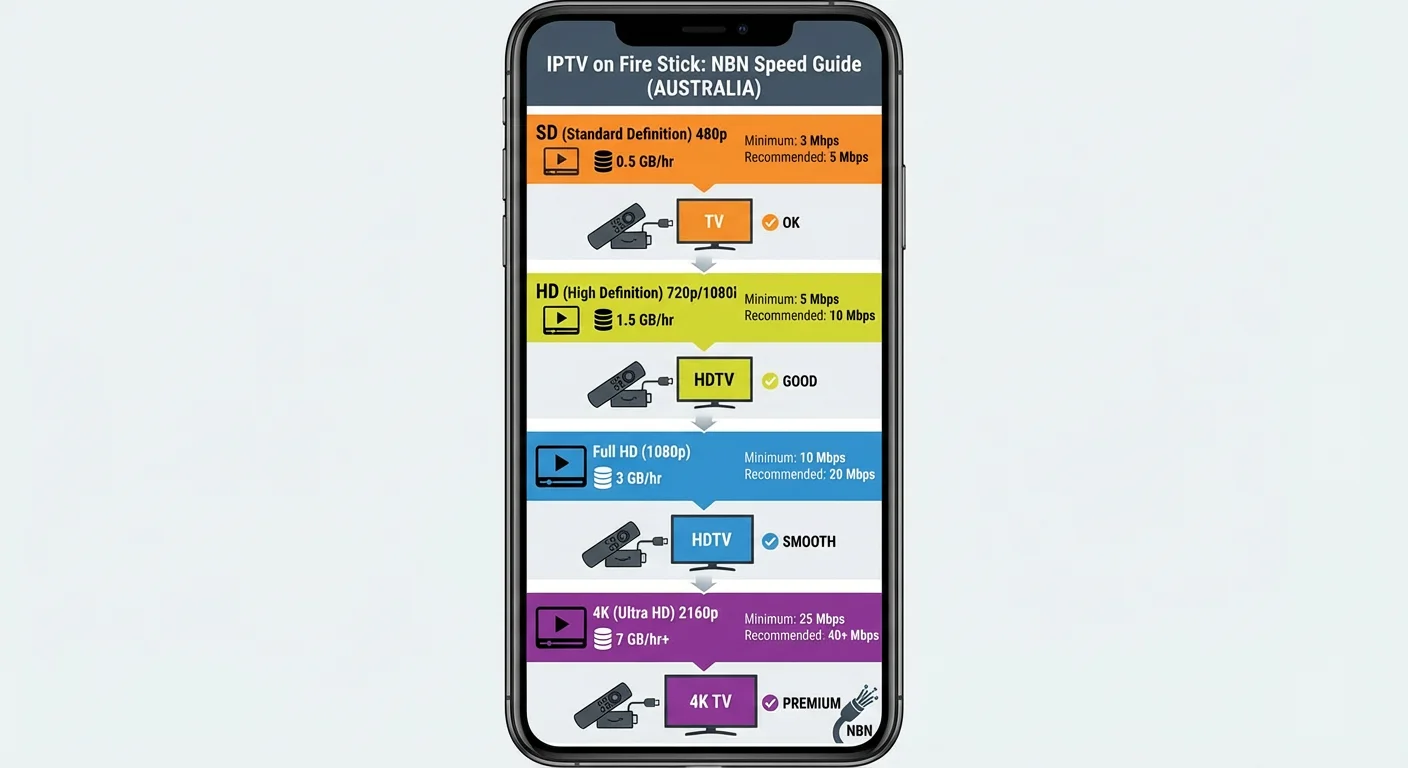
Buffering is the #1 complaint from Australian IPTV users. Here’s what you actually need:
| Stream Quality | Minimum Speed | Recommended Speed |
|---|---|---|
| SD (480p) | 3 Mbps | 5 Mbps |
| HD (720p) | 5 Mbps | 10 Mbps |
| Full HD (1080p) | 10 Mbps | 20 Mbps |
| 4K Ultra HD | 25 Mbps | 50 Mbps |
Tips to Reduce Buffering on Fire Stick
- Use Ethernet: The Amazon Ethernet Adapter for Fire TV provides a more stable connection than Wi-Fi
- Position your router closer to the Fire Stick or use a Wi-Fi mesh system
- Close background apps on your Fire Stick to free up resources
- Choose an NBN plan with at least 25 Mbps for HD streaming and 50 Mbps+ for 4K.
- Use a VPN if your ISP throttles streaming traffic (common with some Australian ISPs)
Australians on NBN 50 or above should have no issues streaming IPTV in full HD. If you’re on a slower NBN tier or fixed wireless, stick with SD or 720p streams.
Frequently Asked Questions
What is the best IPTV app for Fire Stick in Australia?
IPTV Smarters Pro is widely regarded as the best all-round IPTV app for Fire Stick in Australia. It’s user-friendly, supports M3U and Xtream Codes, and works reliably with most Australian IPTV providers. For a completely free option, Pluto TV is the top choice.
Are IPTV apps legal on Fire Sticks in Australia?
Yes — IPTV apps themselves are legal. They are simply media players. The legality depends on the content you access.
Using apps like SBS On Demand, ABC iView, and Pluto TV is 100% legal. Connecting IPTV players to unlicensed services that redistribute pay TV content without rights is illegal under Australian copyright law.
Can I get free IPTV on a Fire Stick in Australia?
Absolutely. Pluto TV offers 250+ free live channels with no account needed. SBS On Demand, ABC iView, 7plus, 9Now, and 10 Play all provide free access to Australian free-to-air content on the Fire Stick.
Do I need a VPN for IPTV on Fire Stick in Australia?
A VPN isn’t mandatory for legal IPTV apps. However, a VPN can help if your ISP throttles streaming traffic or if you want to access geo-restricted content. Popular choices for Aussie users include ExpressVPN, NordVPN, and Surfshark.
How do I install IPTV apps unavailable on the Amazon App Store?
You need to sideload them. Enable “Apps from Unknown Sources” in your Fire Stick settings, install the free Downloader app, and then enter the APK URL for the app you want. Full steps are outlined in the installation section above.
What Fire Stick model is best for IPTV in Australia?
The Fire Stick 4K Max is the best option. It has the most RAM, the fastest processor, and supports Wi-Fi 6 – all of which improve IPTV streaming performance. The standard Fire Stick 4K is also excellent. Avoid the Fire Stick Lite for heavy IPTV use as it can lag with EPG-heavy apps.
Why does my IPTV buffer on Fire Stick?
Common causes include:
Slow internet connection (below 10 Mbps for HD)
Wi-Fi interference or weak signal
ISP throttling streaming traffic
Overloaded IPTV server from your provider
Too many background apps running on the Fire Stick
Conclusion
Finding the right IPTV apps for Fire Stick in Australia comes down to what you want to watch, your budget, and how much setup you’re comfortable with.
For the best overall experience, pair IPTV Smarters Pro or TiviMate with a reputable IPTV provider. For free and legal streaming, you can’t beat Pluto TV, SBS On Demand, and ABC iview — all available directly on Fire Stick with zero cost.
No matter which path you choose, make sure your internet connection meets the minimum speed requirements, consider sideloading for the best app selection, and always prioritise legal content sources.
Ready to get started? Browse our recommended IPTV providers for Australia to find a service that works with your Fire Stick and budget.