
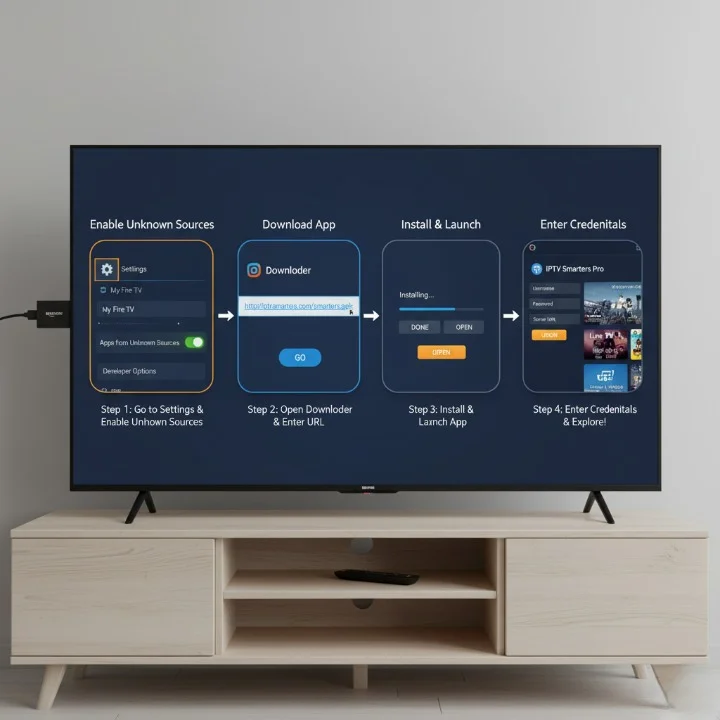
Installing IPTV on Firestick is easier than you might think. In this complete guide, you’ll learn how to set up IPTV on your Amazon Firestick in just a few minutes and turn it into a powerful streaming device.
Whether you’re tired of expensive cable bills or simply want access to a wider variety of content, this step-by-step Firestick IPTV installation guide will walk you through everything—no technical experience required.
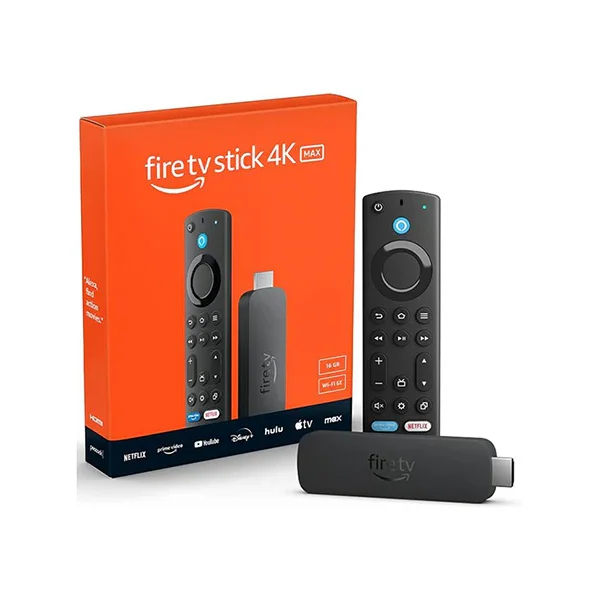
I’ve set up IPTV on dozens of Firesticks for friends and family over the years. Heading into 2026, I can confidently tell you this: learning how to install IPTV on Firestick is far easier than most people assume. The process might sound intimidating if you’ve never sideloaded an app before, but trust me—if you can navigate Netflix, you can do this.
Important Legal Notice: Understanding IPTV Legality
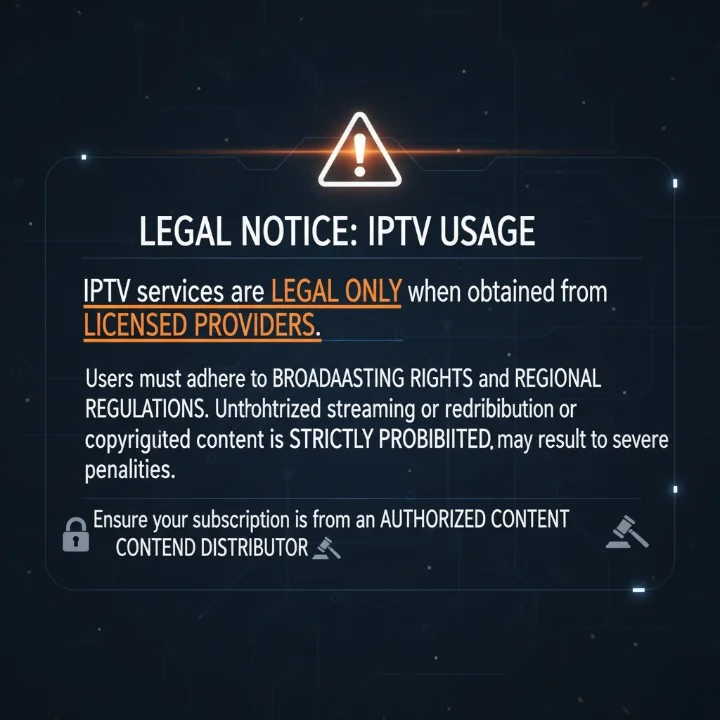
This guide on installing IPTV on Firestick applies only to lawful, licensed IPTV services. IPTV as a technology is completely legal when used with authorized providers, but the legality of individual services varies by region.
Always make sure your IPTV provider:
- Holds the proper broadcasting licenses in your country
- Operates legally within your jurisdiction
- Has legitimate agreements with content owners
- Clearly displays verified licensing information
For details on broadcasting regulations in your area, consult your local telecommunications authority or government media regulator.
Do not use this guide to access pirated or unauthorized IPTV services, as this violates copyright laws and provider terms of service.
Key Takeaways: Why This Guide Works
- No jailbreaking required – You’ll simply enable a built-in Firestick setting that allows third-party apps
- Total setup time: 10-15 minutes – Most time is downloading and waiting
- Universal compatibility – This Firestick IPTV setup method works with any legitimate IPTV service
- Completely reversible – Uninstall everything anytime and return to factory settings
- Comprehensive troubleshooting – Solutions for buffering, freezing, and common IPTV problems
- 2026 optimized – Updated for latest Firestick models and IPTV player requirements
Why Firestick is Perfect for IPTV in 2025-2026
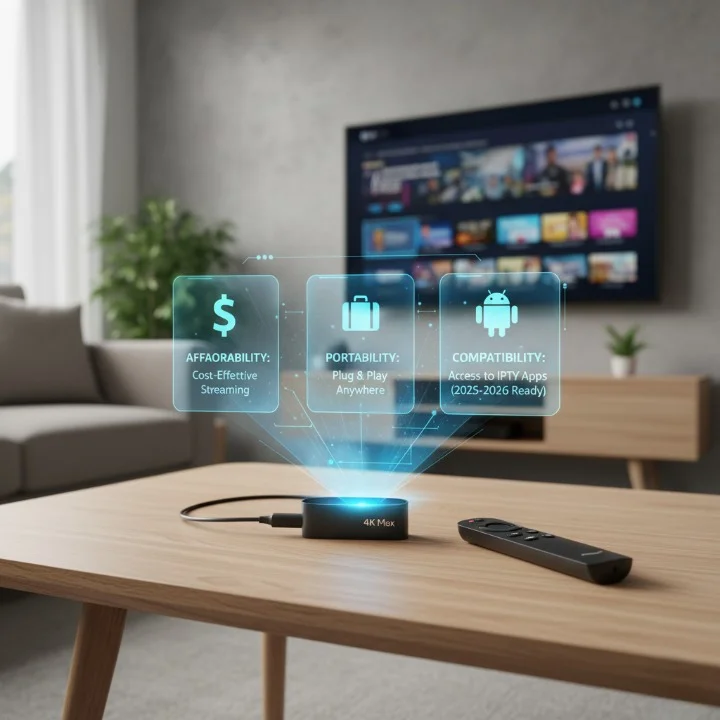
Before diving into the Firestick IPTV installation process, let me explain why millions choose Firestick for IPTV streaming.
First, it’s incredibly affordable—the latest Firestick models range from $30-60 depending on the version.
Second, it’s compact and portable, meaning you can take your entire entertainment system on vacation.
Third, and most importantly, it runs on Fire OS (Android-based software), making it compatible with virtually every IPTV player app available.
Unlike streaming devices that lock you into their ecosystem, Firestick allows you to install apps from outside the Amazon App Store.
This flexibility is exactly what you need for sideloading IPTV applications.
How to Enable Unknown Sources on Firestick (Step 1)
This is where most beginners get nervous, but there’s nothing to worry about. Enabling “Apps from Unknown Sources” is simply telling your Firestick you trust apps from outside Amazon’s official store.
Think of it like allowing your phone to install apps from somewhere other than Google Play or the App Store.
This is completely safe when downloading from trusted sources—which we’ll use throughout this guide.
How to Enable Unknown Sources – Complete Instructions:
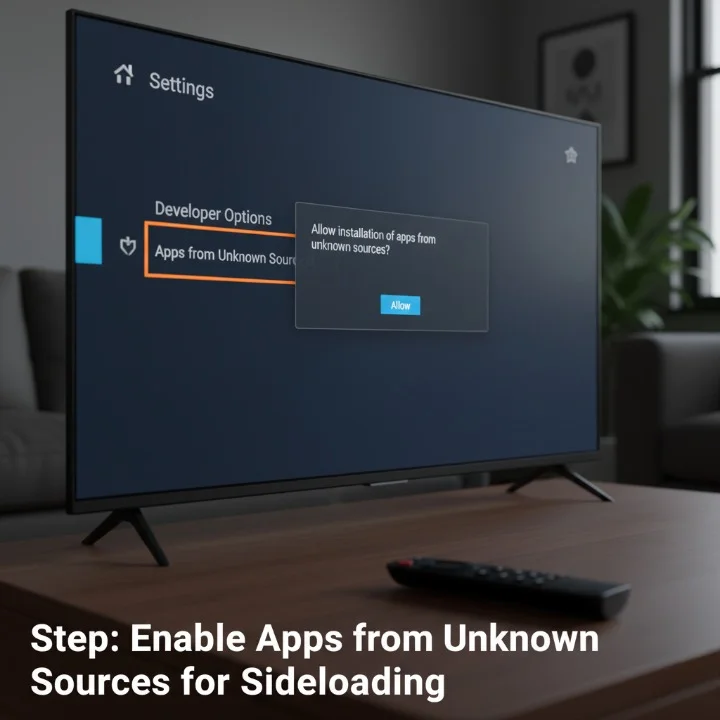
- From your Firestick home screen, navigate to Settings (the gear icon at the top)
- Scroll right and select My Fire TV (on older devices, this might say “Device”)
- Click on Developer Options
- Select Apps from Unknown Sources and turn it ON
- A warning message will appear—simply click Turn On to confirm
Pro Tip: You only need to do this once. Once enabled, this setting remains active unless you manually turn it off later.
Downloading the Downloader App (Step 2)
The Downloader app is your gateway to installing IPTV on Firestick. It’s a legitimate, free app available in the official Amazon App Store that works like a simple web browser capable of downloading and installing Android apps (APK files) directly to your Firestick.
Throughout my years of sideloading apps, I’ve tried various methods, and Downloader remains the easiest and most reliable option for 2025-2026.
How to Install Downloader App – Step-by-Step:
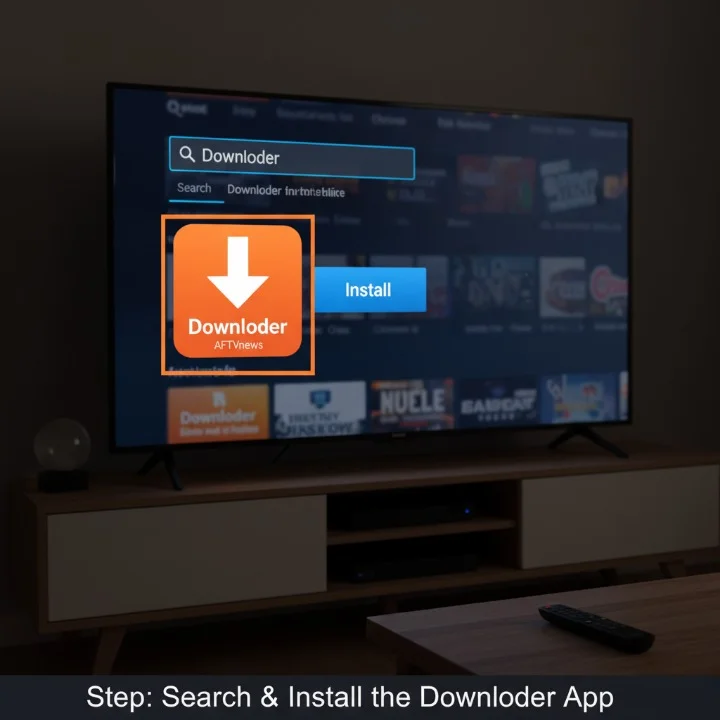
- Return to your Firestick home screen
- Click the magnifying glass icon (search button) at the top left
- Type “Downloader” using the on-screen keyboard
- Select the orange Downloader app from results (by AFTVnews.com)
- Click Download or Get
- Wait for installation to finish, then click Open
The app will request permission to access your files—click Allow. This is necessary for saving downloaded files.
Getting Your IPTV Player APK (Step 3)
Now comes the exciting part of the Firestick IPTV setup process. You’ll use Downloader to download your IPTV player app. Several popular options exist in 2026:
- IPTV Smarters Pro – Best for beginners (recommended for this guide)
- TiviMate – Popular with advanced users
- XCIPTV – Lightweight and fast
Important: You should receive the download link for your IPTV app directly from your IPTV service provider. If they haven’t sent one, contact their support team immediately. Never download IPTV apps from random websites—this is a security risk.
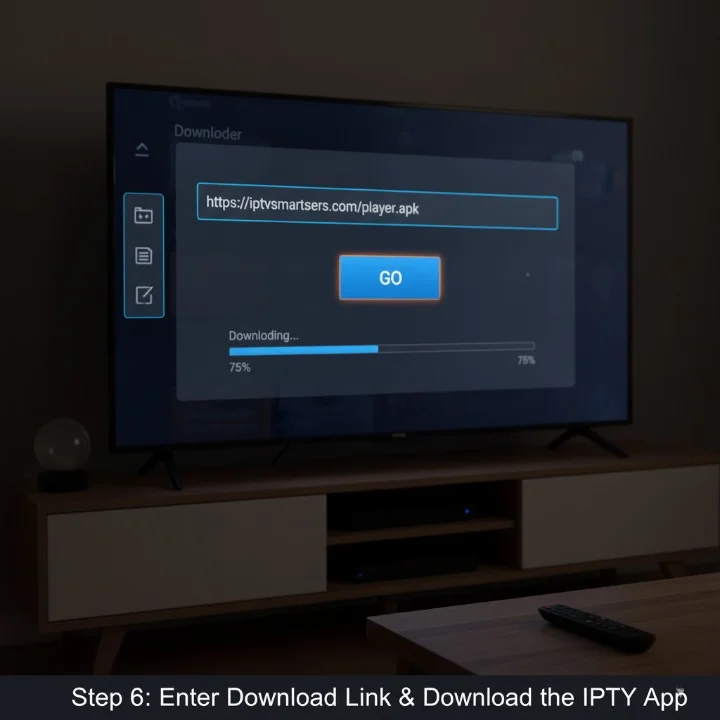
How to Download IPTV Player APK Using Downloader:
- Open the Downloader app
- You’ll see a browser-like interface with a URL field
- Click in the URL field and enter the APK download link from your IPTV provider
- Click Go
- The app will start downloading (progress bar visible)
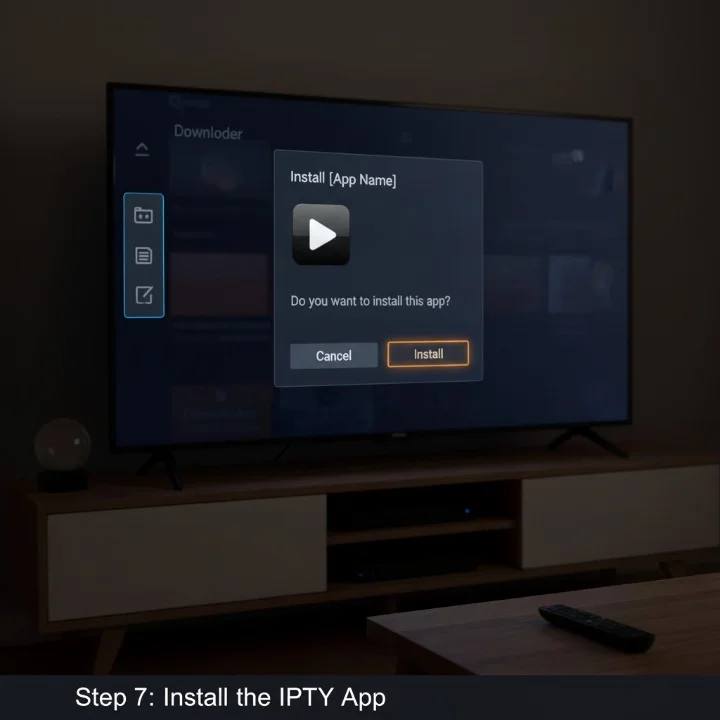
- Once complete, an installation window appears automatically
- Click Install
- Wait for installation to finish
- Click Done (not “Open” yet)
Pro Tip: After clicking “Done,” Downloader will ask if you want to delete the APK file. Click Delete to free up storage space. You won’t need the installation file anymore.
Finding a Reliable IPTV Provider
When choosing an IPTV service for your Firestick setup, watch for these red flags:
Signs of Unreliable/Illegal Providers:
- No clear contact information or support
- Unrealistic promises (all channels for $5/month)
- No visible licensing information
- Frequent server downtime (check reviews)
- Payment through untraceable methods only
- No terms of service or privacy policy
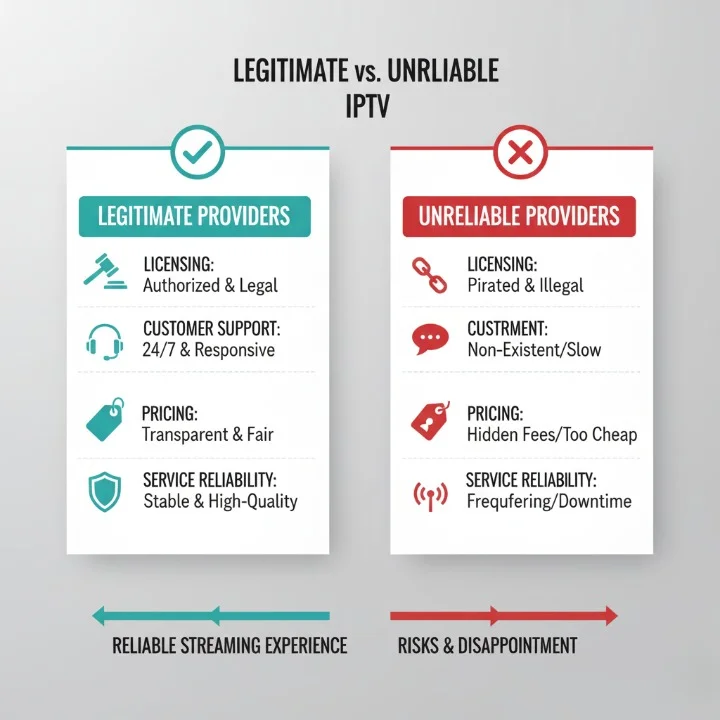
Signs of Legitimate Providers:
- Clear licensing information visible
- Professional customer support (email, chat, phone)
- Transparent pricing and package options
- Regular updates and channel additions
- Clear terms of service
- Professional website and branding
Setting Up Your IPTV Subscription (Step 4)
This is where your IPTV subscription comes to life on Firestick. You’ll need the login credentials your IPTV provider sent you—typically in a welcome email or through their customer portal.
Information You’ll Need from Your Provider:
- Username – Your account username
- Password – Your account password
- Server URL – Sometimes called “Portal URL” or “Server Address”
Some providers offer an M3U URL or playlist file as an alternative login method. Both work fine—we’ll cover the most common method (Xtream Codes API) below.
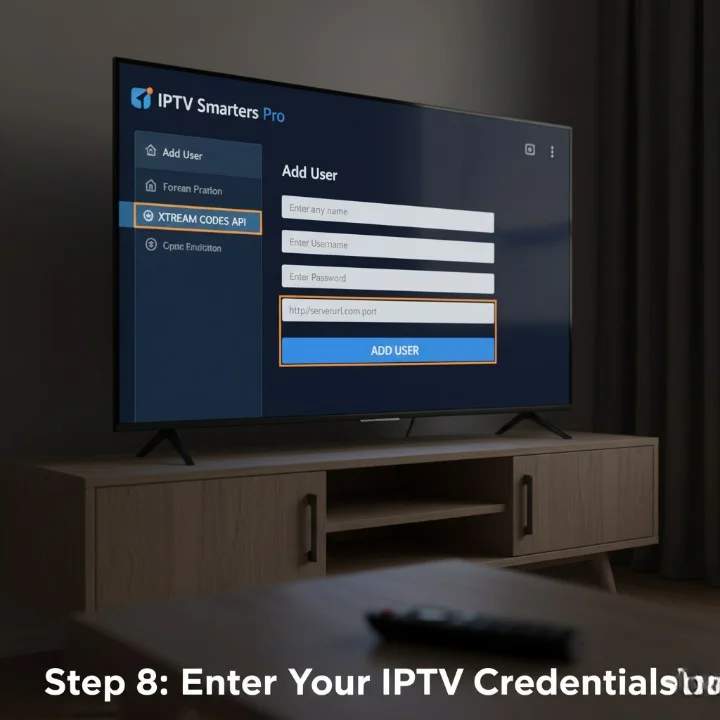
First-Time Firestick IPTV Setup in IPTV Smarters:
- Find your newly installed IPTV app in your Firestick’s app list (press and hold Home button, select Apps)
- Launch the app
- Accept any permissions the app requests
- On the welcome screen, click Add New User
- You’ll see three login options:
- Login with Xtream Codes API (most common—select this if your provider gave you username, password, and server URL)
- Login with M3U URL (if your provider gave you a playlist link)
- Login with Local M3U File (rarely used for Firestick)
- Select Xtream Codes API
- Enter your credentials exactly as provided:
- Username field: your username
- Password field: your password
- URL field: your server address (usually starts with http:// or https://)
- Click Add User
The app will verify your credentials. If correct, you’ll see a loading screen, then access to your channels!
What to Expect After Logging In:
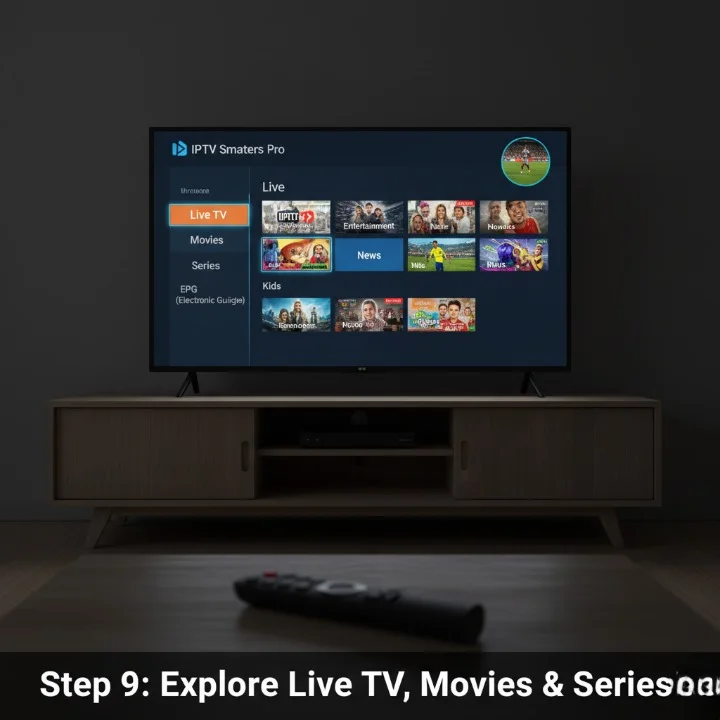
Once logged in, you’ll see the main interface with several sections:
- Live TV – Your live channels organized by category (sports, news, entertainment, movies, etc.)
- Movies – On-demand movie library
- Series – TV shows available on demand
- EPG (Electronic Program Guide) – TV guide showing current and upcoming programming
Explore these sections and customize your favorites list for quick access.
Troubleshooting Common IPTV Problems on Firestick (Step 5)
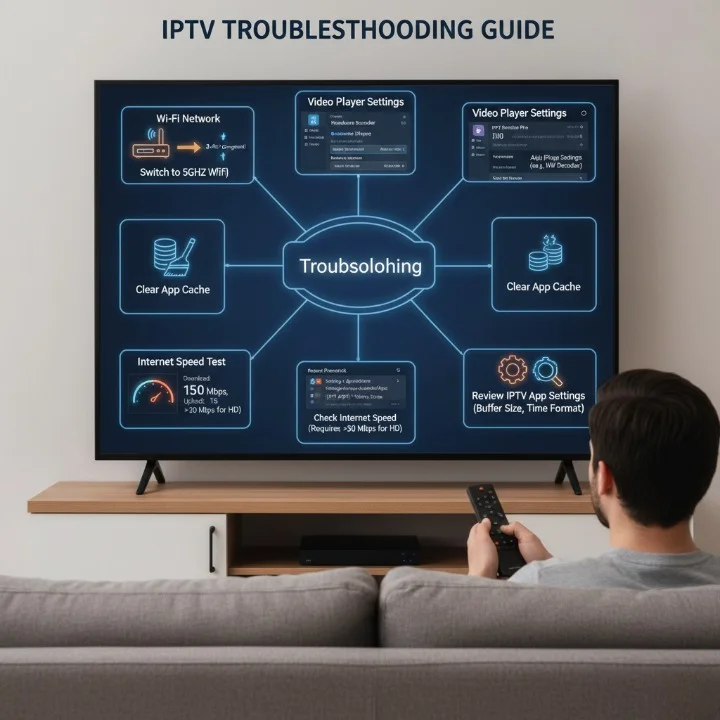
Here’s the reality: IPTV isn’t always as smooth as Netflix. Buffering happens. Streams freeze. But 90% of these issues can be fixed with simple adjustments. These are the solutions that actually work for fixing IPTV buffering on Firestick.
1. Improve Your Internet Connection (Most Critical)
This is the number one culprit for IPTV problems. IPTV needs stable, fast internet—ideally:
- 15 Mbps minimum for SD content
- 35+ Mbps for reliable HD/4K streams in 2025-2026
Quick fixes for better connection:
- Switch to 5GHz Wi-Fi – If your router supports dual-band, connect your Firestick to 5GHz instead of 2.4GHz. It’s faster and less crowded.
- Move closer to your router – Physical distance matters significantly. Place your router in the same room or minimize walls between them.
- Use Ethernet adapter – For best stability, connect directly with an Ethernet cable using an Amazon Ethernet Adapter ($15-20). This is the most reliable option.
- Restart your network – Unplug modem and router, wait 30 seconds, plug back in. Simple solutions often work best.
2. Change the Video Player in Your IPTV App
Different video players handle streams differently. If one isn’t working smoothly, switch to another.
In IPTV Smarters:
- Open the app and go to Settings
- Select Player Selection
- Try switching between:
- ExoPlayer – Usually best for most streams
- MPEG-TS – Good for older or lower-quality streams
- MX Player – Alternative if separately installed
Experiment to find the smoothest option.
3. Clear Firestick Cache and RAM
Limited Firestick memory and background apps slow performance.
To close background apps:
- Press and hold the Home button on your remote
- Select Apps
- Force Stop any apps you’re not using
To clear app cache:
- Go to Settings > Applications > Manage Installed Applications
- Click Clear Cache (NOT “Clear Data”—that deletes your login)
- Find your IPTV app
4. Adjust Video Quality Settings
If your internet can’t handle HD reliably, force lower quality.
In most IPTV apps, find quality settings under Settings > Player Settings. Set to “Auto” or manually select lower resolution like 720p or SD.
5. Check Your Provider’s Server Status
Sometimes the problem isn’t on your end. If multiple channels buffer or don’t load, your provider’s servers might be overloaded.
Contact your provider’s support or check their status page. A good provider will be transparent about server issues.
6. Using VPN with IPTV (When Appropriate)
In some cases, your ISP might throttle IPTV traffic or streams might be geo-restricted. A VPN can potentially help by:
- Masking IPTV traffic from your ISP
- Bypassing regional restrictions on certain channels
- Providing a more stable route to your IPTV server
VPN Considerations: VPNs can also slow your connection if the server is slow or distant. Use a reputable service and check local laws regarding VPN usage for streaming.
7. Restart Your Firestick Regularly
Regular restarts prevent performance degradation. Go to Settings > My Fire TV > Restart once weekly or when performance feels sluggish.
How to Fix IPTV Buffering on Firestick – Quick Reference
| Problem | Solution |
|---|---|
| Constant buffering | Check internet speed (need 35+ Mbps for HD), switch to 5GHz WiFi, use Ethernet adapter |
| Channels won’t load | Clear app cache, restart Firestick, check provider server status |
| App crashes | Force stop background apps, clear cache, reinstall app |
| Poor video quality | Adjust quality settings to lower resolution, check internet speed |
| Audio out of sync | Change video player (try ExoPlayer or MPEG-TS), clear cache |
Frequently Asked Questions About Firestick IPTV Setup
Q: Is Firestick compatible with all IPTV apps? A: Yes, Firestick runs on Fire OS (Android-based), supporting virtually all IPTV players including IPTV Smarters, TiviMate, XCIPTV, and Perfect Player.
Q: Do I need to jailbreak my Firestick for IPTV? A: No. “Jailbreaking” is a misleading term from clickbait videos. You’re simply enabling a built-in system setting. No hacking or warranty issues involved.
Q: Is IPTV legal on Firestick? A: Installing IPTV is legal. Using it with licensed, legitimate providers is legal. The legality depends entirely on your provider’s licensing. Always verify your provider operates legally in your jurisdiction.
Q: Why won’t my IPTV app install on Firestick? A: Most common cause is insufficient storage space. Delete unused apps, clear cached data via Settings > Applications > Manage Installed Applications. Also verify you’ve enabled “Apps from Unknown Sources.”
Q: How do I update my IPTV app on Firestick? A: Since these apps aren’t in the Amazon App Store, they don’t auto-update. Download the newest APK from your provider using Downloader and install over the existing app. Your login credentials will be preserved.
Q: Can I install multiple IPTV apps on Firestick? A: Yes! Install as many as your storage allows. Try different apps and use whichever works best for you.
Q: What’s the difference between Xtream Codes API and M3U URL? A: Xtream Codes API is generally superior, providing better organization, categories, EPG data, and improved VOD integration. M3U URLs are simpler but offer a more basic experience. Use whichever your provider offers.
Q: How do I customize my IPTV channel list on Firestick? A: Most IPTV apps allow creating favorites lists or rearranging channels. Look for “Favorites” or “Channel Editor” options in settings. TiviMate offers extensive customization features.
Q: What internet speed do I need for IPTV on Firestick? A: Minimum 15 Mbps for SD, 35+ Mbps for reliable HD/4K streams. Use a speed test tool to verify your connection at speedtest.net.
Q: Is it safe to sideload IPTV apps on Firestick? A: Yes, sideloading from trusted sources is safe. Only download APK files directly from your IPTV provider. Never use APK files from third-party websites.
Final Thoughts: You’re Ready to Stream IPTV on Firestick
If you’ve followed each step, congratulations—you now have a fully functional Firestick IPTV setup. Explore your channels, set up favorites, and adjust settings to your preference.
Remember, there’s a learning curve with any new technology. If something doesn’t work perfectly initially, don’t panic. Refer back to the troubleshooting section or contact your IPTV provider’s support team.
Final Advice: Keep your setup simple. Don’t install ten different IPTV apps searching for the “best” one. Pick one that works well and stick with it. Complexity is the enemy of reliability.
Updating Your IPTV Setup: Best Practices for 2026
- Check for app updates monthly by downloading the latest APK from your provider
- Test your internet speed quarterly (speedtest.net)
- Clear your Firestick cache monthly to maintain performance
- Review your IPTV provider annually to ensure they remain legitimate and reliable
- Update your provider credentials if they change security requirements
Legal Disclaimer: IPTV Legality 2026
This guide is intended for use with lawful, licensed IPTV services only. Always verify that your IPTV provider:
- Operates legally in your jurisdiction
- Holds proper broadcasting and content distribution rights
- Complies with local telecommunications regulations
- Has transparent terms of service and privacy policies
Laws regarding IPTV vary by country. Consult your local government’s broadcasting authority for current regulations in your region. Do not use these instructions to access pirated, unauthorized, or illegal streams.
Related Articles You Might Enjoy:
- How to Fix IPTV Freezing and Buffering Issues
- Best IPTV Players for Firestick 2026
Author

Our Fact Checking Process
We prioritize accuracy and integrity in our content. Here's how we maintain high standards:
- Expert Review: All articles are reviewed by subject matter experts.
- Source Validation: Information is backed by credible, up-to-date sources.
- Transparency: We clearly cite references and disclose potential conflicts.
Our Review Board
Our content is carefully reviewed by experienced professionals to ensure accuracy and relevance.
- Qualified Experts: Each article is assessed by specialists with field-specific knowledge.
- Up-to-date Insights: We incorporate the latest research, trends, and standards.
- Commitment to Quality: Reviewers ensure clarity, correctness, and completeness.
Look for the expert-reviewed label to read content you can trust.