

IPTV buffering in Australia is one of the most common complaints I hear from Aussie streamers—and after six years of testing apps, routers, and NBN plans, I’ve learned that most buffering problems are fixable at home.
This guide walks you through exactly how to diagnose and fix IPTV buffering, whether the issue is your internet, Wi-Fi, device, or the streaming service itself.
TL;DR – Quick Summary
80% of IPTV buffering problems in Australia come down to two things: weak Wi-Fi or a poor-quality IPTV provider.
Here’s the fastest path to fixing it:
- Switch to Ethernet if possible—this alone fixes most buffering
- Run a speed test during evening hours (7–10 pm) to check for NBN congestion
- If Netflix works fine but IPTV doesn’t, the problem is almost certainly the IPTV service’s servers, not your internet
The rest of this guide walks you through every possible cause and fix.
Why Trust This Guide
I’ve been streaming IPTV in Australia for over six years—through three NBN speed tiers, two house moves, and more router upgrades than I care to count. I’ve tested apps like TiviMate, IPTV Smarters, and GSE Smart IPTV across Fire Sticks, Apple TV, Android boxes, and Smart TVs. I know what evening congestion looks like on FTTN, and I’ve learned the hard way which “fixes” are actually worth your time.
This guide is what I wish I’d had when I started. No fluff, no recycled generic advice—just practical steps that work for Australian internet conditions in 2026.
This article is reviewed and updated quarterly. If you spot outdated information, leave a comment and I’ll update it.
What Causes IPTV Buffering in Australia?
If you’re dealing with IPTV buffering in Australia, the fix depends on where the problem actually sits. In my experience, it usually comes down to one of four things:
- Your NBN connection – Speed, congestion, or ISP issues
- Your home network – Wi-Fi signal, router quality, or too many devices sharing bandwidth
- Your device or app – Outdated software, weak hardware, or app bugs
- The IPTV service itself – Server quality, especially with cheap or unlicensed providers
How Do I Stop My IPTV From Buffering?
The approach I recommend: start with the easiest checks (speed test, restart your device), then work through each layer until you find the culprit. Most buffering problems can be fixed at home without spending money—but sometimes the issue is the service itself, and no amount of tweaking will help.
Quick Diagnosis: Where Is the Problem?
Before changing anything, run through this checklist to narrow down the cause:
| Symptom | Likely Cause | First Step |
|---|---|---|
| Buffering on all apps (Netflix, YouTube, IPTV) | Internet or home network issue | Run a speed test at Speedtest.net |
| Buffering only on IPTV, other apps fine | IPTV provider or app issue | Try a different channel or restart the app |
| Buffering worse at night (7–10 pm) | NBN congestion or ISP throttling | Test speed during off-peak hours for comparison |
| Buffering only on one device | Device or app issue | Test the same stream on another device |
| Constant buffering, nothing helps | Likely the IPTV service’s servers | Consider switching providers |
If your speed test shows consistent results above 15 Mbps with low ping (under 30 ms), your internet is probably fine for HD—focus on your device, app, or IPTV provider instead.
Common Buffering Causes and Fixes
Here’s a quick reference for the most common issues I see:
| Buffering Cause | Why It Happens | Recommended Fix |
|---|---|---|
| Slow NBN speed | Plan too slow, or congestion during peak hours | Upgrade to 25+ Mbps; test during off-peak |
| Weak Wi-Fi signal | Distance from router, walls, interference | Use Ethernet cable or move router closer |
| Old or cheap router | Can’t handle multiple devices or modern streaming | Upgrade to a Wi-Fi 6 router |
| Outdated device/app | Software bugs, poor performance | Update firmware and apps; clear cache |
| Underpowered device | Cheap Android boxes struggle to decode streams | Use a reputable streaming device |
| Too many devices | Bandwidth shared across phones, tablets, laptops | Disconnect unused devices while streaming |
| Overloaded IPTV servers | Common with unlicensed/cheap services | Switch to a reliable, licensed provider |
Common Mistakes That Make Buffering Worse
Before diving into fixes, here are mistakes I see Aussies make all the time:
❌ Using a slow or free VPN – Adds latency and often makes buffering worse, not better
❌ Buying a $30 no-name Android box – Weak processors can’t decode HD/4K streams smoothly, regardless of your internet speed
❌ Staying on 2.4 GHz Wi-Fi – Slower and more congested than 5 GHz; switch if your router supports it
❌ Believing “10,000 channels in 4K for $5/month” – These services use overloaded servers and buffer constantly after the first few weeks
❌ Blaming the ISP when only IPTV buffers – If Netflix works fine, your NBN isn’t the problem
Avoid these, and you’re already ahead of most users.
Step-by-Step Fixes for IPTV Buffering
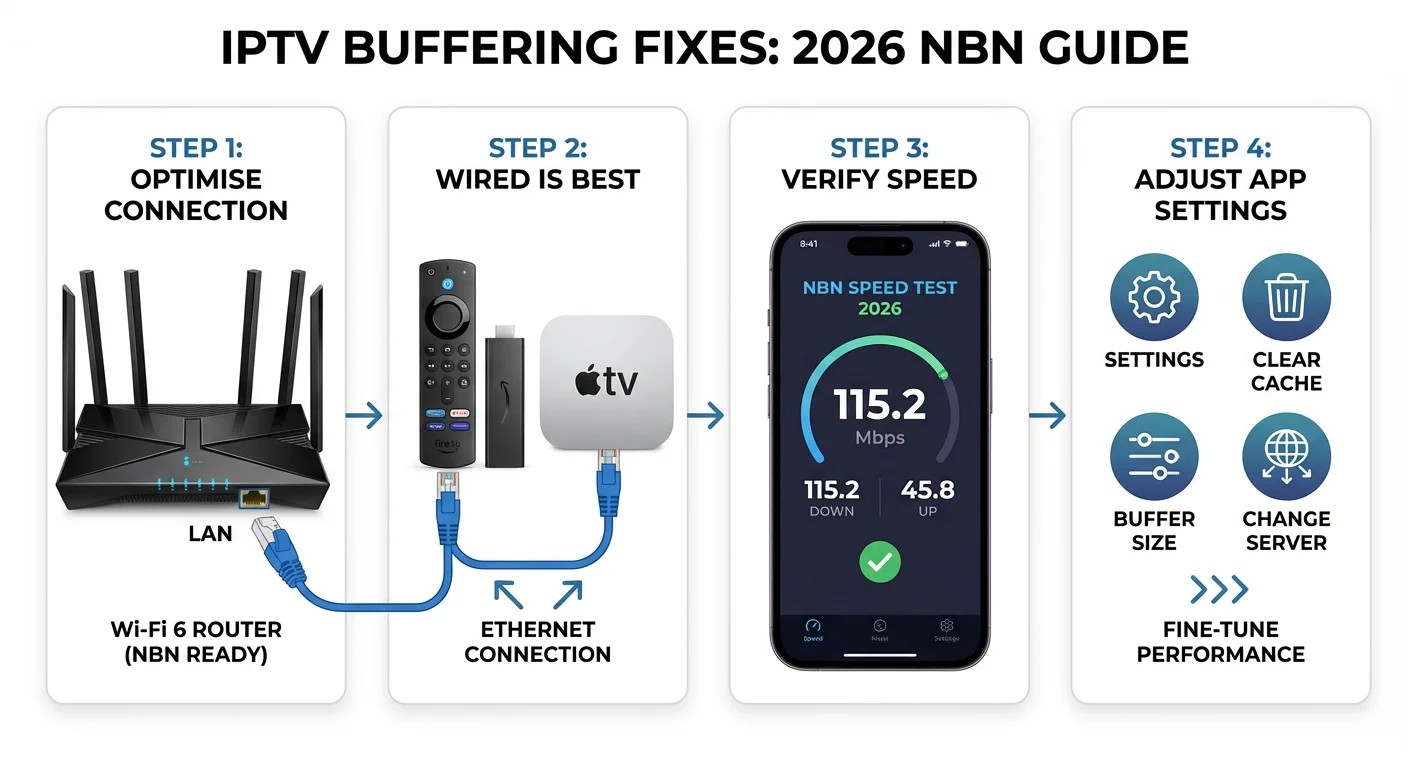
1. Test Your Internet Connection
What to check:
- Run a speed test during the time you normally stream. In Australia, evening speeds between 7–10 pm are often significantly slower due to neighbourhood congestion.
- For HD streaming, aim for at least 10–15 Mbps per stream (more if multiple people are online at once). For 4K content, 25–30 Mbps per stream is a safer baseline in 2026.
- Check your ping—anything under 30 ms is good. Higher ping can cause stuttering even if your download speed looks fine.
What to do:
- If speeds are consistently low, contact your ISP or consider upgrading your NBN plan. Many households are still on 25 Mbps plans that were fine a few years ago but struggle when multiple devices are streaming.
- If speeds drop only at night, the issue is likely congestion on your node. Some ISPs handle this better than others.
2. Switch to Ethernet (The Single Biggest Fix)
I can’t stress this enough: Wi-Fi is the number one cause of IPTV buffering I see. It’s convenient, but it’s also unreliable for sustained streaming.
Why Wi-Fi causes problems:
- Walls and distance weaken the signal
- Other devices (microwaves, cordless phones, neighbours’ networks) cause interference
- Multiple devices compete for bandwidth
What to do:
- Plug your streaming device directly into your router with an Ethernet cable. For many people, this alone completely fixes buffering.
- If running a cable isn’t practical, consider a powerline adapter kit (around $80–$150 in 2026). These send your internet through your home’s electrical wiring and work surprisingly well in most Australian homes.
3. Optimise Your Wi-Fi Setup
If Ethernet isn’t an option, there are still ways to improve your Wi-Fi:
- Use the 5 GHz band instead of 2.4 GHz. It’s faster and less congested, though it has shorter range. Most modern routers broadcast both—check your network settings.
- Move your router to a central location, ideally elevated and away from walls, metal objects, and interference sources.
- Limit other devices during streaming. Every phone, tablet, and smart home gadget on your network shares your bandwidth.
- Upgrade your router if it’s more than four or five years old. Wi-Fi 6 routers (common in 2026) handle multiple devices much better than older models.
4. Update Your Device and Apps
Outdated firmware and apps cause more buffering than most people realise. The same goes for underpowered hardware—very cheap, no-name Android boxes often can’t decode HD or 4K streams smoothly, even when your internet is fast. If you’re using one of these budget devices and constantly buffering, the device itself may be the bottleneck.
What to do:
- Check for system updates on your streaming device (Fire Stick, Apple TV, Chromecast, Android TV box, Smart TV).
- Update your IPTV app to the latest version. Developers regularly fix bugs and improve performance.
- Clear the app cache regularly—on most devices, go to Settings > Apps > [Your IPTV App] > Clear Cache.
- Restart your device at least once a week. This clears temporary files and refreshes network connections.
- If you’re using a cheap, generic Android box and nothing else fixes the buffering, consider upgrading to a more capable device.
5. Adjust Video Quality Settings
If your internet is borderline for your streaming needs, lowering the quality can prevent buffering.
What to do:
- In your IPTV app settings, look for video quality or resolution options.
- Try 720p instead of 1080p during peak evening hours.
- If your app has an “auto” quality setting, enable it—this lets the app adjust based on your current connection speed.
6. Change Your DNS Settings
Switching to a faster DNS server can sometimes reduce buffering and improve channel switching speed. To be realistic: the difference isn’t always dramatic, but it’s a free tweak that takes a few minutes and is worth trying.
Popular options:
- Google DNS: 8.8.8.8 and 8.8.4.4
- Cloudflare DNS: 1.1.1.1 and 1.0.0.1
You can change DNS on your router (affects all devices) or on individual devices. Search for instructions specific to your router model or streaming device.
7. Evaluate Your IPTV Provider
This is the part many guides skip, but it matters: not all IPTV services are equal, and the cheapest options often have the worst buffering.
Services advertised on social media for a few dollars a month typically use overloaded, low-quality servers. They work fine initially, then degrade as more users join. These services are also illegal under Australian law—I cover the legal and practical risks in detail below.
What to do:
- If your IPTV constantly buffers, channels frequently don’t work, or the service goes offline regularly, the provider is likely the problem.
- Consider switching to a licensed streaming service. See our guide to legal streaming options in Australia for alternatives.
Why Does My TV Keep Buffering but the Internet Is Fine?
This is one of the most common questions I hear, and it’s frustrating because it feels like the problem shouldn’t exist.
If other apps (Netflix, YouTube, Stan) work fine but your IPTV buffers, the issue is almost certainly one of these:
- The IPTV provider’s servers – Cheap or unlicensed services often have unreliable infrastructure. The problem isn’t your internet; it’s their servers.
- The IPTV app itself – Some apps handle streams better than others. Try a different app with the same service.
- Your device’s hardware – Very cheap Android boxes sometimes can’t decode streams smoothly, even if your internet is fast.
- DNS or routing issues – Sometimes your ISP’s default DNS is slow for certain servers. Changing DNS (see above) can help.
If you’ve ruled out your internet and home network, the most likely culprit is the IPTV service itself.
Legal Streaming vs Unlicensed IPTV in Australia
Many IPTV services offering thousands of channels for a few dollars a month are operating illegally—rebroadcasting content without licensing agreements.
Why this matters for buffering:
- Unlicensed providers cut costs by using low-quality, overloaded servers
- There’s no accountability—services disappear overnight
- Buffering often gets worse over time as more users join
Legal and security risks in 2026:
- ACMA has increased enforcement against illegal streaming
- Many unlicensed apps contain malware or collect personal data
- Using these services can expose your network to security risks
The bottom line: For reliable, buffer-free streaming, licensed services are the safest and most consistent choice. See our comparison of legal streaming options in Australia.
When to Contact Your ISP
If you’ve tried everything above and still have buffering on all apps (not just IPTV), the problem might be your NBN connection itself.
Signs it’s an ISP or NBN issue:
- Speed tests consistently show much lower speeds than your plan promises
- Speeds are fine during the day but drop dramatically every evening
- Your connection drops out or becomes unstable frequently
- Other households on your street report similar issues
What to do:
- Call your ISP and ask them to run a line test and check for faults.
- Ask specifically about congestion on your node—this is common on FTTN and HFC connections.
- If your ISP can’t resolve the issue, consider switching providers. Different ISPs purchase different amounts of bandwidth to each node, so some handle peak times better than others.
My Recommended Setup for Buffer-Free Streaming in 2026
After years of testing, here’s what consistently works:
- NBN plan: 50 Mbps minimum; 100 Mbps or higher if multiple people stream in your household
- Connection: Ethernet wherever possible; otherwise 5 GHz Wi-Fi with a Wi-Fi 6 router
- Streaming device: Apple TV 4K, Chromecast with Google TV, or Amazon Fire Stick 4K Max all perform well. Avoid very cheap, no-name Android boxes.
- Apps: Keep them updated and clear the cache monthly
- Services: Licensed streaming services for reliability; a mix of two or three usually covers most viewing needs
Conclusion
IPTV buffering in Australia is frustrating, but in most cases it’s fixable. Start by identifying whether the problem is your NBN, your home network, your device, or your IPTV service. Work through the fixes above—beginning with the quick wins like Ethernet and clearing the cache.
If nothing helps and you’re using a cheap IPTV service, that’s likely the root cause (as discussed above). Switching to a legitimate provider might be the simplest solution.
Got questions or found a fix that worked for you? Leave a comment below.
Frequently Asked Questions
How do I stop my IPTV from buffering?
Start by switching to Ethernet and testing your speed during evening hours. If speeds are fine, update your device and apps, and clear the cache. If other apps work but IPTV doesn’t, the service’s servers are likely the problem.
Will a VPN stop buffering on IPTV?
Sometimes—if your ISP is throttling streaming traffic. But if the issue is your internet speed, weak Wi-Fi, or overloaded IPTV servers, a VPN won’t help. A slow VPN can actually make buffering worse.
Why does my TV keep buffering but the internet is fine?
If Netflix and YouTube work smoothly but IPTV buffers, the problem is usually the IPTV provider’s servers, the app itself, or your device’s hardware—not your internet connection.
Why is my IPTV freezing so much?
Frequent freezing usually points to unstable Wi-Fi (try Ethernet), overloaded IPTV servers, or an outdated app/device. If the problem persists across all channels, the provider’s infrastructure is likely at fault.
Legal Disclaimer
This guide is for informational purposes only. Always ensure your streaming activities comply with Australian law. Accessing copyrighted content through unlicensed IPTV services is illegal in Australia and may result in penalties. For reliable, legal streaming, we recommend using licensed services. iptvaussie.com does not promote, endorse, or provide instructions for using illegal IPTV services.
