
My Journey from Cable Bills to Smart Streaming
Three years ago, I was drowning in cable bills—$150 a month for channels I barely watched. When my Samsung smart TV arrived, a friend mentioned IPTV, and everything changed. Learning how to setup IPTV on smart TV transformed my viewing experience and cut my entertainment costs by 70%. Today, I’m sharing everything I’ve learned to help you make the same switch, whether you’re in Sydney, London, or Los Angeles.
If you’ve been wondering how to setup IPTV on smart TV, you’re in the right place. This comprehensive guide walks you through every step, from choosing the right service to optimizing your streaming quality. By the end, you’ll have a fully configured IPTV smart TV setup that rivals any traditional cable package.
What You Need Before You Setup IPTV on Smart TV
Before diving into the technical process of how to setup IPTV on smart TV, let’s ensure you have everything ready. Missing even one component can derail your setup, so check this list carefully.
Essential Requirements
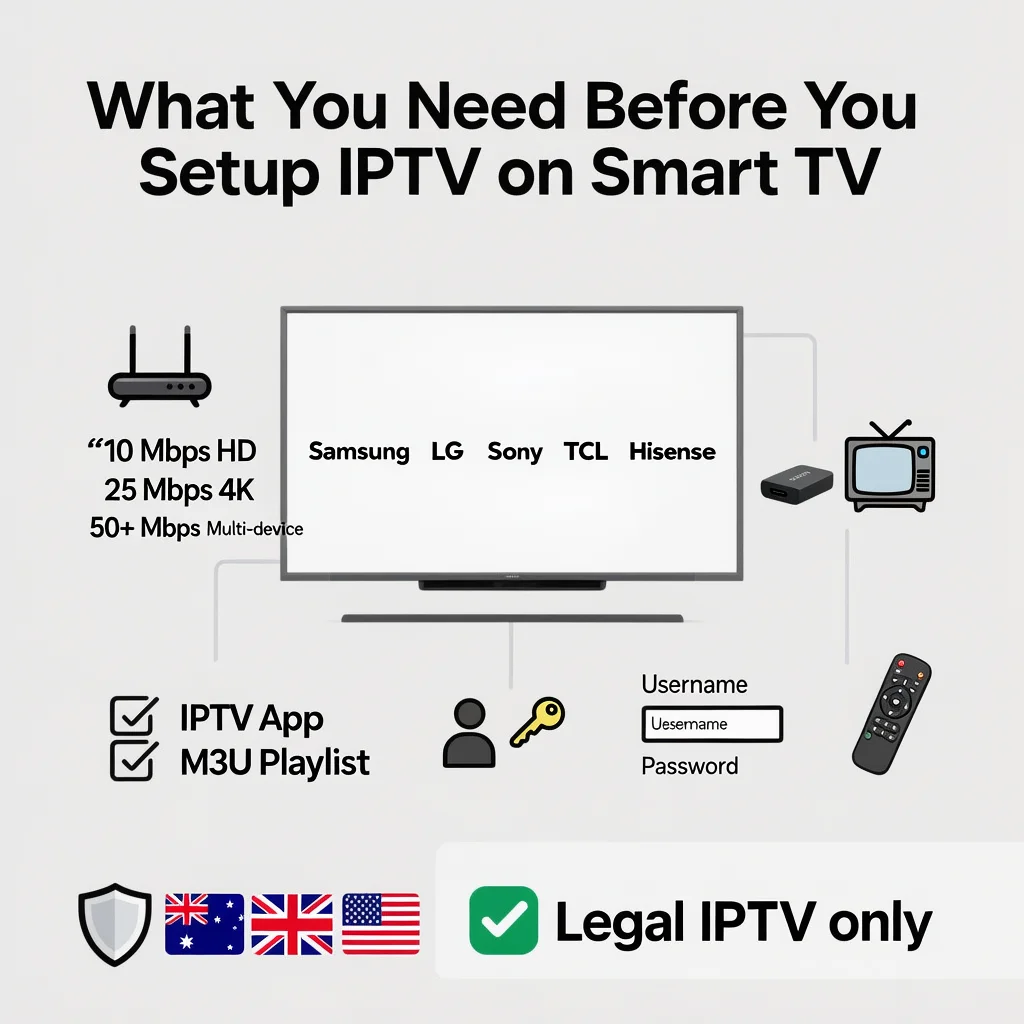
1. A Compatible Smart TV Most modern smart TVs support IPTV apps natively. The major brands include:
- Samsung (Tizen OS, 2018 and newer models)
- LG (webOS 3.0 and above)
- Sony (Android TV platform)
- TCL (Roku TV or Android TV variants)
- Hisense (VIDAA U or Android TV)
For older models (pre-2017), you may need an external streaming device like Amazon Fire Stick or Apple TV.
2. Reliable Internet Connection IPTV streaming demands consistent bandwidth:
- Minimum: 10 Mbps for HD content
- Recommended: 25 Mbps for 4K streaming
- Ideal: 50+ Mbps for multiple devices
Regional Internet Tips:
- Australia: NBN plans (Standard Plus or above) work excellently. Avoid congested evening periods on lower-tier plans.
- UK: Fibre broadband from providers like BT, Virgin Media, or Sky ensures smooth streaming.
- US: Cable internet (Xfinity, Spectrum) or fiber (Verizon Fios, AT&T Fiber) provides the best performance.
3. An IPTV Service or App You’ll need either:
- Free IPTV apps (7plus, ABC iview, BBC iPlayer, Pluto TV, Tubi)
- Paid IPTV services (Kayo Sports, Fetch TV, Sling TV, YouTube TV, TiviMate, IPTV Smarters)
- Custom M3U playlist from an IPTV provider
4. Login Credentials or Playlist URL If using a paid service, have your username, password, and M3U URL ready. These will be provided by your IPTV service upon subscription.
5. Your TV Remote You’ll navigate menus and enter text using your standard TV remote. Some services also offer mobile apps as remote alternatives.
Legal Considerations by Region
Understanding legality is crucial when learning how to setup IPTV on smart TV:
- Australia: IPTV itself is legal. Services like Kayo Sports, Foxtel Now, and ABC iview are fully licensed. Avoid grey-market providers offering “too good to be true” channel packages.
- UK: BBC iPlayer, ITV Hub, and Sky Go are legitimate. Using unlicensed streams violates copyright laws and could result in prosecution.
- US: Services like Sling TV, Hulu + Live TV, and YouTube TV are legal. The FCC has cracked down on pirate IPTV operations, with significant penalties for users in some cases.
Pro Tip: Always verify your IPTV provider has proper broadcasting licenses. If a service offers 5,000+ international channels for $10/month, it’s likely illegal.
How to Setup IPTV on Smart TV—Step-by-Step Walkthrough (All Brands)
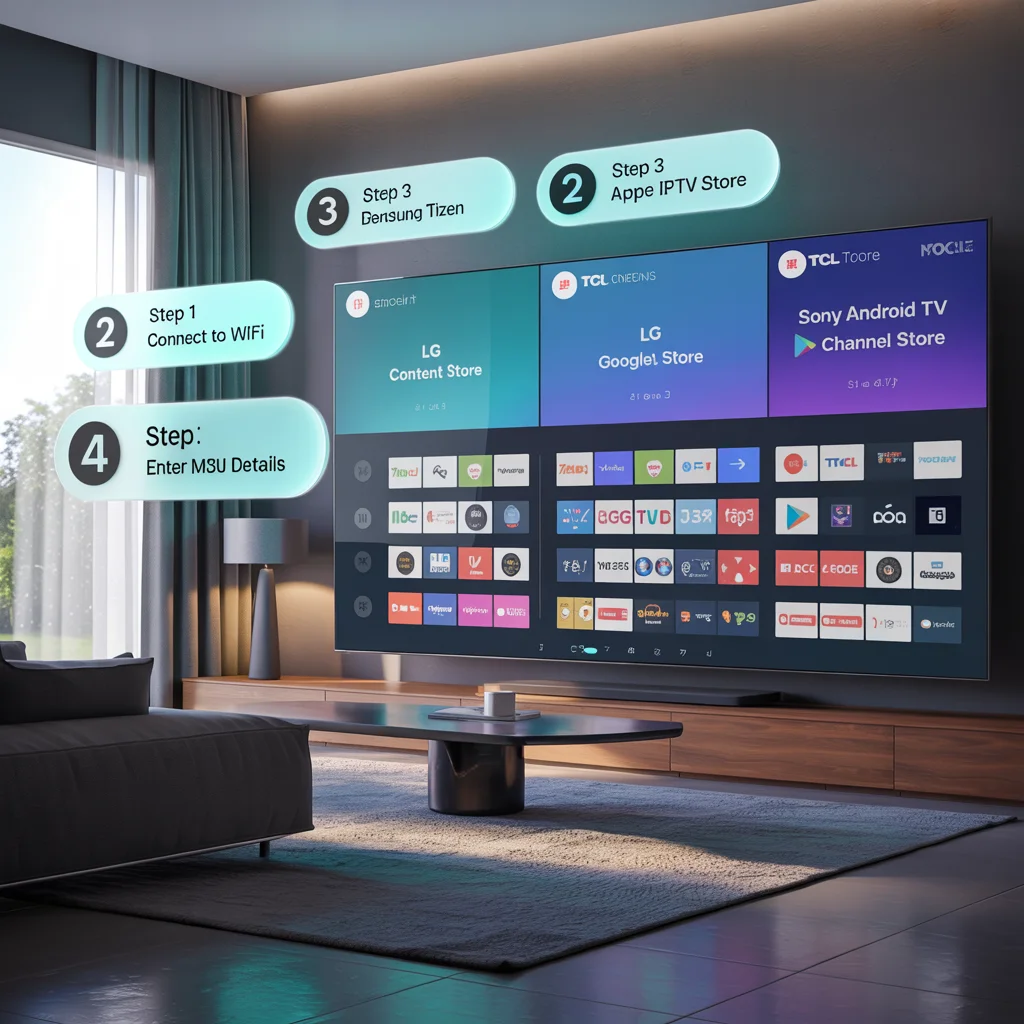
Now let’s get into the detailed process of how to setup IPTV on smart TV across different manufacturers. I’ll cover each major brand with specific instructions.
Samsung Smart TV IPTV Configuration
Samsung’s Tizen operating system makes the IPTV smart TV setup relatively straightforward.
Step 1: Connect to Internet
- Press the Home button on your Samsung remote
- Navigate to Settings > General > Network
- Select Open Network Settings
- Choose your WiFi network or connect via Ethernet cable
- Enter password and test connection
Step 2: Access Samsung App Store
- Return to Home screen
- Navigate to Apps in the bottom menu
- The Samsung app store will open
Step 3: Search for IPTV Apps
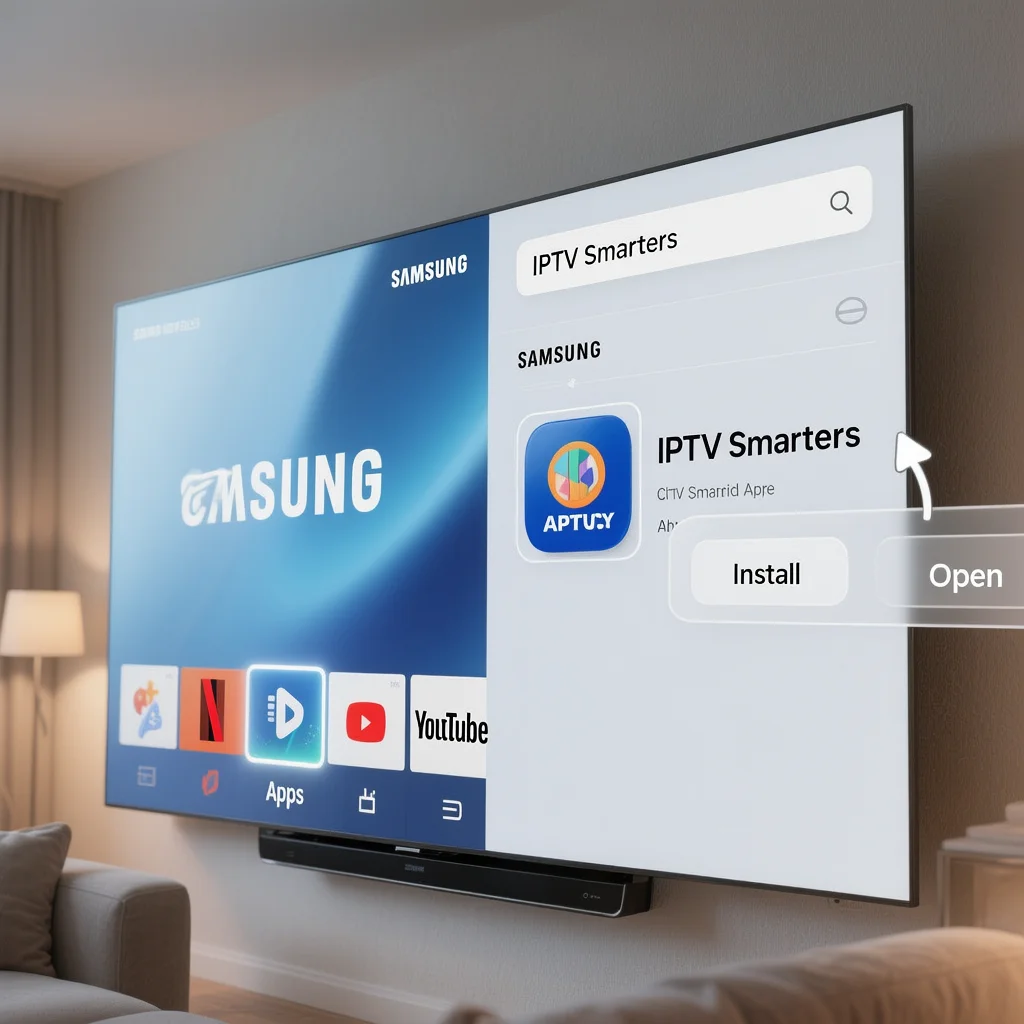
- Use the search icon (magnifying glass) in the top-right
- Type your chosen app name (e.g., “IPTV Smarters”, “TiviMate“, or regional apps like “Kayo Sports”)
- Select the app from search results
Step 4: Download and Install
- Click Install or Download
- Wait for installation to complete (typically 30-60 seconds)
- Select Open once finished
Step 5: Configure IPTV Service
- Launch the app
- Choose Login with Xtream Codes API or Add Playlist
- Enter your IPTV provider details:
- Username
- Password
- Server URL or M3U link
- Save settings and wait for channel list to load
Pro Tip: Samsung TVs work best with Ethernet connections for IPTV. If using WiFi, position your router within 15 feet of the TV for optimal performance.
LG Smart TV Setup for IPTV
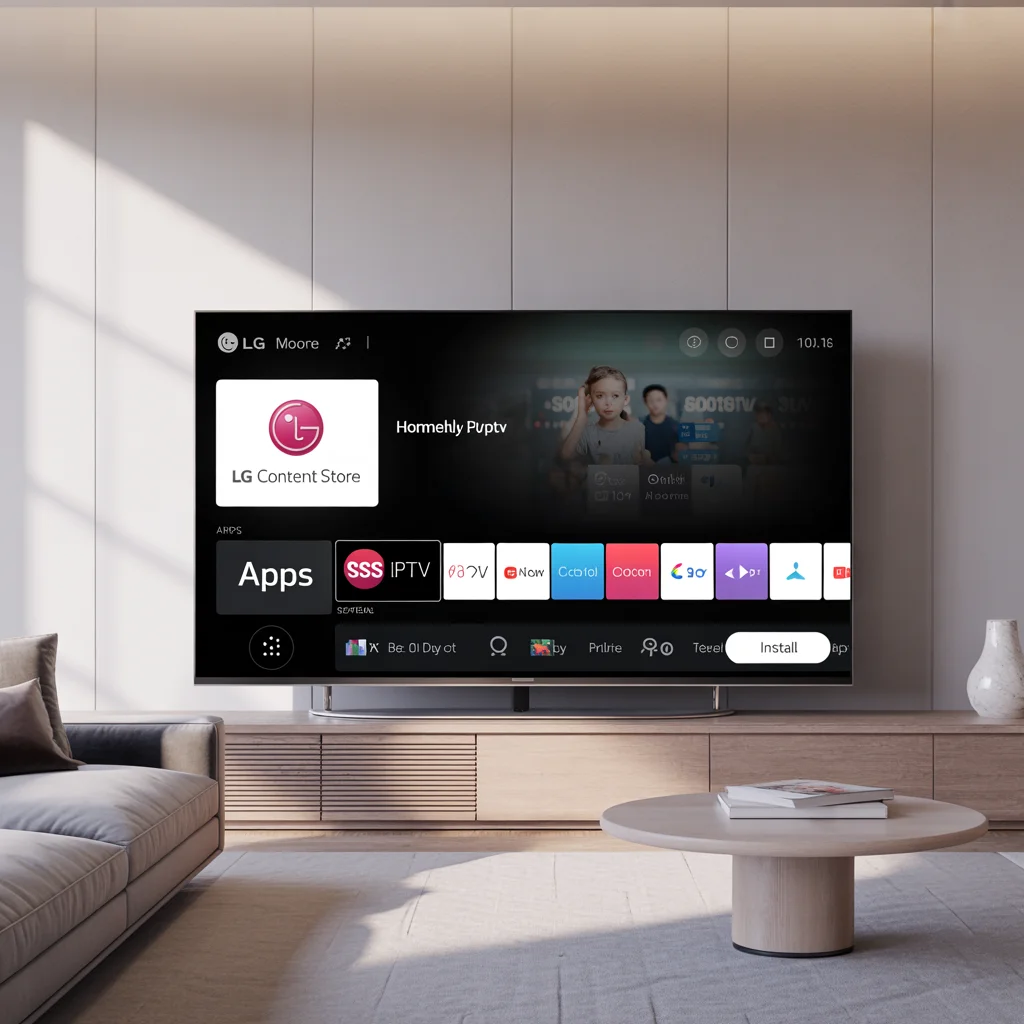
LG’s webOS platform offers a slightly different approach to IPTV configuration for smart TV.
Step 1: Internet Connection Setup
- Press Settings button (gear icon) on LG remote
- Select All Settings > Network > WiFi Connection
- Choose your network and authenticate
- Test connection speed (Settings > Network > Network Status)
Step 2: Open LG Content Store
- Press Home button
- Scroll to LG Content Store icon
- Select Apps category
Step 3: Find IPTV Applications
- Use the search function or browse categories
- Look for “IPTV“, “SS IPTV“, “Smart IPTV“, or regional streaming apps
- Note: Some IPTV apps require manual installation (see sidebar below)
Step 4: Install and Launch
- Select your chosen app
- Click Install
- Once installed, select Launch
Step 5: Add Your Playlist
- Most LG-compatible IPTV apps use external playlist configuration
- Visit the app’s website (e.g., ss-iptv.com) on your computer
- Register your TV’s MAC address (found in app settings)
- Upload your M3U playlist via the website
- Return to TV app and reload content
LG Sidebar: Manual App Installation Some IPTV apps aren’t in the LG Content Store. For these:
- Enable Developer Mode (Settings > All Settings > General > About This TV > press OK 5 times on TV name)
- Turn on Dev Mode Status
- Use the Developer Mode App to sideload APK files
- This method is technical and requires comfort with file systems
Pro Tip: LG’s Magic Remote makes text entry much easier when configuring IPTV services. The point-and-click interface saves significant time.
Sony Android TV IPTV Installation
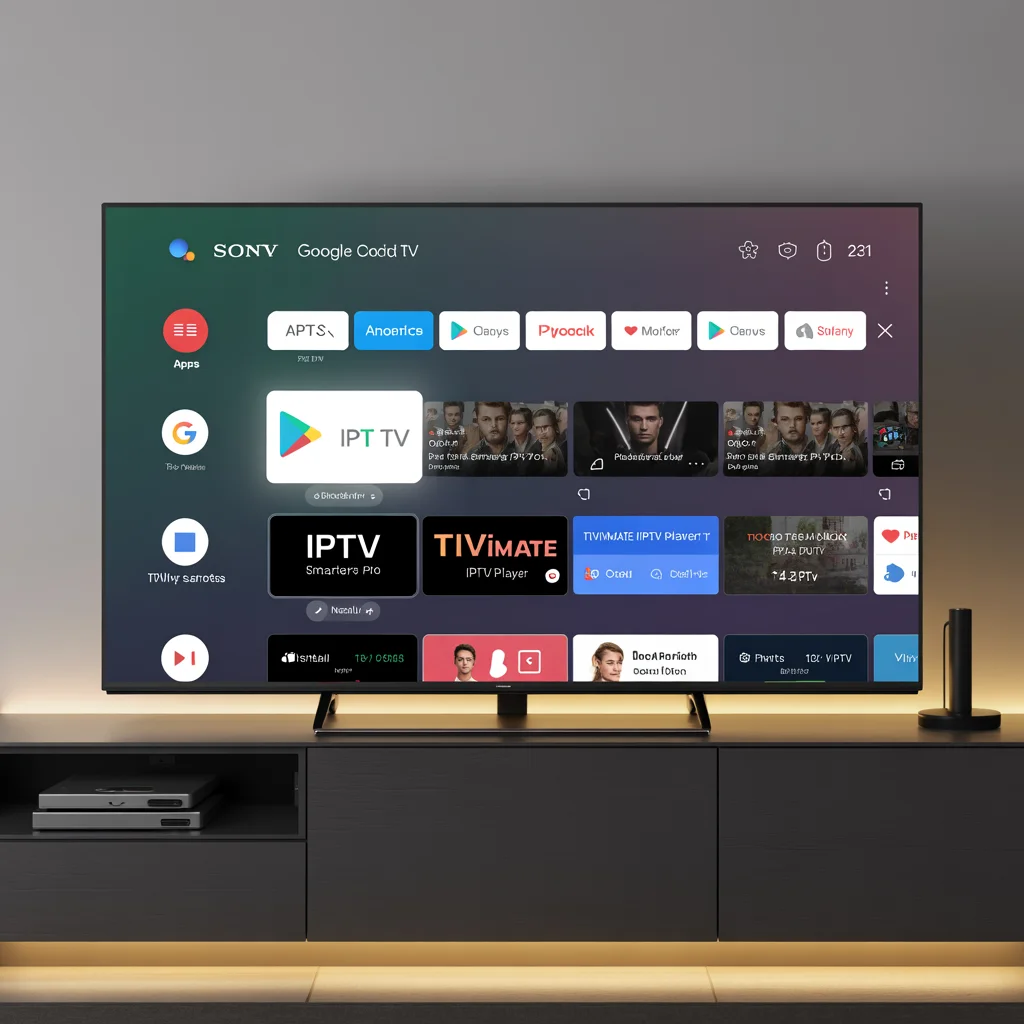
Sony smart TVs running Android TV provide the most flexible platform for learning how to setup IPTV on smart TV.
Step 1: Network Configuration
- Press Home on Sony remote
- Navigate to Settings (gear icon)
- Select Network & Internet > WiFi
- Connect to your network
- Verify connection strength in Network status
Step 2: Access Google Play Store
- From Home screen, find Apps row
- Select Google Play Store
- Sign in with Google account (if not already logged in)
Step 3: Search for IPTV Apps
- Use search bar at top of Play Store
- Type “IPTV” or specific app names:
- IPTV Smarters Pro
- TiviMate IPTV Player
- GSE Smart IPTV
- Perfect Player IPTV
- Regional apps are also available (Kayo, Optus Sport, Sling TV, etc.)
Step 4: Install Application
- Select your preferred app
- Click Install
- Accept permissions when prompted
- Wait for download and installation
Step 5: Configure IPTV Service
- Open installed app from Home screen > Apps
- Select configuration method:
- Xtream Codes API: Enter server URL, username, password
- M3U URL: Paste playlist link provided by IPTV service
- Local File: Upload playlist file from USB drive
- Save configuration
- Allow app to fetch channel listings (may take 1-3 minutes)
Step 6: Organize and Customize
- Create favorite channel groups
- Adjust EPG (Electronic Program Guide) settings
- Configure parental controls if needed
- Set video player preferences (hardware acceleration recommended)
Pro Tip: Android TV allows sideloading virtually any Android app. Use apps like Downloader or Send Files to TV to install APK files not available in Play Store.
TCL Smart TV Configuration
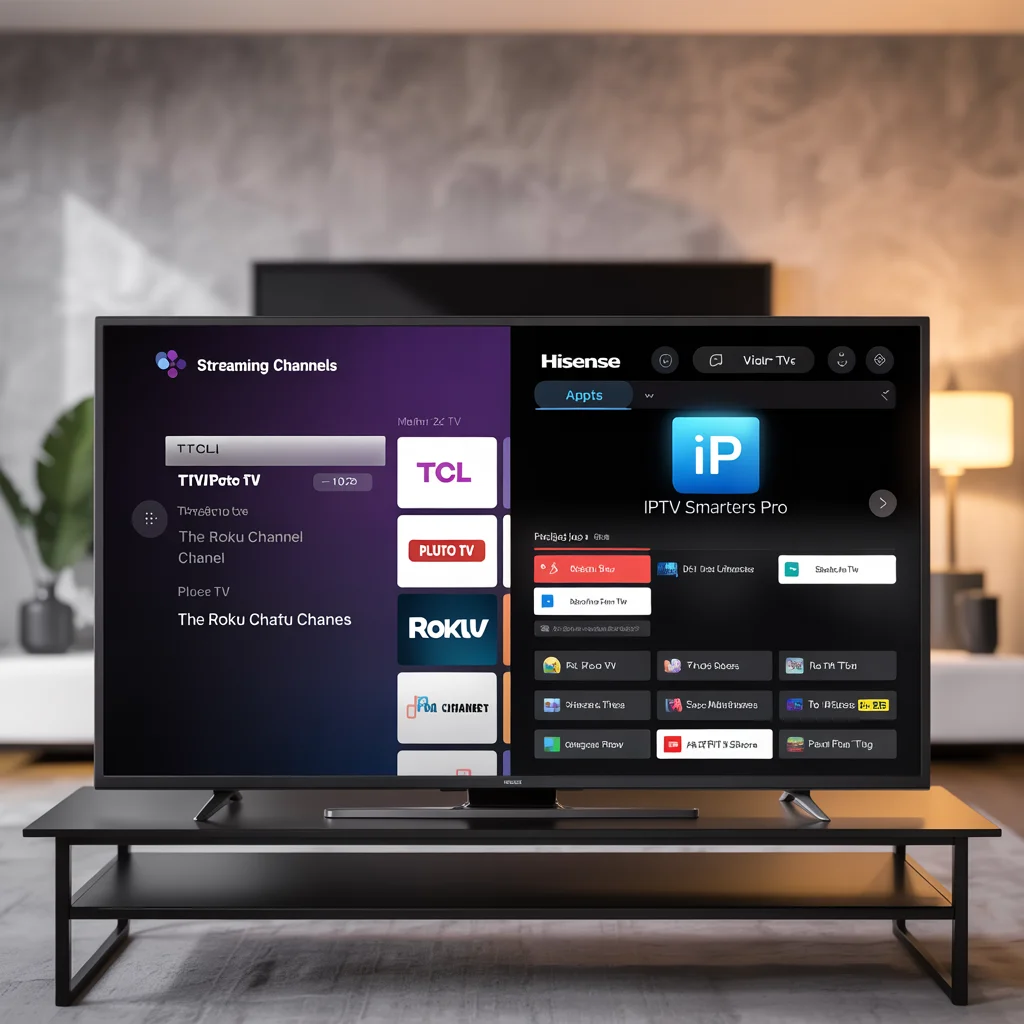
TCL televisions come in two variants: Roku TV and Android TV. The setup process differs slightly.
For TCL Roku TV:
Step 1: Connect to Internet
- Press Home button
- Navigate to Settings > Network > Set up connection
- Choose Wireless or Wired
- Complete network authentication
Step 2: Access Roku Channel Store
- From Home screen, select Streaming Channels
- Browse or search for IPTV apps
- Popular options: Pluto TV, Tubi, The Roku Channel
Step 3: Add Private Channels (For Custom IPTV)
- Visit Roku website on computer (my.roku.com)
- Log in to your account
- Use channel access codes provided by IPTV services
- Private channels will appear on your Roku TV
For TCL Android TV: Follow the Sony Android TV instructions above—the process is identical.
Pro Tip: TCL Roku TVs have limited custom IPTV app support compared to Android variants. If serious about IPTV, choose TCL Android TV models or add a Fire TV Stick to Roku models.
Hisense Smart TV IPTV Setup
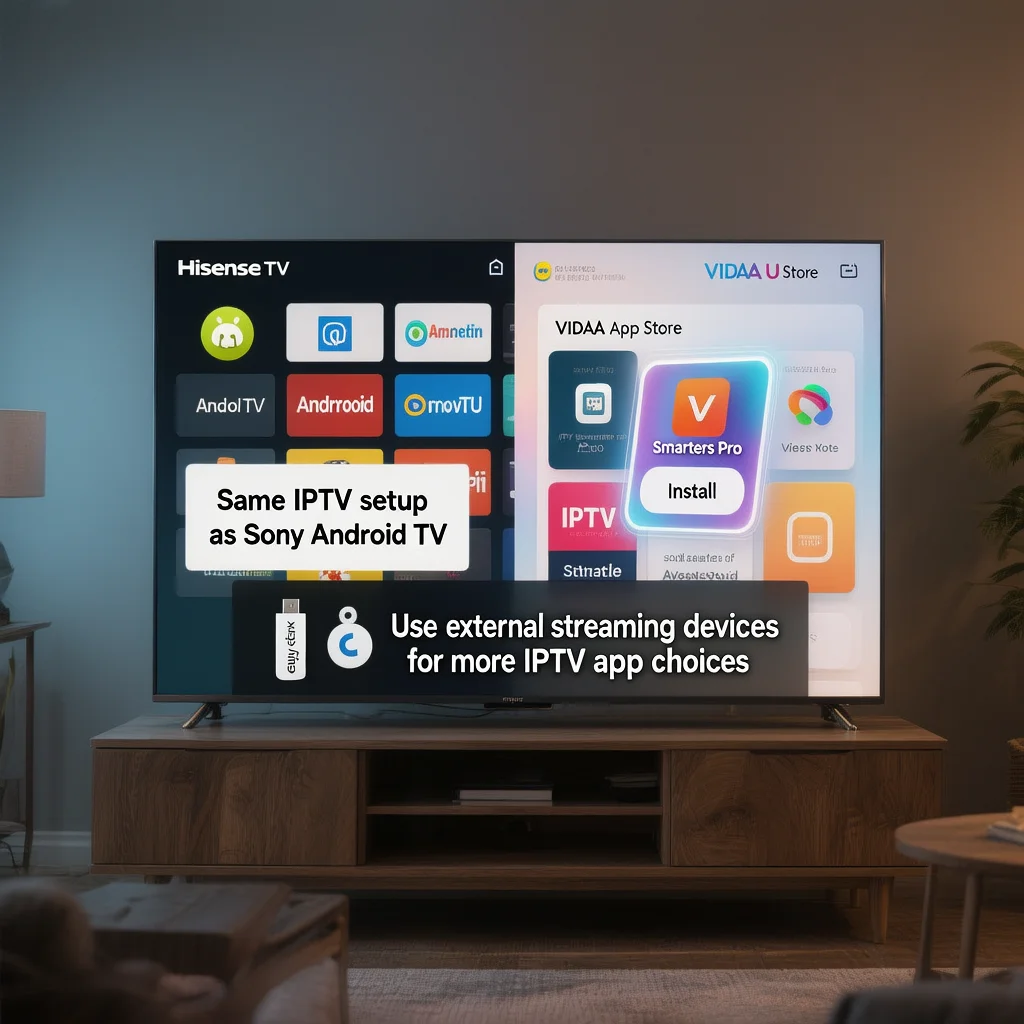
Hisense offers both VIDAA U and Android TV platforms.
For Hisense Android TV: Follow Sony Android TV instructions—identical process.
For Hisense VIDAA U:
- Connect to network (Settings > Network)
- Open VIDAA App Store
- Search available IPTV apps (selection is limited)
- Install and configure as per app instructions
- Alternative: Use built-in web browser to access web-based IPTV players
Pro Tip: VIDAA U has the most restricted app ecosystem. Consider using an Amazon Fire Stick or Chromecast for better IPTV app selection.
App Store Navigation and Choosing the Best IPTV Apps
Understanding how to navigate your smart TV’s app ecosystem is essential when figuring out how to setup IPTV on smart TV. Let’s explore the best applications for different needs and regions.
Free IPTV Apps Worth Installing
Australia:
- 7plus: Free-to-air content from Seven Network
- ABC iview: Extensive ABC programming, news, and documentaries
- SBS On Demand: Multicultural content and world news
- 9Now: Nine Network shows and live streams
- 10 play: Network Ten entertainment
UK:
- BBC iPlayer: Comprehensive BBC content (requires TV license)
- ITV Hub: ITV programming and live channels
- All 4: Channel 4 content library
- My5: Channel 5 shows and films
- UKTV Play: Dave, Yesterday, and other UKTV channels
US:
- Pluto TV: 250+ free live channels
- Tubi: Huge movie and TV library
- Xumo: Live and on-demand content
- The Roku Channel: Free movies and TV shows
- Peacock Free: NBCUniversal content
Universal/International:
- YouTube: Live streams and content creators
- Red Bull TV: Extreme sports and events
Premium IPTV Apps and Services
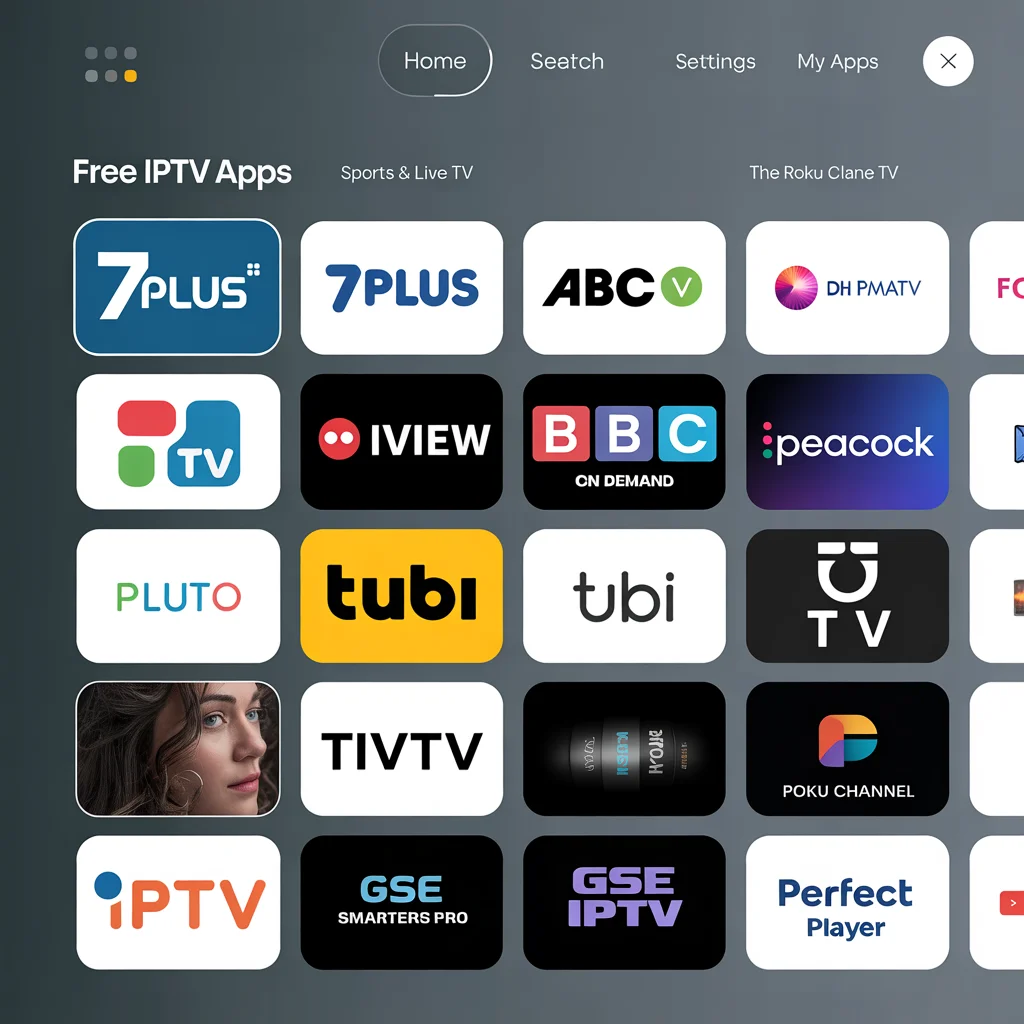
For Sports (Australia):
- Kayo Sports: $25-35/month, excellent for AFL, NRL, cricket, F1
- Optus Sport: Premier League football
- Foxtel Now: Comprehensive sports and entertainment
For Sports (UK):
- Sky Go: Premier League, cricket, F1 (requires Sky subscription)
- BT Sport: Champions League and Premier League matches
- DAZN: Boxing and combat sports
For Sports (US):
- ESPN+: $10.99/month, extensive sports coverage
- FuboTV: $79.99/month, sports-focused live TV
- DAZN: Boxing and international sports
General Entertainment:
- Hulu + Live TV: $76.99/month (US)
- YouTube TV: $72.99/month (US)
- Sling TV: $40-55/month (US)
- Fetch TV: $6-24/month (Australia)
IPTV Player Apps (Require Separate Service):
- TiviMate: Best EPG and interface ($20/year premium)
- IPTV Smarters Pro: User-friendly, supports multiple playlists
- GSE Smart IPTV: Powerful features, steeper learning curve
- Perfect Player IPTV: Lightweight and customizable
How to Install Apps Not in Your TV’s Store
Sometimes the best IPTV app smart TV solution isn’t available through official channels. Here’s how to handle this:
Method 1: Use Alternative App Stores
- Install Aptoide TV or Aptoid (Android TV only)
- Search for desired IPTV apps within alternative store
- Install normally
Method 2: Sideload via USB
- Download APK file on computer
- Transfer to USB drive
- Install file manager app on TV (e.g., X-plore)
- Insert USB, navigate to APK
- Install application
Method 3: Use Installation Apps
- Install Downloader app from official store
- Open Downloader and enter URL for APK file
- Download and install directly on TV
Warning: Only download apps from trusted sources. Malicious APKs can compromise your TV’s security and personal data.
Playlist & Service Configuration: M3U Setup Masterclass
Once you’ve installed your IPTV application, learning how to setup IPTV on smart TV requires configuring your channel sources. Most custom IPTV services provide M3U playlists.
Understanding M3U Playlists
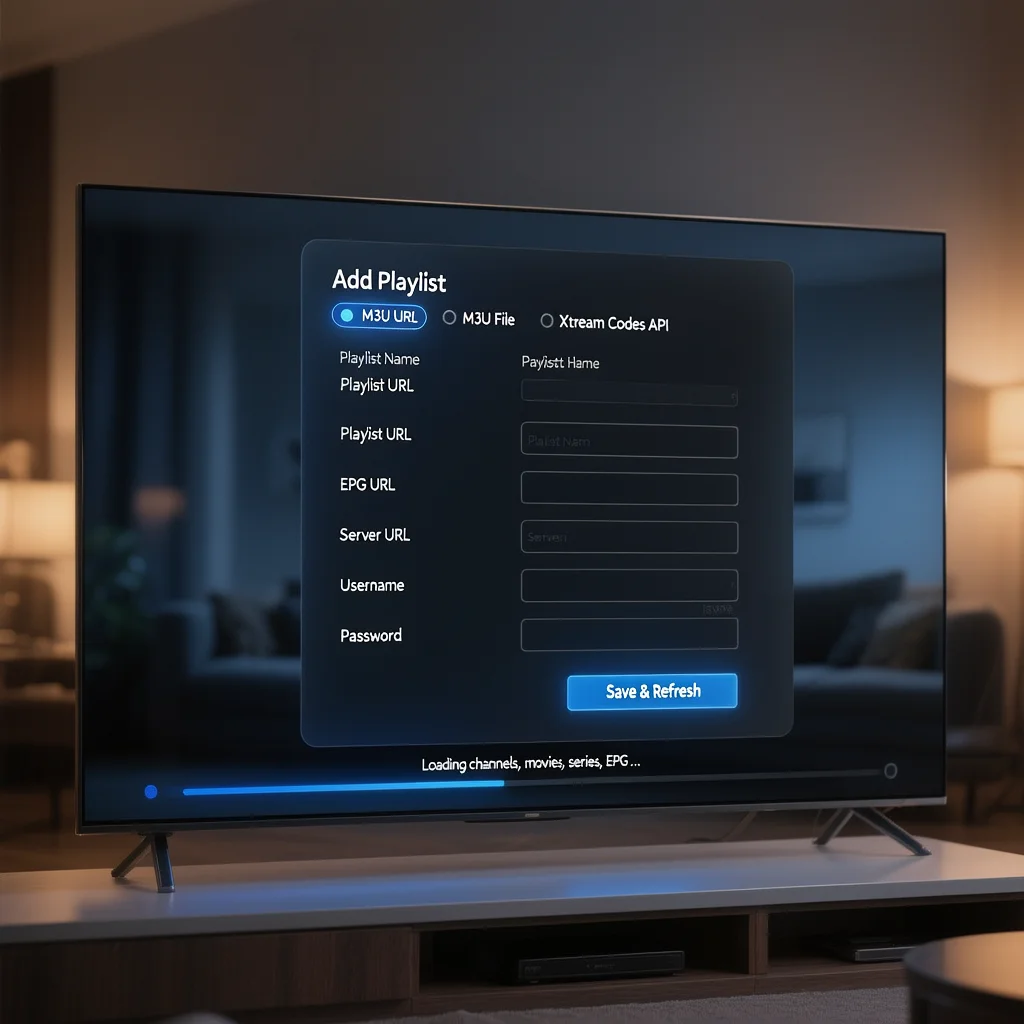
An M3U file is a text file containing links to streaming channels. Your IPTV provider will give you:
- M3U URL: Direct link that updates automatically
- M3U File: Downloadable file you upload manually
- Xtream Codes API: Server-based system with username/password
Step-by-Step Playlist Configuration
Adding M3U URL (Recommended Method):
- Open your IPTV app (TiviMate, IPTV Smarters, etc.)
- Select Add Playlist or Add Source
- Choose URL or Remote Playlist
- Enter details:
- Playlist Name: Descriptive name (e.g., “My IPTV Service”)
- Playlist URL: Paste M3U link from provider
- EPG URL: (Optional) Electronic Program Guide link
- User Agent: Leave default unless provider specifies
- Save and refresh
- Wait for channels to populate (30 seconds to 2 minutes)
Adding via Xtream Codes API:
- Select Login with Xtream Codes in app
- Enter three pieces of information:
- Server URL: Usually format like http://example.com:8080
- Username: Provided by IPTV service
- Password: Provided by IPTV service
- Save credentials
- App will automatically fetch:
- Live TV channels
- Movies
- TV series
- EPG data
Uploading M3U File Manually:
- Save M3U file to USB drive
- Insert USB into TV
- Open IPTV app
- Select Add Playlist > File
- Navigate to USB location
- Select M3U file
- Import playlist
Organizing Your Channel List
After adding playlists, optimize your viewing experience:
Create Favorite Groups:
- Browse through channels
- Long-press or star favorite channels
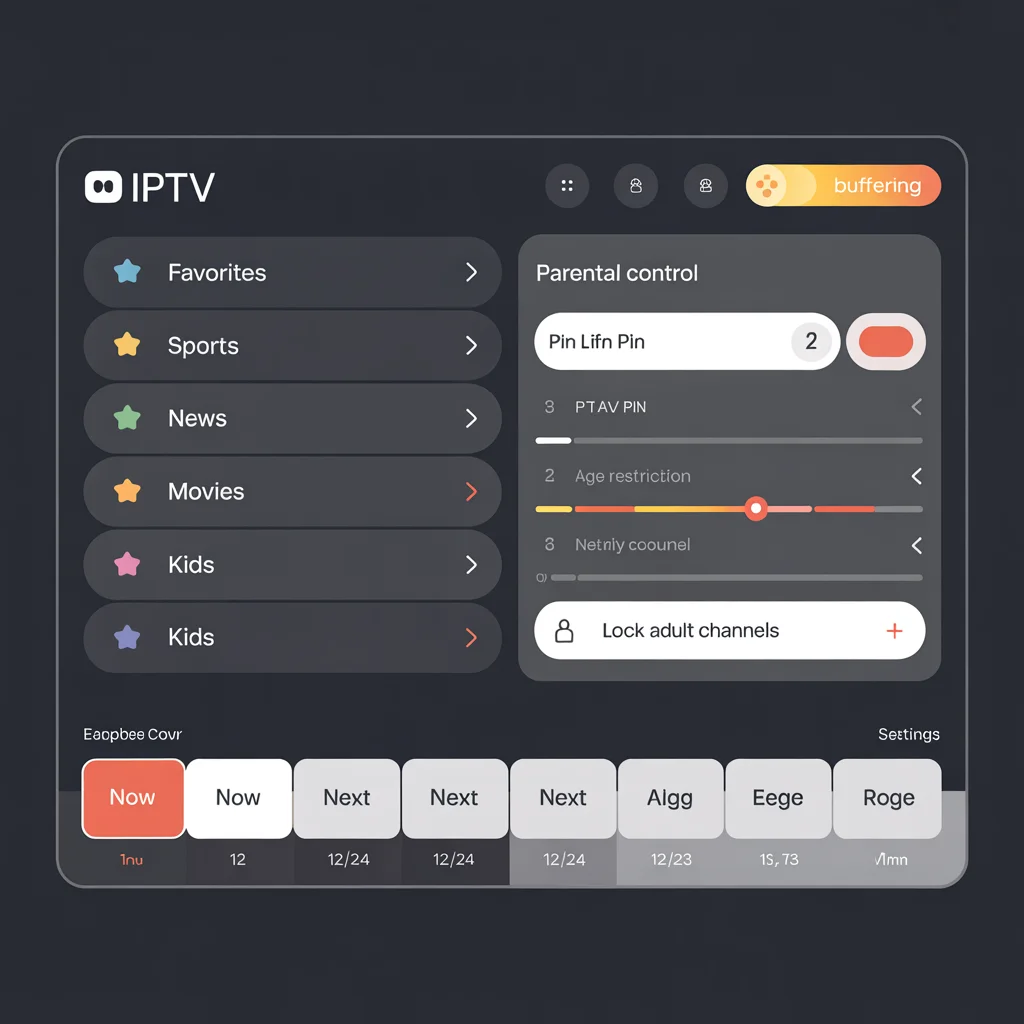
- Create custom groups (Sports, News, Kids, etc.)
- Reorder groups by priority
Configure EPG (Electronic Program Guide):
- Add EPG URL from provider (often included with M3U)
- Set EPG update schedule (daily recommended)
- Choose EPG timezone matching your region
- Customize EPG display (12hr vs 24hr format)
Set Parental Controls:
- Access app settings
- Enable Parental Control or PIN Lock
- Set age restrictions
- Lock adult or sensitive channels
- Create separate profiles if supported
Customize Appearance:
- Choose channel logo display options
- Select theme (dark mode recommended for TV viewing)
- Adjust font sizes for readability from couch distance
- Configure background image or color
Pro Tip: Screenshot your configured playlist settings and store them securely. If you need to reinstall the app or switch TVs, you’ll have all information ready.
Channels Won’t Load:
- Verify M3U URL is correct (no extra spaces)
- Check internet connection stability
- Confirm IPTV service subscription is active
- Try alternative player apps (some handle streams better)
EPG Not Showing:
- Ensure EPG URL is configured
- Match EPG timezone to your location
- Force EPG update in settings
- Some free IPTV services don’t provide EPG data
Buffering or Freezing:
- Test internet speed (fast.com or speedtest.net)
- Switch from WiFi to Ethernet if possible
- Lower stream quality in app settings
- Contact IPTV provider about server issues
Optimizing Smart TV for Perfect IPTV Streaming
Simply knowing how to setup IPTV on smart TV isn’t enough—optimization ensures the best possible experience. Here’s how to maximize performance.
Picture Quality Settings
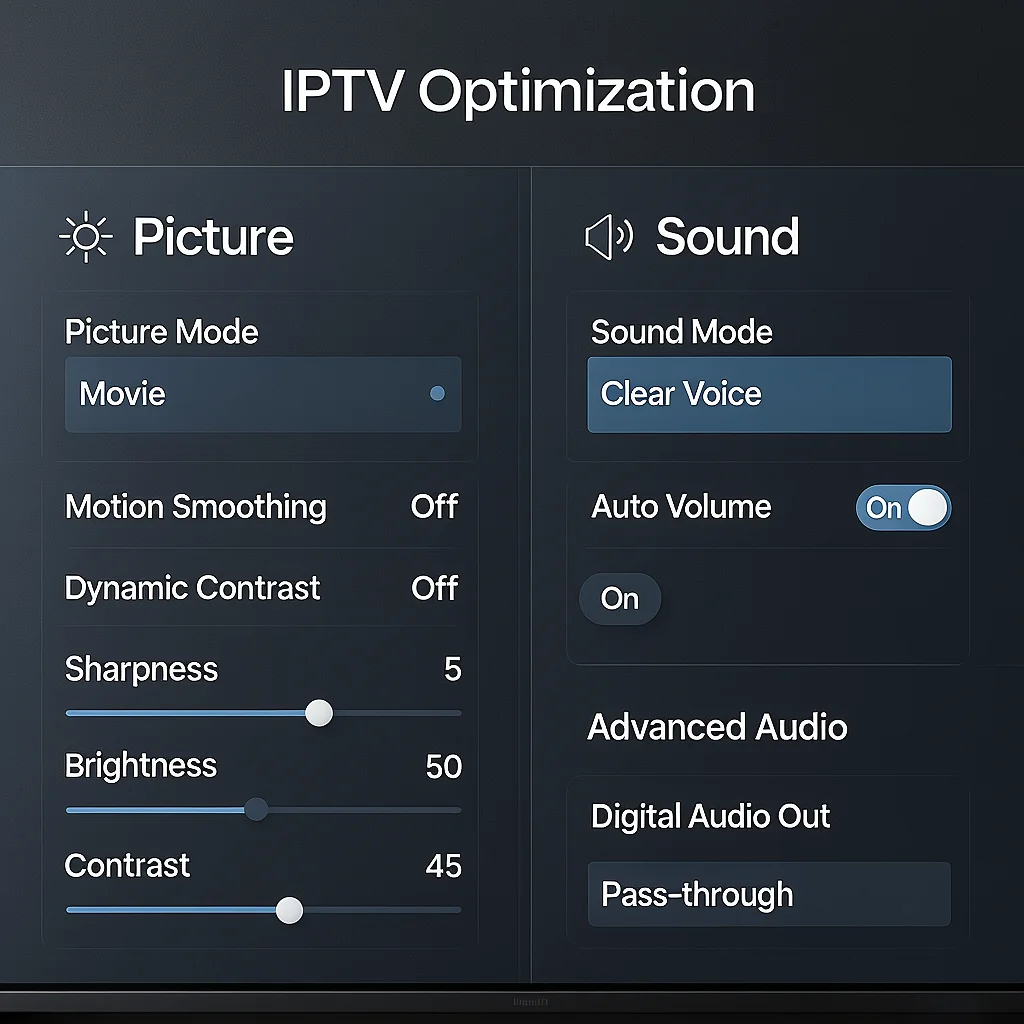
For HD/SD Channels:
- Open TV Picture Settings
- Select Standard or Movie picture mode
- Disable excessive processing:
- Turn off Motion Smoothing (soap opera effect)
- Disable Dynamic Contrast
- Reduce Sharpness to 0-10
- Adjust Brightness and Contrast to room lighting
For 4K IPTV Streams:
- Enable HDMI UHD Color (Samsung) or Enhanced HDMI (LG/Sony)
- Select Game Mode or PC Mode for lowest latency
- Ensure TV supports 4K@60fps (check specifications)
- Verify IPTV service provides true 4K (many claim 4K but deliver upscaled 1080p)
Audio Configuration
Basic Setup:
- Settings > Sound > Sound Mode
- Select Standard or Clear Voice for dialogue clarity
- Enable Auto Volume to prevent loud commercials
Advanced Audio:
- If using soundbar or receiver, enable Pass-through or Bitstream
- Configure audio delay if lip-sync issues occur (Settings > Audio > Digital Sound Out Delay)
- For Dolby/DTS content, ensure receiver supports format
Network Optimization
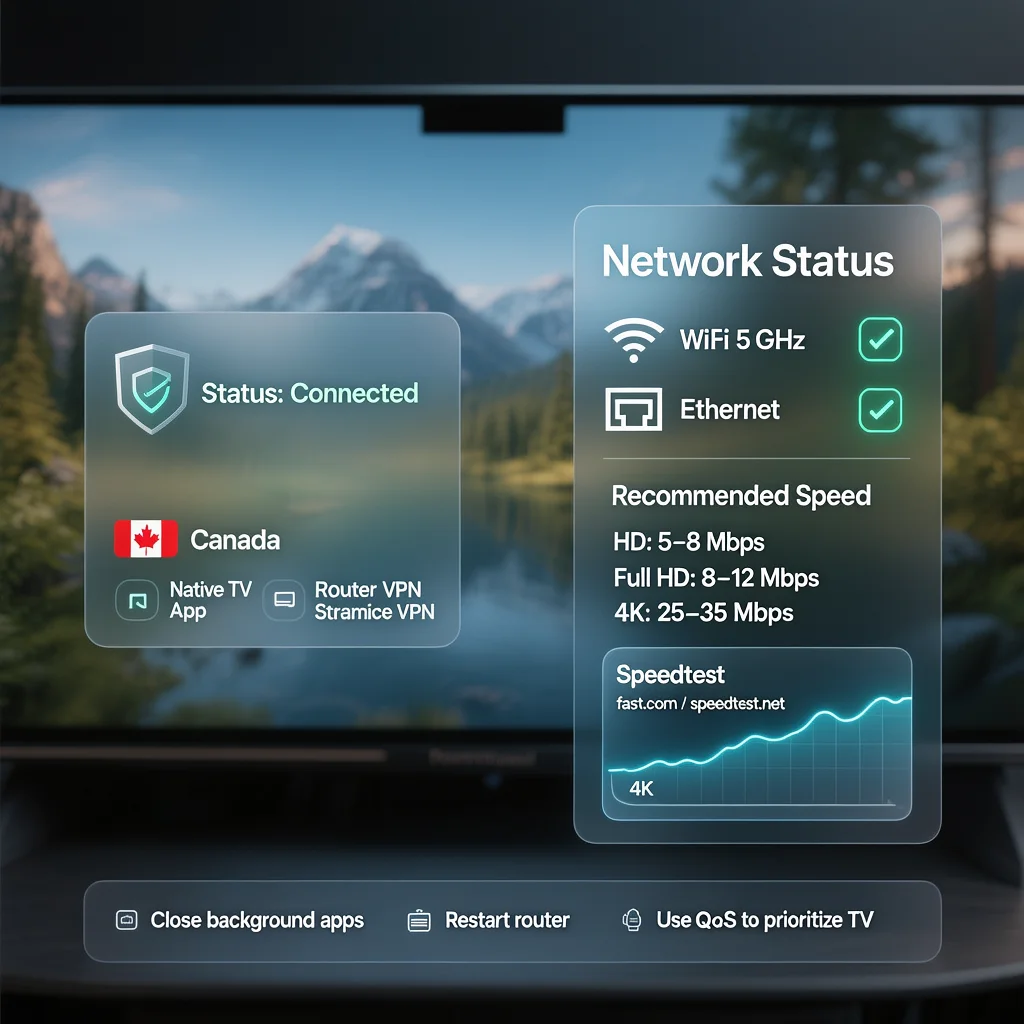
WiFi Optimization:
- Connect TV to 5GHz band (less interference, faster speeds)
- Position router centrally, elevated, unobstructed
- Reduce number of connected devices during viewing
- Change WiFi channel to least congested (use WiFi analyzer apps)
Ethernet Connection (Highly Recommended):
- Use Cat6 or Cat6a cable (supports gigabit speeds)
- Connect directly to router (avoid powerline adapters if possible)
- Enable Gigabit mode in router settings if available
- Results: 90% reduction in buffering issues
Speed Requirements by Quality:
- SD (480p): 3-5 Mbps per stream
- HD (720p): 5-8 Mbps per stream
- Full HD (1080p): 8-12 Mbps per stream
- 4K UHD: 25-35 Mbps per stream
Testing Internet Speed:
- Open web browser on TV or connected device
- Visit fast.com or speedtest.net
- Run test multiple times (morning, evening, weekend)
- Average speeds should exceed requirements by 50% for safety margin
Using VPNs for Geo-Restricted Content
Some IPTV services are region-locked. A VPN can help access international content legally (if you have rights to that content).
Best VPNs for Smart TV IPTV:
- ExpressVPN: Fast speeds, easy TV app installation
- NordVPN: Good value, wide server network
- Surfshark: Unlimited devices, budget-friendly
Installation Methods:
Method 1: Native TV App (Samsung, Android TV, LG newer models)
- Download VPN app from TV’s app store
- Install and log in
- Connect to desired country server
- Launch IPTV app
Method 2: Router-Level VPN
- Install VPN on compatible router (Asus, Netgear, etc.)
- Configure VPN connection at router
- All connected devices automatically use VPN
- No per-device setup needed
Method 3: Separate Device
- Connect Amazon Fire Stick, Apple TV, or Android box to TV
- Install VPN on that device
- Use device for IPTV streaming
Important Legal Note: Using VPNs to access content you haven’t paid for or don’t have rights to access is illegal in most jurisdictions. VPNs are for protecting privacy and accessing content you already subscribe to while traveling.
Reducing Buffering and Lag
Immediate Fixes:
- Close background apps on smart TV
- Restart TV and router
- Clear app cache (Settings > Apps > Your IPTV App > Clear Cache)
- Lower stream quality to 720p temporarily
Long-term Solutions:
- Upgrade internet plan to higher speed tier
- Switch to Ethernet connection
- Replace aging router (older than 3-4 years)
- Change IPTV provider if server-side issues persist
- Consider mesh WiFi system for larger homes
Pro Tip: Set up Quality of Service (QoS) on your router to prioritize TV traffic. This ensures IPTV streams get bandwidth priority over other devices downloading or browsing.
Legal & Security Considerations (2026 Update)
Understanding the legal landscape is crucial when learning how to setup IPTV on smart TV. The rules have tightened significantly in recent years.
Identifying Legal IPTV Services
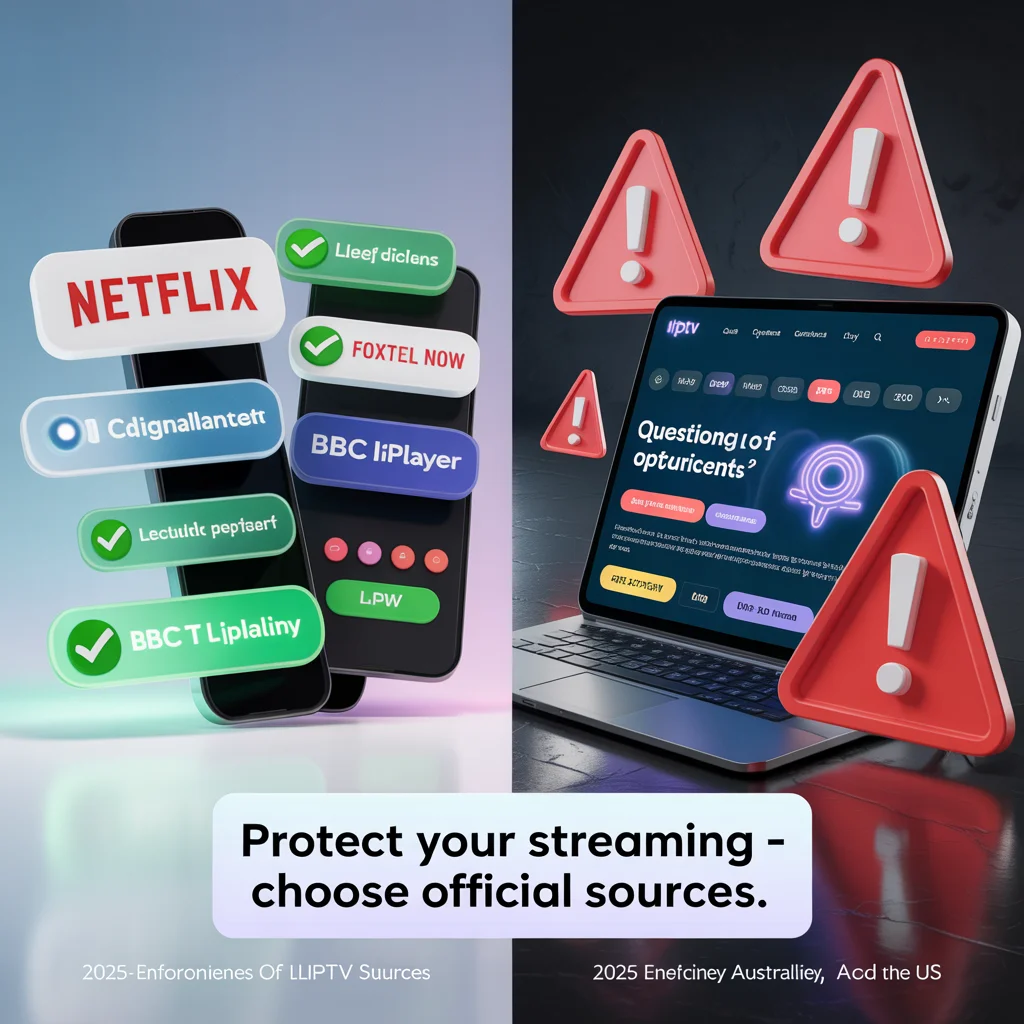
Green Flags (Legal Services):
- ✅ Requires credit card or PayPal payment
- ✅ Provides customer service contact information
- ✅ Has official website with company registration
- ✅ Offers free trial with limited content
- ✅ Partners with or is owned by media companies
- ✅ Available through official app stores
- ✅ Displays proper content licensing information
Red Flags (Illegal/Grey Market):
- ❌ Cryptocurrency-only payments
- ❌ Claims “10,000+ channels for $10/month”
- ❌ Requires sideloading or unofficial apps
- ❌ No customer service or support
- ❌ Advertises as “fully loaded” or “jail-broken”
- ❌ Offers every premium channel globally for low price
- ❌ Sold through social media messages or forums
Legal IPTV Services by Region
Australia (Legal Options):
- Foxtel Now, Kayo Sports, Optus Sport
- 7plus, 9Now, 10 play, ABC iview, SBS On Demand
- Fetch TV, Flash, Binge
- Amazon Prime Video, Netflix, Disney+ (streaming, not traditional IPTV)
UK (Legal Options):
- Sky Go, Now TV, BT Sport
- BBC iPlayer, ITV Hub, All 4, My5
- UKTV Play, BBC Sport
- Amazon Prime Video, Netflix, Disney+
US (Legal Options):
- YouTube TV, Hulu + Live TV, FuboTV
- Sling TV, DirecTV Stream, Philo
- ESPN+, Peacock, Paramount+
- Network apps (NBC, CBS, ABC, Fox)
Consequences of Using Illegal IPTV
2025-2026 Enforcement Actions:
In Australia, the Federal Court has issued substantial penalties against illegal IPTV operators, with associated court orders allowing ISPs to block access to pirate services. Users face potential liability under copyright law.
In the UK, the Intellectual Property Office and FACT (Federation Against Copyright Theft) have prosecuted hundreds of illegal IPTV sellers and informed users of their violations. Police have begun targeting end-users with warning letters and potential prosecution.
In the US, the Department of Justice has shut down major illegal IPTV operations, with some operators receiving multi-year prison sentences. Civil lawsuits against users have resulted in settlements ranging from $1,000 to $150,000 per infringement.
Risk Summary for Users:
- Service interruption without refund
- ISP warnings or connection throttling
- Legal notices and potential lawsuits
- Malware infection from shady apps
- Credit card fraud from payment to illegal services
- No content protection or quality guarantees
Protecting Your Privacy and Security
Safe Practices:
- Payment Security:
- Use credit cards (better fraud protection than debit)
- Consider virtual card numbers (Privacy.com, Revolut)
- Never pay via Western Union, gift cards, or untraceable methods
- App Security:
- Only install apps from official stores when possible
- Check app permissions before installing
- Read reviews from verified users
- Keep apps updated to latest versions
- Network Security:
- Change default router password
- Enable WPA3 encryption on WiFi
- Create separate guest network for IoT devices
- Disable UPnP if not needed
- Data Privacy:
- Review TV privacy settings (Settings > Privacy)
- Disable automatic content recognition (ACR)
- Opt out of personalized advertising
- Regularly clear viewing history
- Account Security:
- Use strong, unique passwords for each service
- Enable two-factor authentication where available
- Don’t share account credentials
- Monitor account activity regularly
Pro Tip: Create a separate email address specifically for IPTV subscriptions and streaming services. This isolates your primary email from potential breaches and reduces spam.
FAQ Section: How to Setup IPTV on Smart TV
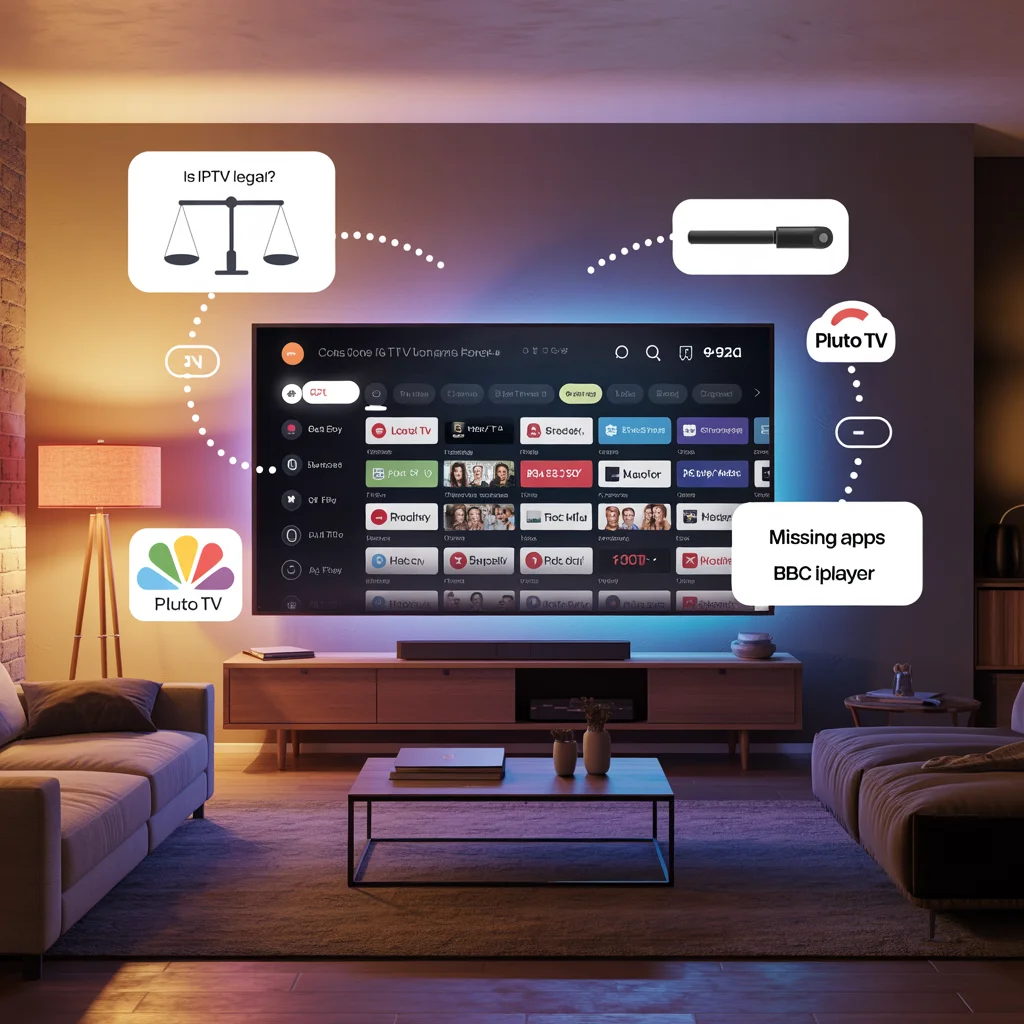
1. How do I setup IPTV on smart TV if my desired app isn’t available?
When learning how to setup IPTV on smart TV, you might find your preferred app isn’t in your TV’s app store. Solutions include: (a) using alternative IPTV apps with similar features, (b) sideloading Android APK files if you have an Android TV, (c) installing an external streaming device like Amazon Fire Stick or Apple TV which supports more apps, or (d) casting from your phone to TV using Chromecast or AirPlay. The easiest solution is often adding an inexpensive Fire TV Stick ($40-60), which opens access to hundreds of IPTV applications.
2. What internet speed do I need to setup IPTV on smart TV without buffering?
To successfully setup IPTV on smart TV with smooth playback, you need: 10 Mbps minimum for single HD stream, 25 Mbps recommended for 1080p content, and 40+ Mbps for 4K streaming. Account for multiple devices—if family members are gaming or browsing simultaneously, add 10-15 Mbps per additional active device. In Australia, NBN Standard Plus (50 Mbps) or higher works excellently. UK users should target fibre broadband packages of 50+ Mbps. US households benefit from cable internet plans offering 100+ Mbps for optimal multi-device usage.
3. Is it legal to setup IPTV on smart TV in my country?
Yes, it’s completely legal to setup IPTV on smart TV using licensed services. In Australia, legal options include Kayo Sports, Foxtel Now, and free-to-air apps. In the UK, BBC iPlayer, ITV Hub, and Sky Go are legitimate. In the US, services like YouTube TV, Hulu + Live TV, and Sling TV operate legally. The legality issue arises only when using unlicensed services that offer premium content without proper broadcasting rights. Always verify your IPTV provider has legitimate licensing agreements, offers customer support, and uses traceable payment methods. If the deal seems impossibly good (thousands of channels for $10/month), it’s likely illegal.
4. Can I setup IPTV on smart TV from older brands or models?
Yes, you can setup IPTV on smart TV devices from 2015 and newer, though app availability decreases with age. Samsung TVs from 2016+ (Tizen OS), LG models with webOS 3.0+ (2016+), and Sony Android TVs from 2015+ all support modern IPTV applications. For older or budget smart TVs with limited app ecosystems, the most practical solution is adding an external device. Amazon Fire TV Stick 4K ($45), Roku Streaming Stick ($40), or Google Chromecast with Google TV ($50) all provide full access to current IPTV apps. This approach also future-proofs your setup since you can upgrade the streaming device without replacing the entire television.
5. How do I troubleshoot when IPTV smart TV setup doesn’t work properly?
When your IPTV configuration for smart TV encounters problems, try these steps in order: (1) Restart your TV and router—this resolves 40% of issues. (2) Check internet connection speed at fast.com—ensure you’re getting subscribed speeds. (3) Verify IPTV subscription is active and credentials are correct. (4) Clear the IPTV app cache (Settings > Apps > [App Name] > Clear Cache). (5) Update the app to latest version. (6) Try switching from WiFi to Ethernet connection. (7) Reinstall the IPTV application completely. (8) Test on different device to determine if issue is TV-specific or service-wide. If problems persist after all steps, contact your IPTV service provider—server issues on their end account for approximately 15% of streaming problems.
6. What are the best free IPTV apps when I setup IPTV on smart TV?
The best free IPTV apps smart TV options vary by region. Australia: ABC iview offers exceptional Australian content including news and documentaries, 7plus provides live TV and catch-up, and SBS On Demand features multicultural programming. UK: BBC iPlayer remains the gold standard for British content (TV license required), while ITV Hub and All 4 supplement with additional channels. US: Pluto TV delivers 250+ free live channels, Tubi offers extensive movies and shows, and The Roku Channel provides
