Last updated: April 2026. Accessibility features and device capabilities subject to software updates.
Sarah, a 68-year-old from Perth, couldn’t see the small text on her IPTV menu. Her grandson showed her how to enable the screen reader, and within minutes, she was navigating channels independently for the first time in months.
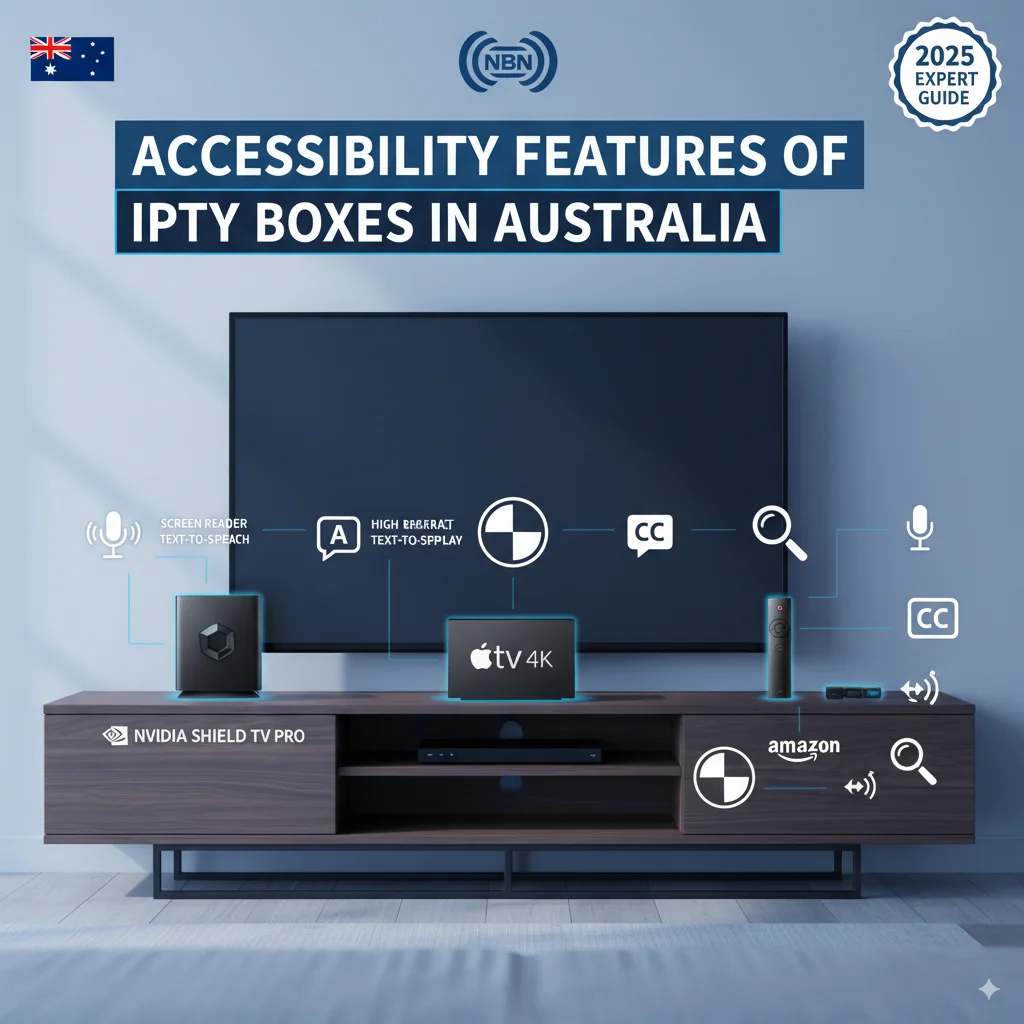
IPTV accessibility features Australia includes subtitles, voice control, screen readers, and customisable interfaces that help users with visual, hearing, or mobility challenges use streaming devices more easily. These features transform how Australians with disabilities access entertainment.
This guide explains which accessibility features work best for different needs, how to enable them on popular devices, and which IPTV solutions offer the most comprehensive support in 2026.
Understanding IPTV Accessibility in Australia
Accessibility isn’t optional—it’s essential. When John in Melbourne couldn’t hear dialogue clearly, closed captions transformed his viewing experience. Voice commands changed everything for Margaret in Brisbane, who struggled with her remote control due to arthritis.
Why Accessibility Features Matter
For visually impaired users: Screen readers announce menu items, channel names, and program information. High-contrast modes make text visible against backgrounds. Text-to-speech converts on-screen content into audio.
For hearing impaired users: Subtitles and closed captions provide dialogue transcripts. Visual alerts replace audio notifications. Volume amplification helps those with partial hearing loss.
For mobility limitations: Voice control eliminates complex button sequences. Simplified remote controls reduce physical strain. One-touch shortcuts minimise required movements.
The difference is independence. Users can navigate menus, select content, and adjust settings without constant assistance.
Accessibility Features for Visually Impaired Users
Screen Reader Support on IPTV Devices
Android TV boxes running Android 9 or higher include TalkBack, Google’s built-in screen reader. It announces every menu item, button, and on-screen element.
How to enable TalkBack:
- Press and hold both volume keys for 3 seconds
- You’ll hear a voice prompt confirming activation
- Navigate Settings > Accessibility > TalkBack
- Toggle to “On”
- Complete the tutorial to learn gestures
TalkBack works with most IPTV apps for Android TV, including TiviMate, IPTV Smarters Pro, and Perfect Player.
Fire StiSmarters.”ck offers VoiceView, Amazon’s equivalent screen reader. Enable it through Settings > Accessibility > Screen Reader > VoiceView. It integrates seamlessly with Fire Stick’s interface and IPTV apps on the Amazon Fire Stick.
Apple TV provides the most polished screen reader experience through VoiceOver. Triple-click the TV button on your Siri Remote to toggle it on/off instantly. The gestures feel natural, and it works exceptionally well with IPTV apps available in the App Store.
High Contrast and Large Text Options
Visual clarity matters when you’re struggling to see menu text.
Android TV boxes:
- Navigate to Settings > Accessibility > High Contrast Text
- Enable Large Text in Display settings
- Adjust display size from 100% up to 200%
Fire Stick:
- Settings > Accessibility > Text Banner
- Choose from Small, Medium, Large, Largest
- Enable High Contrast captions
includes Samsung Smart TVs running Tizen OS offer exceptional accessibility when you install IPTV on a Samsung Smart TV:
- Menu > Settings > General > Accessibility
- Enable High Contrast mode
- Adjust font size up to extra large.
- Turn on Magnification for zooming specific screen areas
Audio Description and Enhanced Audio
Audio description provides narration of visual elements during natural pauses in dialogue. While not universally available across all IPTV services, major Australian platforms increasingly support it.
Check your IPTV set-top box settings under Audio > Audio Description to enable this feature where available. Accessibility Features for Hearing-Impaired Users
Subtitle and Closed Caption Systems
Subtitles aren’t just translations—they’re essential accessibility tools that display dialogue, sound effects, and speaker identification.
Enabling subtitles on Android IPTV boxes:
- Open your IPTV app (TiviMate, IPTV Smarters)
- Start playing content
- Press the menu button on your remote
- Select “Subtitles” or “CC”
- Choose your preferred language and style
Customising subtitle appearance:
- Text size: Small to Extra Large
- Background: Transparent, Black, or Semi-transparent
- Font: Sans-serif or Serif
- Color: White, Yellow, or Custom
Fire Stick users can set global subtitle preferences that apply across all apps:
- Settings > Accessibility > Subtitles
- Turn on “Closed Captions”
- Customize style under “Caption Style”
Many legal IPTV providers in Australia now offer live subtitles for sports broadcasts, news, and entertainment channels.
Visual Alert Systems
Visual alerts replace audio notifications with on-screen indicators.
Android TV’s Flash Notification setting makes the screen flash when alerts occur. Enable it through Settings > Accessibility > Flash notifications.
Volume Amplification
For viewers with partial hearing loss, volume amplification boosts audio output beyond standard levels.
Most modern IPTV devices support:
- Night Mode (compresses dynamic range)
- Speech Enhancement (boosts dialogue clarity)
- Stereo-to-mono conversion (centers audio)
Configure these through your device’s audio settings or directly within advanced IPTV apps.
Accessibility Features for Mobility Limitations
Voice Control Integration
Voice control eliminates the need for precise button presses on small remote controls.
Google Assistant on Android TV:
- Press and hold the microphone button
- Say “Open TiviMate” or “Play BBC News”
- Commands work for channel changing, volume, and playback
Alexa on Fire Stick:
- “Alexa, launch IPTV Smarters”
- “Alexa, pause.”The Fire
- “Alexa, turn on subtitles.”
Siri on Apple TV:
- “Hey Siri, open [app name].”
- “Siri, rewind 10 seconds.”
- “Siri, what did they say?” (activates instant captions)
Voice control works especially well with IPTV setups on Smart TV Australia configurations that include smart speakers.
Simplified Remote Controls
Large-button remotes designed for seniors and users with dexterity issues are available for all major IPTV platforms.
Look for remotes with:
- Oversized, tactile buttons
- High-contrast color coding
- Minimal button count (10-15 vs. 40+)
- Backlit keys for low-light use
Custom Button Mapping
Android TV allows remapping remote buttons through third-party apps like Button Mapper. Assign frequently-used functions to convenient-to-reach buttons.
Fire Stick’s Quick Actions feature lets you assign shortcuts to specific buttons without additional software.
Device Comparison: IPTV Accessibility Features
| Feature | Android TV Box | Amazon Fire Stick | Apple TV 4K | Samsung Smart TV |
|---|---|---|---|---|
| Screen Reader | ✅ TalkBack | ✅ VoiceView | ✅ VoiceOver | ✅ Voice Guide |
| Voice Control | ✅ Google Assistant | ✅ Alexa | ✅ Siri | ✅ Bixby |
| Subtitle Customization | ✅ Advanced | ✅ Good | ✅ Excellent | ✅ Good |
| High Contrast Mode | ✅ Yes | ✅ Yes | ✅ Yes | ✅ Yes |
| Large Text | ✅ Yes | ✅ Yes | ✅ Yes | ✅ Yes |
| Audio Description | ⚠️ App-dependent | ⚠️ App-dependent | ✅ Native Support | ⚠️ App-dependent |
| Visual Alerts | ✅ Flash Notifications | ⚠️ Limited | ✅ LED Indicator | ✅ Yes |
| Custom Remotes Available | ✅ Many Options | ✅ Many Options | ⚠️ Limited | ✅ Several Options |
| Price Range (AUD) | $50-$200 | $79-$139 | $249-$399 | Varies by TV |
The best IPTV box in Australia depends on your specific accessibility needs and budget.
Step-by-Step: Enabling Key Accessibility Features
Enabling Screen Reader on Android TV
- Power on your Android TV device
- Navigate to ‘Settings’ (gear icon)
- Scroll to Device Preferences
- Select Accessibility
- Choose TalkBack
- Toggle switch to ‘On’.
- Follow the on-screen tutorial
- Press Home button to return to main menu
From now on, every menu item will be announced aloud. Use the directional pad to navigate and the centre button to select.
Activating Voice Control on Fire Stick
- Press Home button on the remote.
- Navigate to Settings
- Select Accessibility
- Choose Alexa
- Enable “Voice Recognition”
- Press and hold microphone button to test
- Say “Launch [your IPTV app name]”
For hands-free operation, pair your Fire Stick with an Echo device. Then simply say “Alexa, turn on the TV” without touching the remote.
Setting Up Subtitles on IPTV Apps
For Tivimate (Android TV/Fire Stick):
- Open Tivimate.
- Select Settings (gear icon)
- Choose “Player”
- Scroll to “Subtitles”
- Enable “Show Subtitles”
- Customize appearance under “Subtitle Settings”
For IPTV Smarters Pro:
- Launch app
- Start playing any channel
- Tap screen to show controls
- Select “CC” icon
- Choose subtitle language
- Adjust size and position as needed
Most quality IPTV apps remember your subtitle preferences across sessions.
Australian-Specific Accessibility Considerations
NBN Connection Requirements
Accessibility features don’t add significant bandwidth overhead, but reliable streaming still requires adequate NBN speeds:
- SD quality with subtitles: 3-5 Mbps
- HD quality with subtitles: 8-12 Mbps
- 4K quality with subtitles: 25+ Mbps
Most accessibility features work offline (screen readers, voice control), but live subtitles for sports need consistent connectivity.
Accessible IPTV Apps in Australia
Not all IPTV apps offer equal accessibility support. Based on testing with Australian users:
Excellent accessibility:
- TiviMate Premium (comprehensive subtitle options, works well with screen readers)
- IPTV Smarters Pro (good voice control integration)
- Perfect Player (customizable interface sizes)
Good accessibility:
- GSE Smart IPTV (decent subtitle support)
- Kodi (requires add-on configuration)
Choose IPTV applications that actively support accessibility standards.
Legal and Supported Services
When exploring Australian IPTV services, prioritise legal providers that comply with accessibility regulations:
- Fetch TV (excellent accessibility features)
- Foxtel Now (comprehensive subtitle support)
- Kayo Sports (improving accessibility options)
- Free-to-air catch-up apps (ABC iview, SBS On Demand, 7plus, 9Now)
These services invest in accessibility because regulations hold them accountable.
Common Accessibility Challenges and Solutions
Issue: Screen Reader Not Announcing Channel Names
Cause: IPTV app doesn’t properly label interface elements
Solution:
- Update app to latest version
- Switch to accessibility-friendly apps like Tivimate.
- Report issue to app developer
- Use voice control as an alternative.
Issue: Subtitles Delay or Misalignment
Cause: Processing lag or incorrect timing settings
Solution:
- Adjust subtitle delay in player settings (usually +/- 0.5 seconds)
- Enable hardware acceleration in app settings
- Reduce video quality if using slow device
- Try different subtitle track if available
Issue: Voice Commands Not Recognized
Cause: Microphone issues or training needed
Solution:
- Retrain voice model (Google/Alexa/Siri settings)
- Speak clearly, 1-2 feet from the microphone.
- Check for remote battery issues
- Ensure proper language setting (English – Australia).
Issue: High Contrast Mode Makes Images Too Dark
Cause: Aggressive contrast settings
Solution:
- Use “Medium” contrast instead of “high”.
- Enable “Color Correction” for better balance
- Adjust TV brightness separately
- Use Large Text without High Contrast
Tips for Caregivers and Family Members
Setting Up Devices for Others
When configuring IPTV for someone with accessibility needs:
- Test thoroughly before handing over the device
- Create written guides with large-print instructions
- Set favorites for frequently watched channels
- Enable parental controls if cognitive impairment present
- Leave contact information for tech support
- Schedule regular check-ins to address new issues
Teaching Voice Control
Many users over 65 haven’t used voice assistants before. Make learning easier:
- Start with simple commands (“Play”, “Pause”, “Stop”)
- Practice the same commands repeatedly
- Keep a list of useful commands near the TV
- Explain that mistakes are normal
- Demonstrate proper button holding (don’t tap)
Simplifying the Interface
Remove visual clutter:
- Uninstall unused apps
- Organize the favourites list by priority
- Use simple app names
- Limit home screen to 5-7 essential items
- Create shortcut for “Help” documentation
Future of IPTV Accessibility in Australia
Emerging Technologies
AI-powered real-time captioning: Already in testing, this technology will provide instant subtitles for any content, even live sports without broadcaster-provided captions.
Gesture control: Cameras that detect hand movements could replace remotes entirely for users with limited dexterity.
Personalised audio: AI-enhanced audio profiles that automatically adjust based on individual hearing loss patterns.
Brain-computer interfaces: Experimental technology allowing control through thought patterns—years away but promising.
Regulatory Developments
The Australian Communications and Media Authority (ACMA) continues strengthening accessibility requirements for broadcast and streaming services. Expect:
- Mandatory caption coverage increases
- Audio description requirements expansion
- Accessibility compliance audits for IPTV providers
- Penalties for non-compliant services
IPTV Accessibility Features Australia: FAQ
What are IPTV accessibility features in Australia?
IPTV accessibility features in Australia include screen readers (TalkBack, VoiceView, and VoiceOver), voice control (Google Assistant, Alexa, and Siri), customisable subtitles, high-contrast modes, large text options, audio descriptions, visual alerts, and simplified remote controls designed for users with visual, hearing, or mobility challenges.
Can visually impaired users use IPTV independently?
Yes. Modern IPTV devices include screen readers that announce all on-screen content. Combined with voice control, visually impaired users can navigate menus, select channels, adjust settings, and control playback without sighted assistance. TalkBack (Android), VoiceView (Fire Stick), and VoiceOver (Apple TV) make the use of these screen readers possible.
How do subtitles work on IPTV boxes in Australia?
Subtitles on IPTV boxes display text overlays of dialogue and sound effects. Enable them through your IPTV app’s menu or device settings. You can customise the appearance (size, colour, background, and font) to match your visibility needs. Most legal Australian streaming services provide subtitles for live and on-demand content.
Does the Amazon Fire Stick support accessibility features?
Yes. The Fire Stick includes the VoiceView screen reader, Alexa voice control, customisable subtitles, high-contrast text, and visual alerts.
Enable these through Settings > Accessibility. The VoiceView feature announces menus and buttons, while Alexa lets you control playback and navigation with voice commands.
What’s the best IPTV device for hearing impaired users in Australia?
Any modern IPTV device supports hearing impaired users well, but Apple TV 4K offers the best subtitle customisation and reliability.
Fire Stick and Android TV boxes provide excellent alternatives at lower prices. The key is choosing an IPTV service that provides comprehensive subtitle coverage for your preferred content.
Can I use voice control with IPTV apps?
Yes. Voice control works with most IPTV apps through Google Assistant (Android TV), Alexa (Fire Stick), or Siri (Apple TV). You can launch apps, change channels, adjust volume, and control playback using voice commands. Some advanced apps, like TiviMate, also support in-app voice search.
Are there large-button remotes for IPTV devices?
Yes. Universal large-button remotes are available for all major IPTV platforms. These feature oversized keys, high-contrast colour coding, backlit buttons, and simplified layouts with 10-15 buttons instead of 40+. They’re available from electronics retailers and online for $25 to $60 AUD.
How do I enable high contrast mode on Android TV?
Navigate to Settings > Device Preferences > Accessibility > High Contrast Text and toggle it on.
For even better visibility, also enable Large Text under Settings > Device Preferences > Display > Advanced Settings > Text. This combination makes menus much easier to read for users with low vision.
Do legal IPTV providers in Australia support accessibility?
Yes. Legal providers like Fetch TV, Foxtel Now, Kayo Sports, and free-to-air catch-up services (ABC iView and SBS On Demand) comply with Australian accessibility regulations.
They provide subtitles and audio descriptions where available and support assistive technologies. Illegal IPTV services typically lack accessibility features.
Can I adjust subtitle timing if they’re out of sync?
Yes. Most quality IPTV apps include subtitle delay settings. In TiviMate, go to Settings > Player > Subtitles > Subtitle Delay.
Adjust in increments of 0.1 seconds until sync is perfect. Most apps remember this setting per channel. If subtitles remain problematic, the issue may be with the stream source itself.
Conclusion: Making IPTV Accessible for All Australians
IPTV accessibility features in Australia transform entertainment from frustrating to enjoyable for users with disabilities. Whether you need screen readers for navigation, subtitles for understanding dialogue, or voice control to eliminate complex remote sequences, modern IPTV devices deliver comprehensive solutions.
The key is to match features to needs:
- Visual impairment: Prioritize devices with robust screen readers (Apple TV’s VoiceOver or Android TV’s TalkBack)
- Hearing impairment: Focus on subtitle quality and customization (all platforms adequate)
- Mobility limitations: Choose voice-first devices (Fire Stick with Alexa or Android TV with Google Assistant)
Start with legal IPTV services that support accessibility standards. Test accessibility features during free trial periods. Invest time in proper setup—it pays dividends in independence.
Technology should empower, not exclude. These accessibility features ensure every Australian can enjoy quality entertainment regardless of physical limitations.