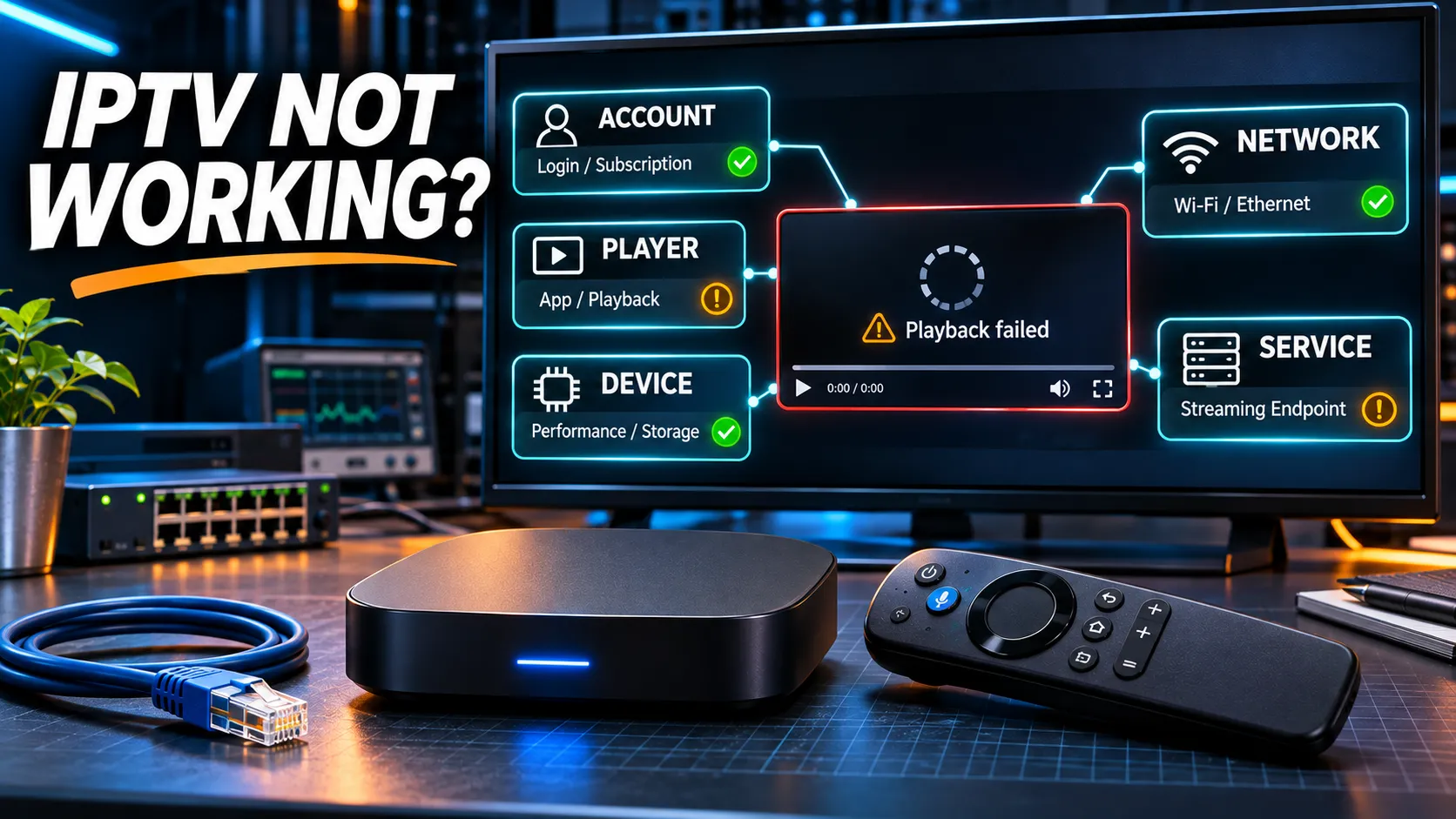

IPTV not working: streaming box and test screen
When IPTV is not working, the cause is usually in one of five places: your account, the player app, your device, your home network or the service itself.
To find it, check that your subscription is active, see whether other apps work, and test the service on a second device and a second connection. The result tells you where to look, and each cause has its own fix, from re-entering your login to restarting the router.
This guide takes you through those checks in order, explains what each result suggests, and then covers the fix for each likely cause.
If you already know your exact symptom, such as no sound or a login error, the table near the end gives you the first thing to try.
IPTV Not Working? Start With These Four Quick Checks
Before you restart, reinstall or change anything, spend a moment on these four checks. They change nothing on your device, and together they rule out the most obvious explanations.
- Check that your subscription is active. Look at the expiry date in your welcome email or account details. A plan that ended yesterday produces the same blank screen as a technical fault.
- Check whether another streaming app works on the same device. Open YouTube or another streaming app and play a video. If that also fails, the issue is probably not your IPTV service.
- Check whether the problem affects one channel or everything. If only one channel or one film fails, the issue is likely with that stream, not your setup. Try a few others from different categories.
- Note the exact error message, if one appears. Write it down or take a photo of the screen. Messages such as “authorisation failed”, “server not found” or “max connections reached” point to very different causes, and the exact wording saves time if you need support later.
If your subscription has expired, renew it. If only one channel is affected, wait a while and try again, or report it to your provider. Otherwise, move on to the tests below.
Find Where the Problem Is: Three Simple Tests
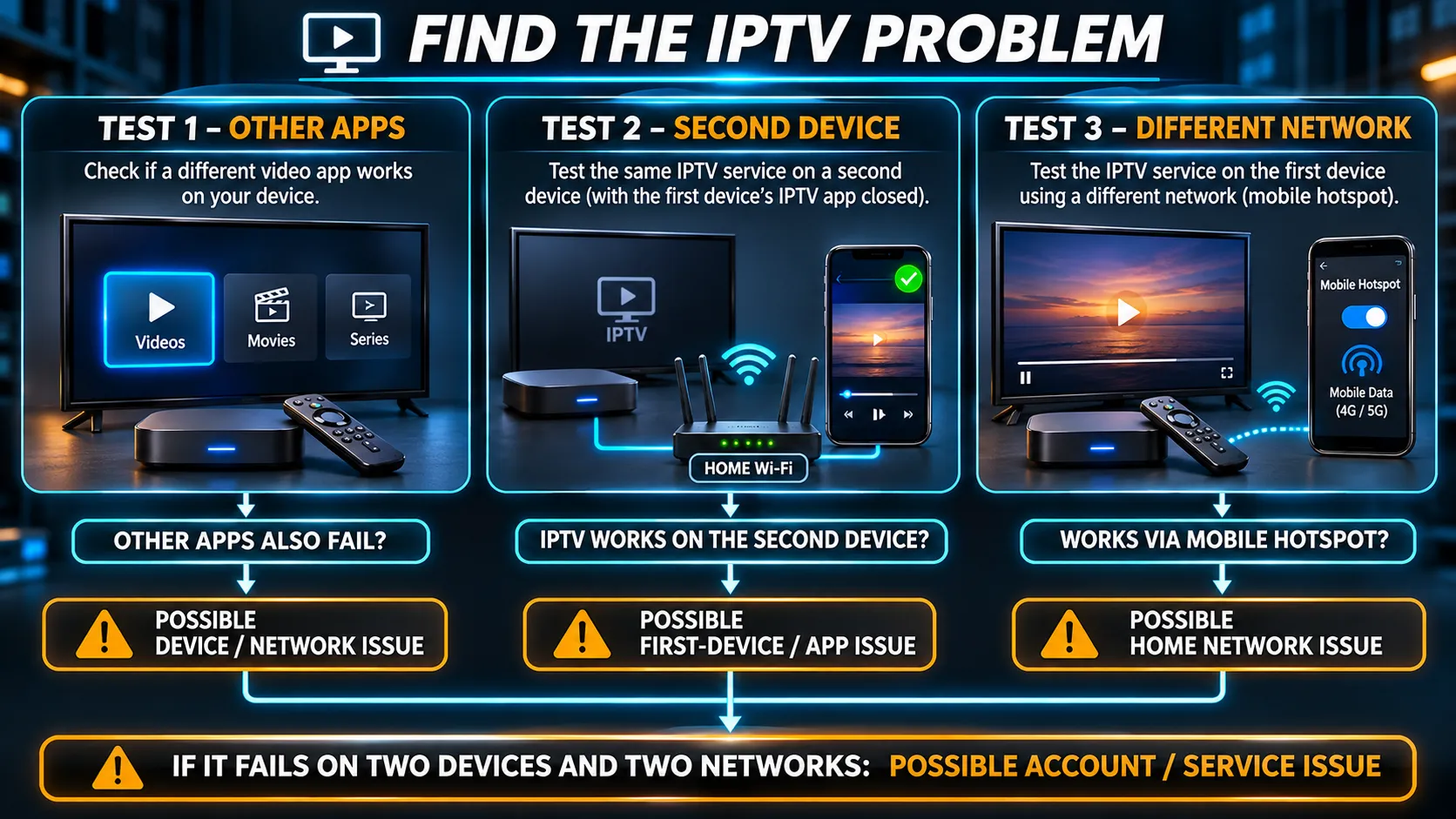
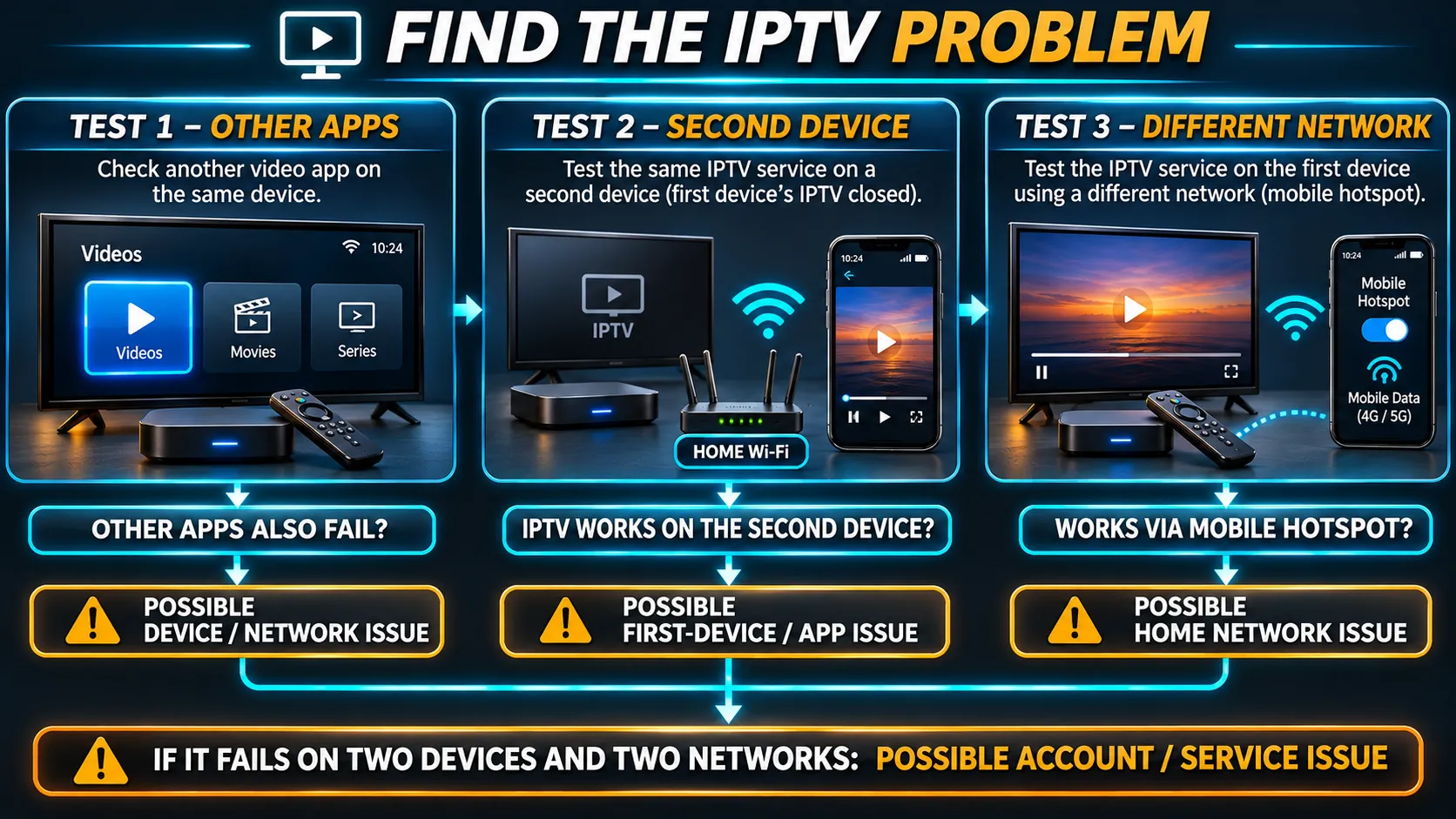
These three tests compare your setup against itself, so you can see which part is behaving differently.
Test another app on the same device
You did a version of this in the quick checks. If other streaming apps also fail or stutter, the device or its connection is the more likely problem, not the IPTV service.
Test the same service on a second device
If you have another device with the player installed, such as a phone or a second TV, test the service there on the same home network.
Close the player on the first device before opening it on the second. Most standard plans allow one connection at a time. If both devices are open at once, the second one may show a connection-limit error and give you a misleading result.
Test on a different connection
Turn on your phone’s hotspot and connect the device to it, or test the service on your phone using mobile data instead of home Wi-Fi. This shows whether the problem follows your home network or not.
What the results suggest
| Test result | What it suggests |
|---|---|
| Other apps don’t work on the same device | A possible device or connection problem |
| The service works on a second device on the same network | A possible app or settings problem on the first device |
| The service works on a phone hotspot but not on home Wi-Fi | A possible home network or connection-path problem. Not evidence of blocking |
| The service fails on two devices and two networks | A possible account or service problem. Not conclusive |
These tests narrow down possible causes. They do not prove that a provider, device or network is responsible.
Decision tree for finding why IPTV is not working
Cause 1: Your Account or Access Details
If the service fails everywhere, start with the account.
- Expired subscription. Check the expiry date, as in the quick checks.
- Changed or mistyped access details. If your provider has issued new details, or if the server address, username or password was typed with a small error, the player can’t sign in. Re-enter them by copying and pasting from your most recent email.
- Connection limit reached. If the player says the maximum number of connections has been reached, another device is probably still using your account. Close the player on your other devices, wait a few minutes and try again.
If you received your access details as a playlist link, check that you copied the whole address: our guide to M3U playlist links explains what the link contains and why a missing character stops it loading.
Cause 2: The Player App
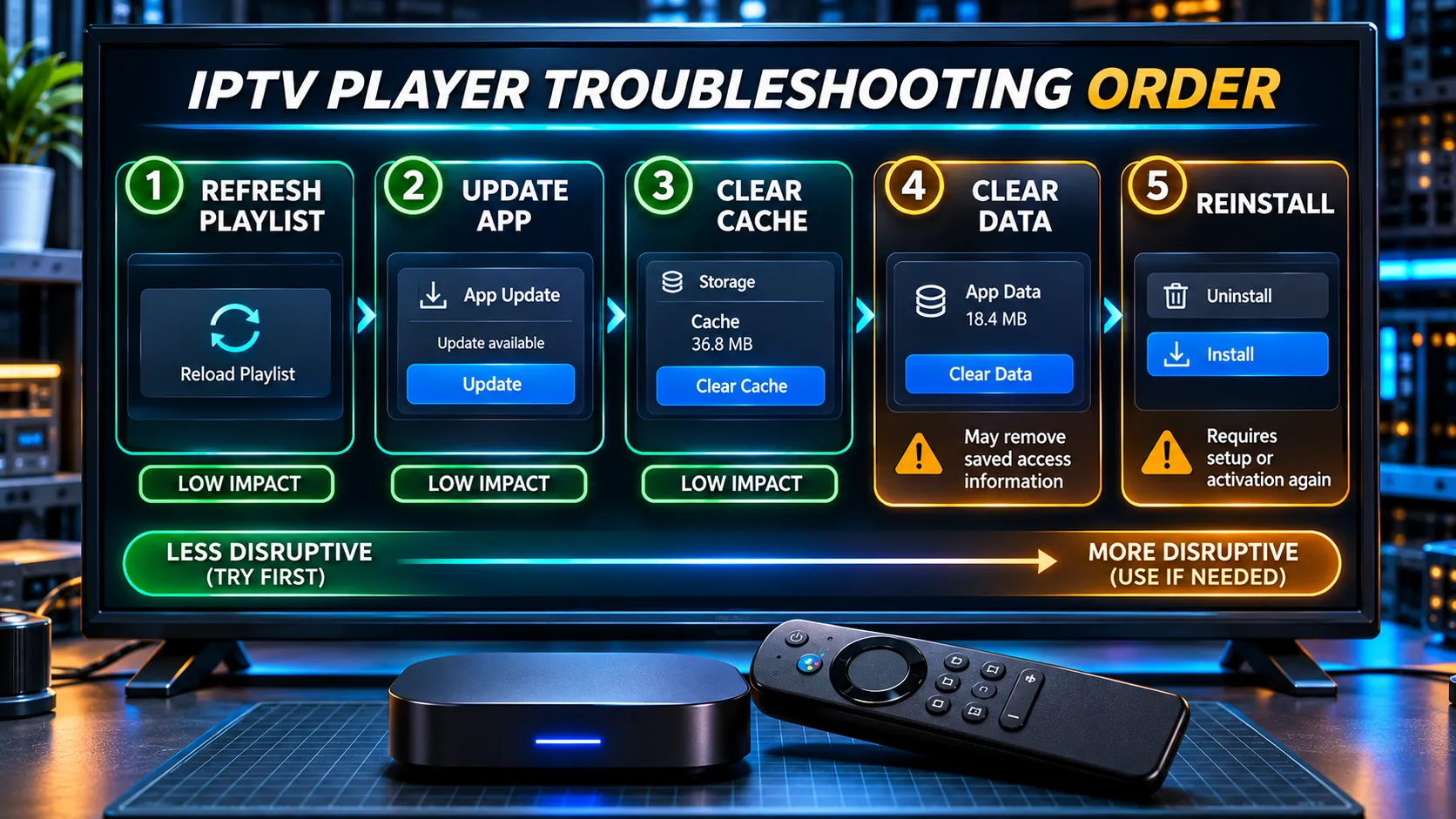
If the service works on another device but not this one, the player app is a likely suspect. Our guide to IPTV player apps explains the signs that point to the player rather than the service. Work through these steps in order, from the least disruptive to the most:
- Refresh the playlist. Most players have an option to reload or update the playlist, usually in the playlist or account settings. This downloads a fresh copy of your channel list and on-demand library without changing your login, and it is often enough when channels have moved, the list looks out of date or a category has disappeared.
- Update the app. Check your device’s app store for an update. Older versions can stop working properly after server-side changes.
- Clear the cache. Google explains that clearing an app’s cache only removes temporary data and that you stay signed in. Your settings normally stay in place too.
- Clear the app’s data. This resets the app to a fresh state and may delete your login, playlists, favourites and saved settings.
- Reinstall the app. This removes the app completely. Some players then need to be reactivated, and you will need to enter your access details again.
Before clearing app data or reinstalling a player, make sure you have your access details and any required activation information saved. This includes your server address, username and password or playlist link, and for players registered by device, the MAC address and device key.
The menu path for clearing cache and data differs by device. Google’s guide to fixing problems with your Google TV device shows the path on Google TV: Settings > Apps > See all apps, then the app. On a Fire TV Stick, if you reinstall the player, follow the same route you used the first time, as set out in our Firestick installation guide.
How do I refresh my IPTV?
“Refreshing” can mean three different things, and it helps to do them in this order:
- Refresh the playlist inside the player, as in step 1 above. Your login stays in place.
- Refresh the TV guide separately if your player has a guide update option. Some players update the guide on a schedule, so a manual refresh helps when it looks out of date.
- Restart the app and then the device. This clears anything stuck in memory without deleting any settings.
If none of these changes anything, the cause is likely elsewhere, so carry on with the device and network checks below.
Cause 3: The Device
If other apps also struggle on the same device, look at the device itself.
- Restart it fully. On many streaming devices, pressing the home button doesn’t close apps. Use the restart option in settings, or unplug the device for a minute and plug it back in.
- Check the storage. When storage is almost full, apps can freeze, crash or fail to load. Remove apps you don’t use.
- Check the date and time. Secure connections depend on the device’s clock. If the date or time is wrong, sign-in and streams can fail. Set the date and time to update automatically.
- Install pending system updates. An outstanding system update can cause odd behaviour until it is installed. On Google TV, Google lists checking for a system update and restarting the device among its first troubleshooting steps.
Cause 4: Your Home Network
If the service works on a phone hotspot but not on your home Wi-Fi, or if every streaming app is struggling, the home network is the likely area to investigate.
Home router and network cables for IPTV troubleshooting
- Restart the router. Turn it off at the power, wait about 30 seconds, then turn it back on and give it a few minutes to reconnect before testing again.
- Check the Wi-Fi signal near the TV. nbn advises placing your Wi-Fi router somewhere central, raised and open, because thick walls, metal panels and appliances can weaken the signal. A wired connection removes Wi-Fi from the equation.
- Check what else is using the connection. Large downloads, game updates or several people streaming at once can leave too little for live TV. If problems mostly happen in the evening, note that the ACCC measures broadband performance in busy hours from 7 pm to 11 pm, when networks are under the most demand.
- If you use a VPN, turn it off temporarily as a test. A VPN adds an extra step to the connection and can slow streams or cause failures. If you rely on it for privacy or security, turn it back on once the test is done.
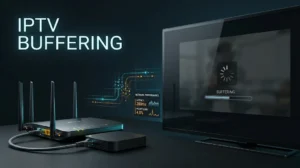
If the picture plays but keeps pausing, our guide to why IPTV keeps buffering goes through the network, device and app causes in detail.
Cause 5: The Service Itself
Why is IPTV not working today?
If the service has failed on two devices and two networks, and your account is active with correct details, the problem may be on the service side, such as maintenance or a temporary fault.
It may also be an account issue that you can’t see from your side, so this result isn’t proof of an outage.
The right step at this point is to contact your provider with what you’ve already tested. Unofficial “is it down” websites and social media posts rarely reflect the status of a specific IPTV service.
Match Your Symptom to the Right Fix
If your problem has a clear symptom, start with the area it usually points to and the first thing to try. These are starting points, not diagnoses.
| What you see | Area to check first | First thing to try |
|---|---|---|
| Video stops and starts, or freezes | Network, device or the stream | Read our guide to IPTV buffering causes and fixes |
| Login fails, or “authorisation” or “server” errors | Account or access details | Check the expiry date, then paste your details again |
| “Max connections reached” | Another device using the account | Close the player on other devices and wait a few minutes |
| Channels won’t load or the list is empty | Playlist or account | Refresh the playlist in the player |
| TV guide is empty or shows the wrong times | Guide data or device settings | Refresh the guide and check the device’s date, time and time zone |
| Picture plays but there’s no sound | Player or device audio settings | Try another channel, then check the audio track and the TV’s sound output |
| Sound plays but the screen is black | The stream or video playback | Try another channel, then the player’s decoder option if it has one |
| Sound and picture are out of step | Player or device | Restart the app, then check for an audio delay setting |
| Picture is blurry or blocky | Connection or the stream | Compare other channels, and test again at a quieter time |
| The app closes or freezes when opened | Player app | Update the app, then clear its cache |
| Movies or series won’t play | On-demand access or the player | Check your plan includes on-demand titles, and try another title |
| Catch-up or replay won’t play | Channel catch-up availability | Check that the channel offers catch-up in your player |
When to Contact Support
If you’ve worked through the checks and the service still isn’t working, contact your provider. A clear first message saves a lot of back and forth. Include:
- Your device model, for example Fire TV Stick 4K Max or Samsung smart TV, and its operating system if you know it
- The player app and its version
- The exact error message, or a photo of the screen
- When it started, and whether it happens all the time or only at certain times
- What you’ve already tested, using the checks in this guide
IPTVAUSSIE customers can send these details on WhatsApp or live chat, or through our contact page.
Most problems become much quicker to fix once you know where they sit. Start with the four quick checks, run the three tests, and go to the cause that matches your results.