
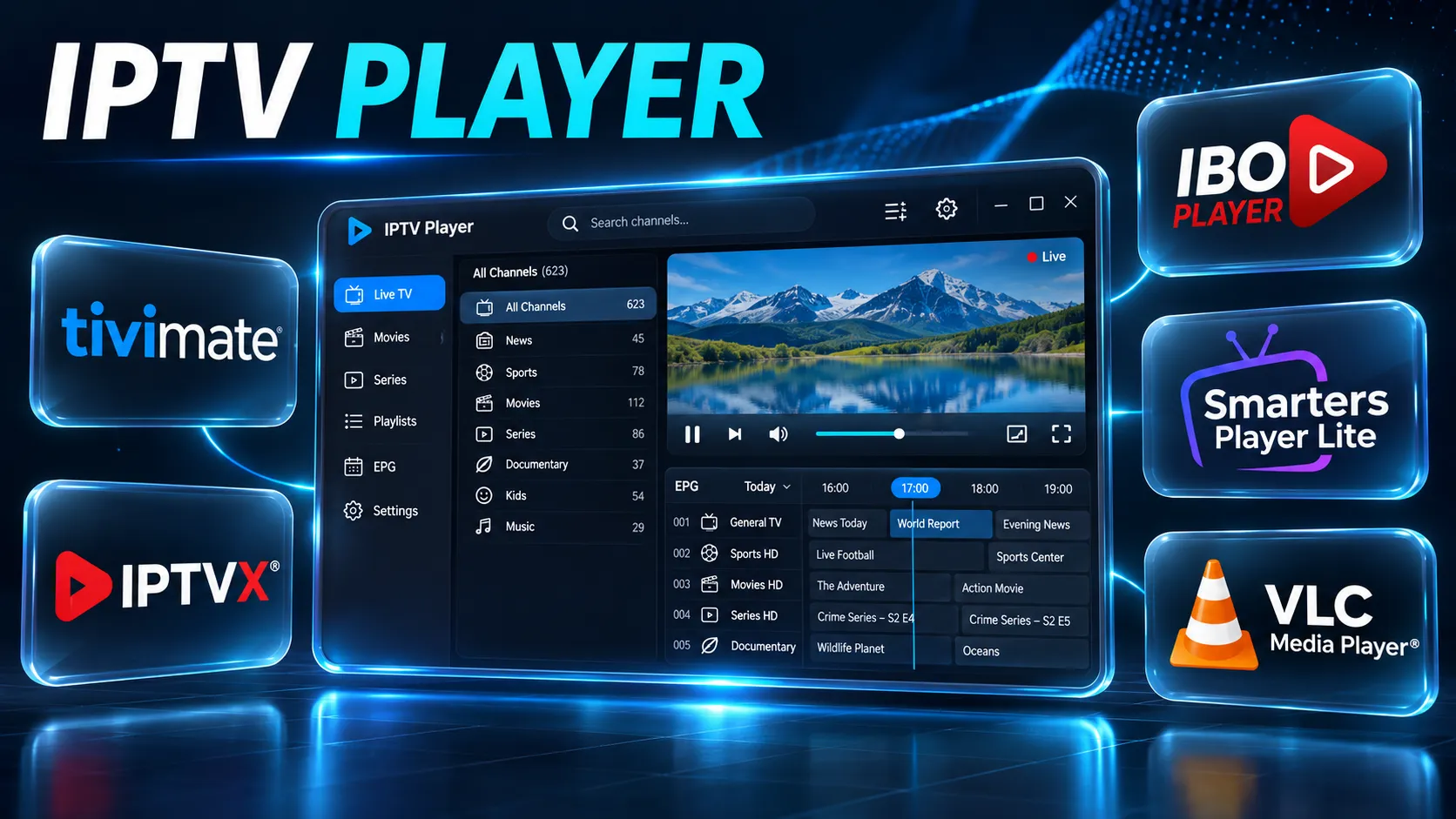
An IPTV player is an app that plays an IPTV service on your TV, streaming device, phone or computer. It doesn’t come with any channels. You add the access details from your subscription, and the player shows the channel list, TV guide and on-demand library that the service supplies. The best IPTV player is the one available on your device that supports your access method.
This guide explains how an IPTV player works, which features matter, how to choose one for your device, the players available on each platform, what you might pay, and how to download one safely. If you’re completely new to IPTV, our IPTV for beginners guide covers the basics first.
What Is an IPTV Player?
An IPTV player is media software that connects to an IPTV service and plays it. It belongs to the same family as a video player or a music app: you install it on your device, then point it at a source.
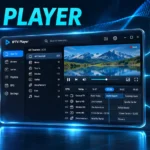
With an IPTV player, the source is your subscription, and you connect the two by entering your access details. From then on the player handles everything you see and touch: the channel list, the TV guide, the on-demand library, the playback controls and your favourites.
The player and the subscription are two separate things
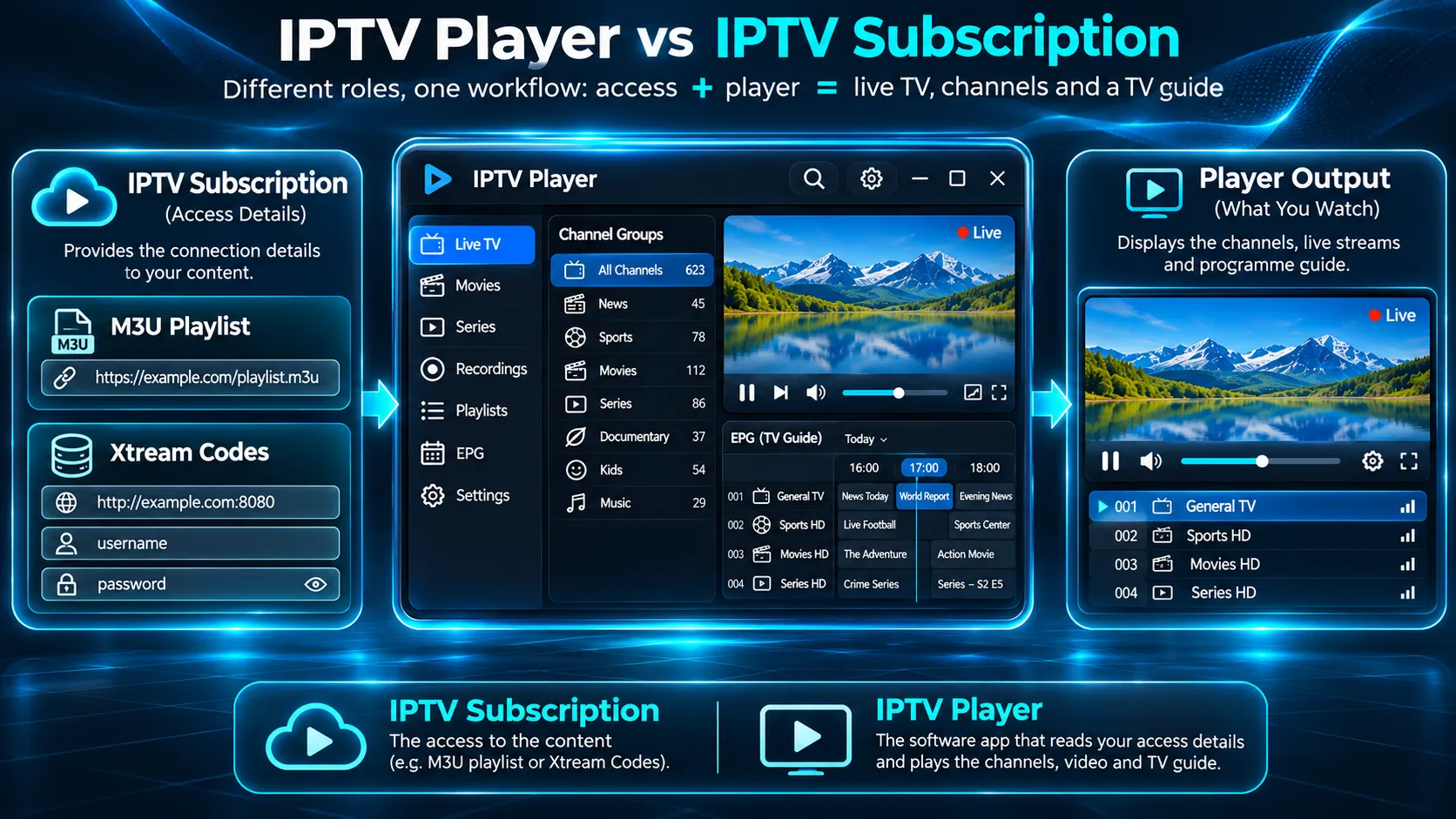
How an IPTV player and an IPTV subscription work together
This is the point that confuses most people new to IPTV. The subscription is the service: it supplies the live channels, the on-demand titles and the login that connects them. The player is the screen and the remote control: it organises and plays what the subscription supplies.
Installing a player gives you nothing to watch until you add a service. Paying for a player, which some apps ask for, unlocks features in the software. It never adds channels.
Why one player can look different with two different services
Because the player only displays what a service provides, the same app can look full with one subscription and sparse with another. Channel names, categories, logos, the TV guide and the on-demand library all come from the service. If something is missing, the cause is often the source rather than the player.
How an IPTV Player Works
An IPTV player works in four stages: it reads your access details, loads the service’s lists, requests a stream when you choose a channel, and plays that stream on your screen.
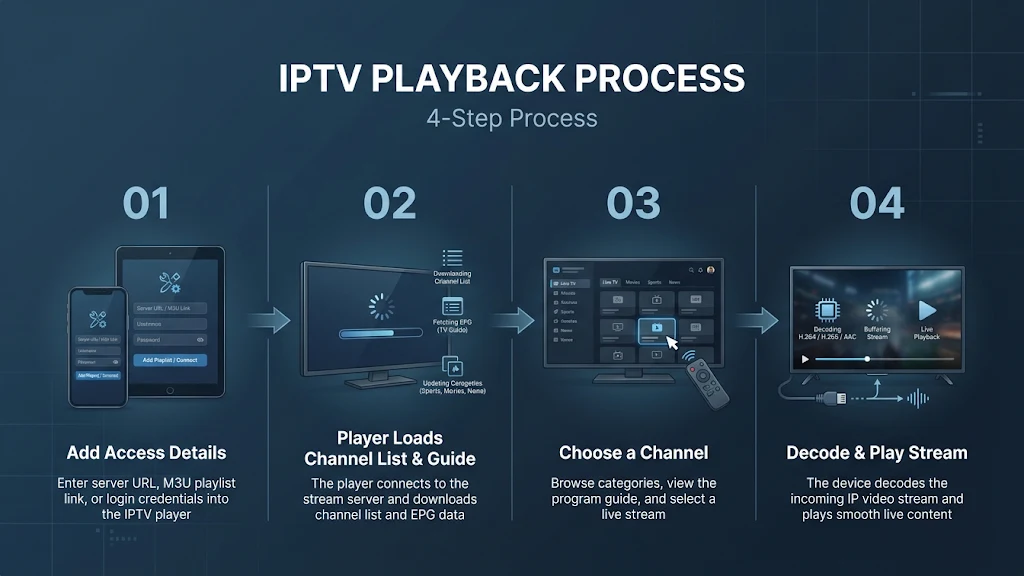
How an IPTV player works in four steps
- You add your access details. These come with your subscription, as a login, a playlist link, an activation code or a device registration.
- The player loads the lists. It downloads the channel list and groups, and, where the service supplies them, the TV guide and the on-demand library. A large list can take a little longer the first time.
- You choose a channel. The player requests that one stream from the service. It doesn’t download every channel at once.
- The stream plays. Your device decodes the video, and the player shows it with its own controls, such as the guide overlay, channel switching and audio options.
Two things follow from this. First, the speed and smoothness of playback depend on your connection, your device and the service as much as on the player.
Second, video decoding is done by your device’s hardware, so an older device can struggle with formats it wasn’t built for, whichever player you install.
Access Methods an IPTV Player Can Use
An IPTV player can only connect to your service if it supports the type of access details your subscription gives you. There are four common types:
- Xtream Codes login: a server address, a username and a password. Many dedicated IPTV players support it, and it usually loads live channels, the guide and on-demand titles together.
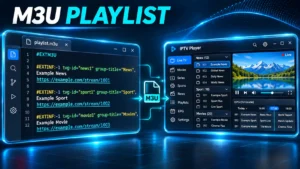
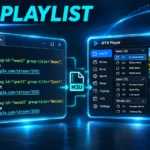
- M3U playlist link: a single web link to a list of channels. Players that accept it usually label the option M3U, Playlist URL or Add playlist. The TV guide sometimes needs a separate link.
- Activation code or device registration: some players, especially on smart TVs, identify your device by a code or its MAC address, and the service details are added through the developer’s website.
- Portal address: set-top boxes such as MAG models connect to a portal address instead of a login or playlist.
Before you choose a player, check which of these your subscription supplies. A player that doesn’t support your method won’t work, however good its reviews are.
What an IPTV Player Does: The Features That Matter
Not every IPTV player supports every feature, and some features also depend on what your service provides. Here is what each common feature does, and what it relies on.
- Live TV and channel groups. Every player shows live channels. Most let you browse them in groups, such as news or movies, using the categories your service supplies.
- TV guide (EPG). A program guide shows what’s on now and next. The player needs guide data from the service, or a separate guide link, to fill it in.
- On-demand library. Many players show films and series in a separate section, but only when your service and your access method include them.
- Catch-up. Some players let you replay recent programs. This works only when the service offers catch-up for that channel; the player alone can’t create it.
- Favourites. Most players let you build a list of the channels you watch most, so you don’t scroll through hundreds each time.
- Recording. Some players can record to the device’s storage or a USB drive. It depends on the player, the device and the space available.
- Parental controls. Many players let you lock channels or categories behind a PIN.
- Multiple playlists or profiles. Some players can hold more than one playlist, or separate profiles for different people in the house.
- Picture and audio options. Some players let you choose the video decoder, the aspect ratio or the audio track, which can help with older devices or channels with several languages.
How to Choose the Best IPTV Player
There is no single best IPTV player for everyone. The best one for you is the one that meets these six conditions on your device, with your service.
1. It is available for your device’s platform
Start with your operating system, not the app’s reputation. A player that is excellent on Android TV may not exist on a Samsung TV or an Apple TV. Search your device’s own app store first, and check that the listing supports your exact platform.
On Amazon devices, check your model: Amazon’s newer Vega OS, which first launched on the Fire TV Stick 4K Select, uses different app technology from Fire OS, so a guide written for Fire OS may not apply.
2. It supports your access method
Match the player to the access details your subscription gives you, as described above. Many players support both an Xtream Codes login and an M3U link. Device registration is specific to certain apps.
3. It handles the TV guide well
If you watch a lot of live TV, the guide matters. Look for a player that loads the guide quickly, shows it in a clear grid and lets you refresh it when it falls behind.
4. It is easy to use with a TV remote
Some players are designed for phones and feel awkward on a TV. On a TV, look for a player built for a remote: large, clear menus, quick channel switching and no reliance on touch.
5. Its cost model is clear
Players use different models: completely free, free with advertising, free with a paid premium tier, or a paid activation per device. Check the listing before you install, so you know what you might pay later.
6. It is updated and comes from an official source
A player that is updated regularly is more likely to keep working as devices and services change. Download it from your device’s official app store first. A developer’s own website is acceptable only when the developer documents direct installation for that platform.
IPTV Players by Platform
The table below lists examples of IPTV players and where each is officially distributed for each platform, as checked in November 2026. It isn’t a ranking, and it doesn’t mean every player works with every service.
| Platform | Examples and verified official sources |
|---|---|
| Android TV and Google TV | TiviMate (Google Play) · IPTVX (Google Play) |
| Amazon Fire OS | IPTVX (developer’s official installation guide for Fire OS devices) |
| Apple TV (tvOS) | IPTVX (App Store) · Smarters Player Lite (App Store) |
| iPhone and iPad (iOS, iPadOS) | IPTVX (App Store) · Smarters Player Lite (App Store) |
| Samsung TVs (Tizen) | IBO Player (supported platform listed by the developer) |
| LG TVs (webOS) | IBO Player (supported platform listed by the developer) |
| Windows | IPTV Player Zero (Microsoft Store) · VLC (VideoLAN) |
| macOS | IPTVX (App Store, Apple silicon Macs) · VLC (VideoLAN) |
Availability changes over time, and an app can be removed from a store or added to a new one. Check your device’s store before you rely on any name here, and check with your provider which players suit its service.
Players built into devices
Some devices come with a player already built in. Dedicated IPTV boxes, such as Formuler models with their own MYTVOnline app or MAG set-top boxes that connect through a portal, are designed around their built-in player.
On these devices you usually don’t choose a player at all: you add your service to the one that comes with the box, using the access method it supports.
IPTV Player or General Media Player?
A dedicated IPTV player is built around live TV, while a general media player is built to play files and individual streams. Both can open a stream, but they organise it very differently.
A general media player such as VLC can open network streams and M3U playlist links, and VideoLAN distributes it for Windows, macOS, Linux, Android and iOS. It suits a quick test or a small playlist.
It isn’t designed around a full TV guide grid, channel groups or an Xtream Codes login, so with a full IPTV service you usually get a long, plain list of channels.
A dedicated IPTV player adds the parts that make live TV comfortable: a guide grid, channel groups, favourites, catch-up where the service supports it, and remote-friendly menus. For everyday viewing on a TV, a dedicated player is usually the better fit.
Can You Use More Than One Player?
Yes. You can install several players on the same device, or the same player on several devices, and add the same subscription to each. This is a sensible way to compare players before settling on one. Keep three things in mind:
- Connection limits still apply. Most subscriptions allow a set number of streams at the same time. Close one player before you open another, or the second may show a connection-limit error.
- Favourites and settings don’t move with you. Each player keeps its own favourites, channel order and guide settings. Switching players means setting these up again.
- Some players register by device. If a player uses device (MAC) registration or a per-device activation, moving to a new device can mean registering again.
Free vs Paid IPTV Players
Many good players are free to install. Where money comes in, it usually takes one of three forms:
- Advertising in the free version.
- A premium tier, paid once or yearly, that unlocks features such as a richer TV guide, recording or more playlists.
- An activation fee per device, used by some players on smart TVs, where you register the device on the developer’s website.
Whatever you pay a player developer, you are paying for software. A paid player never adds channels or replaces a subscription, and a free player isn’t a free source of content. If a player is paid, pay the developer directly through the official store or the developer’s own website.
Is an IPTV Player Legal?
IPTV player apps are media software, offered through official stores such as Google Play, the App Store and the Microsoft Store.
Their listings make clear that they don’t supply content: you add a source yourself. For example, the Google Play listing for one IPTV player states that the product “doesn’t offer video content on its own”.
So the player itself isn’t the question. What matters is the source you connect to it, and whether that service has the rights to what it distributes.
Where to Download an IPTV Player Safely
The safest place to download an IPTV player is your device’s official app store. On Android devices, Google says Google Play Protect checks apps for harmful behaviour, including apps installed from other sources, and warns you about them.
On platforms that allow it, such as Fire OS and Android TV, some developers also offer an official installation route on their own website, and that is acceptable when the developer documents it.
Avoid modified copies of popular players offered on unofficial sites, often described as “premium unlocked” or “pre-configured”.
The FBI has warned that criminals infect TV streaming devices through malicious apps from unofficial marketplaces, and it advises avoiding marketplaces that advertise free streaming content. Modified copies can also expose your login details.
When the Player Is the Problem
Some playback problems come from the player rather than the service. These are the usual signs:
- Only one player has the problem. If the same channel plays in a second player on the same device, the first player’s settings or data are the likely cause.
- The app is out of date. An old version can stop loading lists or guides after a service or device update. Update it from the official store.
- The login type doesn’t match. Xtream Codes details typed into an M3U field, or the reverse, won’t connect.
- The guide is empty but channels play. The player may need a guide link or a guide refresh.
If channels don’t play in any player, the cause is more likely the connection, the device or the service, and you should contact your provider with what you’ve already checked.
Which Player Works With Your Subscription?
Before choosing a player, ask your provider which access methods and apps it supports. If you’re considering IPTVAUSSIE, contact us with your device model and preferred player before starting a trial so we can confirm the available setup options.
You can see plan lengths and prices on our IPTV subscription Australia page.