

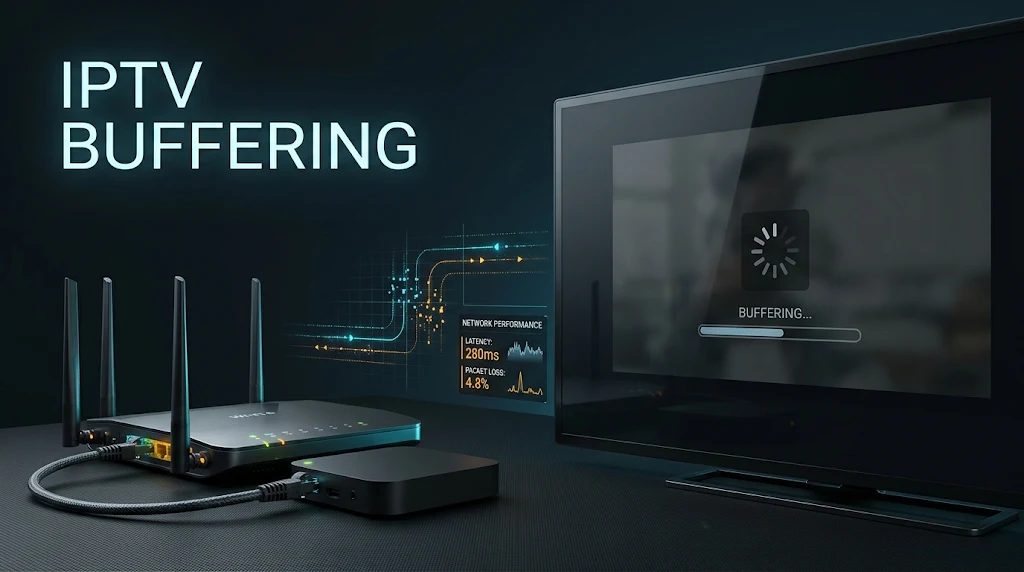
IPTV buffering: a streaming device, router and screen showing a loading ring
IPTV buffering happens when video arrives more slowly than it plays, so the player pauses to catch up.
The most common causes are a weak Wi-Fi signal, busy evening hours on your connection, a slow or full device, an outdated player app, or a problem with one stream. To fix it, first check whether it affects one channel or all, at certain times or always, and on one device or all. Then apply the fix for that cause.
This guide explains what buffering looks like, how to read its pattern, and the fixes for each likely cause, from your Wi-Fi to the player app. If you’re new to IPTV, our beginner’s guide to IPTV explains how the service, the player and your device fit together.
What IPTV Buffering Looks Like
Several different problems get called buffering, and they don’t all have the same cause:
- Buffering: the picture stops and a loading icon appears, then playback continues.
- Freezing: the picture stops on a still frame, sometimes with the sound carrying on.
- Stuttering: playback continues but motion looks jerky or uneven.
- Pixelation: the picture turns blocky or blurred, often while the stream adjusts its quality.
This guide covers buffering and freezing. Stuttering and pixelation can share some of the same causes, so several fixes below help with them too.
Why Is My IPTV Constantly Buffering?
Buffering usually comes from one of six places:
- Your home Wi-Fi: a weak or crowded signal between the router and the device.
- Busy times on your connection: other people at home using the internet, or the evening peak on your broadband.
- Your device: low storage, an overloaded or older device, or one that struggles with the video format.
- The player app: an outdated version or a cluttered cache.
- A single channel or event: a problem with that one stream.
- The service: a problem on the provider’s side.
Find the Pattern Before You Fix Anything
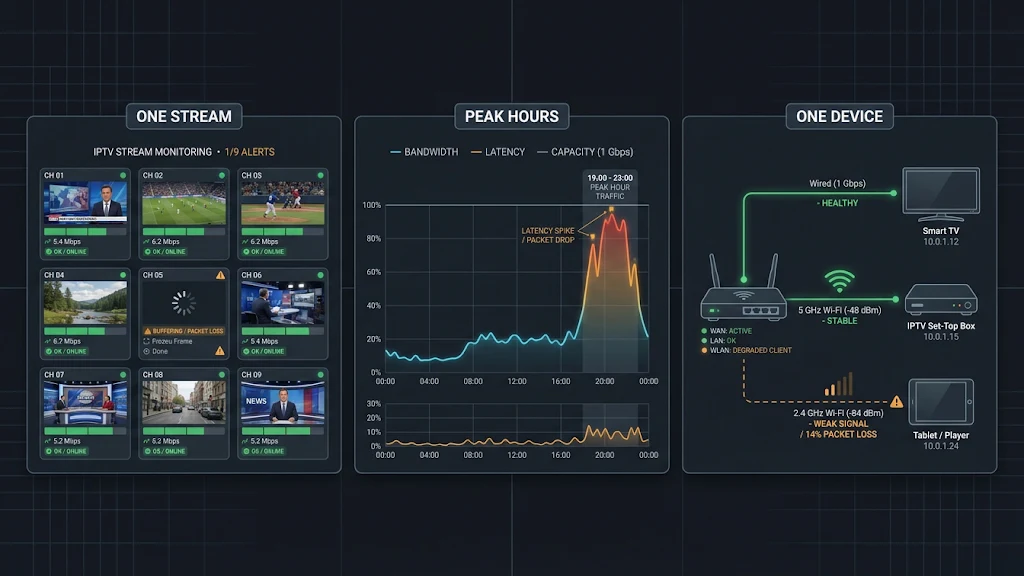
IPTV buffering patterns and their likely causes
Before changing settings, answer three questions:
- Is it one channel or all channels?
- Does it happen all the time, or at certain times, such as evenings or big live events?
- Is it one device, or every device in the house?
| Pattern | Possible cause |
|---|---|
| One channel or one event only | That stream or event |
| All channels, but mainly in the evening | Busy hours on your connection or at home |
| All channels, one device only | That device, its app or its Wi-Fi signal |
| All channels, all devices, any time | Your home network, your connection or the service |
These patterns point to possible causes; they don’t prove one. To test more precisely, change one thing at a time: try the same channel in another player app, then on a second device, then on another connection. Whatever change makes the buffering stop shows you where to look.
IPTV Buffering Fixes by Cause
Home Wi-Fi
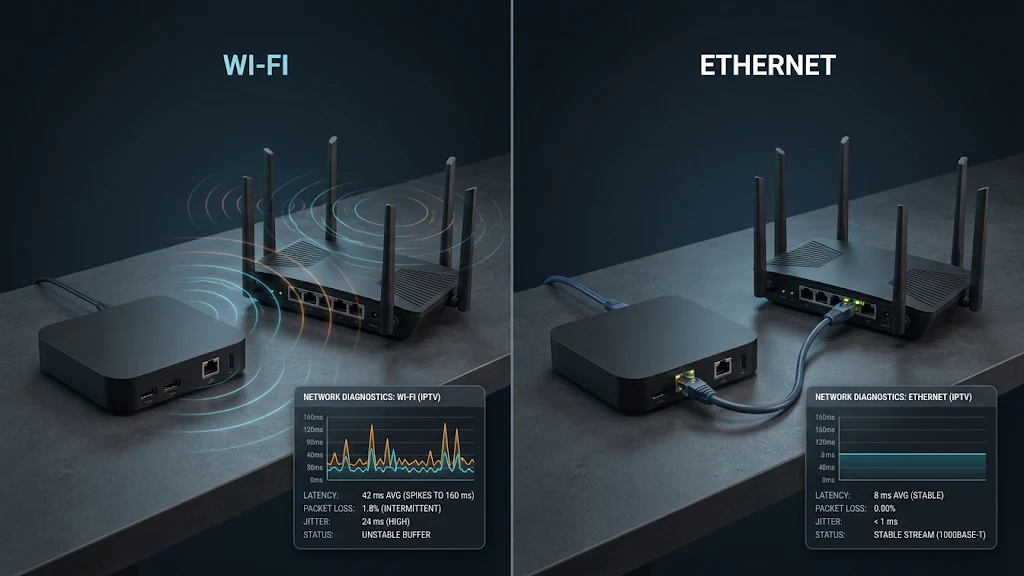
Wi-Fi is one of the most common causes of buffering on a single device, especially when the router is in another room.
- Move the router to a better spot. nbn advises placing your Wi-Fi router somewhere central, raised and open, because thick walls, metal panels and appliances can weaken the signal. If you can’t move the router, move the streaming device closer or remove obstacles between them.
- Use the 5 GHz band if your router offers one. It’s usually faster and less crowded than 2.4 GHz, though its range is shorter.
- Use a wired connection where you can. An Ethernet cable, or an Ethernet adapter for a streaming stick, removes Wi-Fi from the equation entirely.
- Consider a mesh system for a larger home. nbn suggests that in a property with three bedrooms or more, a mesh network with extra access points around the home might make sense.
Busy times on your connection
If buffering mostly happens in the evening, your connection may simply be busier then. The ACCC measures broadband performance during busy evening hours between 7 pm and 11 pm, and notes that providers may need to ration capacity across their networks when demand is high, as explained on its page about broadband performance data.
At home, the same thing happens on a smaller scale: game downloads, video calls and several people streaming at once all compete for the same connection.
- Pause large downloads and updates while you watch.
- Check what else is streaming in the house during the problem times.
- Compare your evening speed with a daytime test. Run both tests on the device you watch on, or as close to it as you can, so the result includes your Wi-Fi.
The device
If buffering happens on one device but not others, look at the device.
- Restart it fully. Pressing the home button doesn’t close apps on many streaming devices; use the restart option in settings or unplug it for a minute.
- Free up storage. When storage is nearly full, apps slow down and can stall.
- Consider the video format. Some streams use H.265 (HEVC), which older or less capable devices may struggle to decode smoothly, particularly at higher resolutions.
The player app
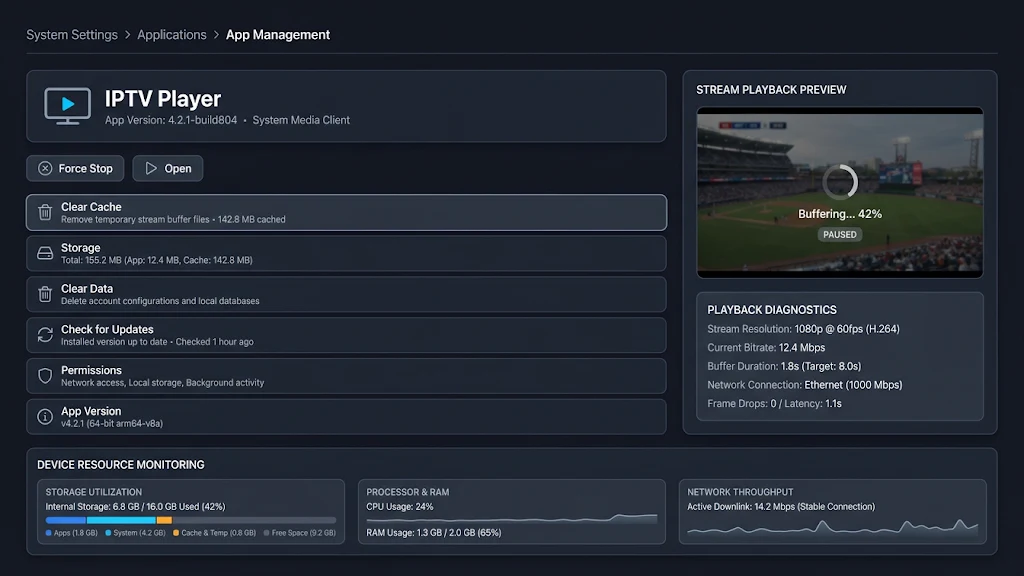
- Update the app from your device’s app store.
- Clear the app’s cache. Google explains that clearing an app’s cache only removes temporary data and that you stay signed in to your apps. Don’t clear the app’s data unless you have your access details saved, because that resets the app.
- Check the player’s own settings and help pages for playback options; what’s available varies between players.
- Try a different player if the problem is limited to one app. Our guide on how to choose an IPTV player explains what to look for.
A single channel or event
If one channel buffers while others play smoothly, the issue is most likely with that stream rather than your setup. Try again later, and report the channel name and time to your provider.
When every channel buffers everywhere
If buffering affects every channel, on every device, and on more than one connection, the service may be having a problem, but that isn’t the only explanation.
Your account, the access details or another factor could also be involved. Treat this pattern as a reason to contact support with what you’ve tested, rather than a final diagnosis.
Will a VPN Stop IPTV Buffering?
A VPN isn’t a buffering fix. It sends your connection through an extra server, which adds distance and processing, and can make buffering worse rather than better.
If you already use a VPN, turn it off briefly as a test: if buffering stops, the VPN connection is a likely cause. Turn it back on afterwards if you rely on it for privacy or security.
How to Prevent Buffering Before It Starts
- Place the router where it has a clear path to your main TV, or use a wired connection.
- Keep the player app and your device’s software up to date.
- Keep storage free on streaming sticks.
- Restart your streaming device occasionally.
- Avoid large downloads while you watch live TV.
- For major live events, test your setup a little before kick-off rather than at the start.
When to Contact Support
If buffering continues after basic troubleshooting, contact support with your device model, the time of the issue and the checks you’ve completed. Support can review your connection and account configuration.
It also helps to note:
- Which channels buffer, and whether others play smoothly
- When it happens, such as evenings only or all day
- Which player app and version you use
IPTVAUSSIE customers can send these details on WhatsApp or live chat, or through our contact page.