
M3U playlist: a list of stream links loaded into an IPTV player
An M3U playlist is a plain text list of links that tells an IPTV player where each channel’s stream is. It contains no video itself. Each channel takes two lines: an information line with the channel’s name, logo and group, and the stream address. You get your M3U playlist URL from your IPTV subscription, paste it into your player, and the player loads the channel list.
The player reads the list, shows you the channel names, and only loads a stream when you choose that channel. M3U is one of the most common ways an IPTV subscription delivers its channels to an IPTV player.
This guide explains what’s inside an M3U playlist, how M3U differs from M3U8, where your playlist link comes from and why that link should stay private.
What Is an M3U Playlist?
M3U stands for “MP3 URL”. The format began as a way to list MP3 audio files for a music player. M3U has never had a formal specification. It became a de facto standard because so many players adopted it.
The idea is simple: a text file with one location per line. A location can be a file on your computer or an address on the internet.
Music players still use M3U for lists of songs, internet radio uses it to point to a live stream, and IPTV uses it to list live channels, with each entry representing one channel and its stream address.
Because an M3U playlist is plain text, you could open one in a text editor and read it. You wouldn’t see any video, just channel names and links.
What’s Inside an M3U Playlist File
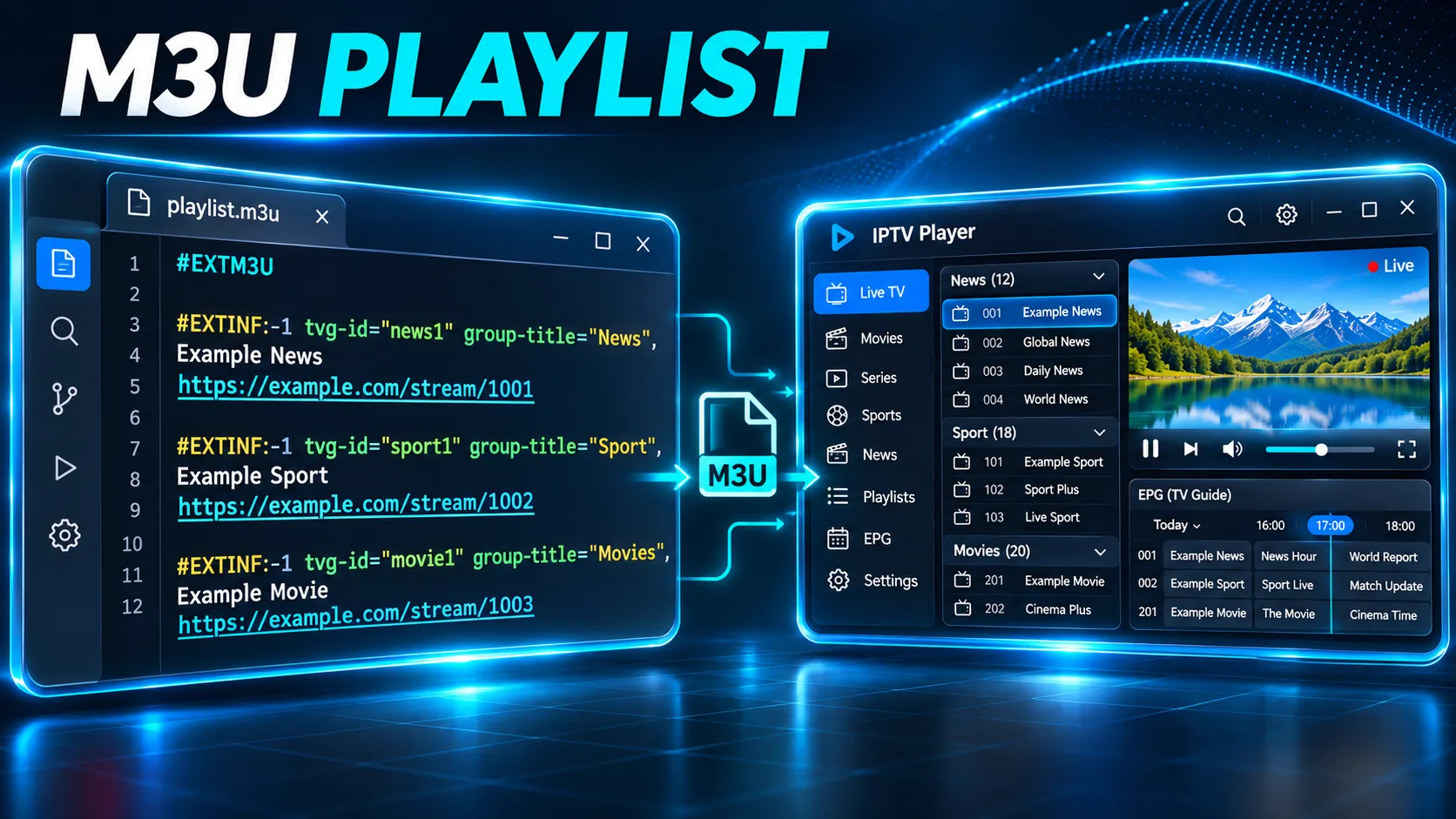
Most IPTV playlists use the extended M3U format, which adds information lines that start with a # sign.
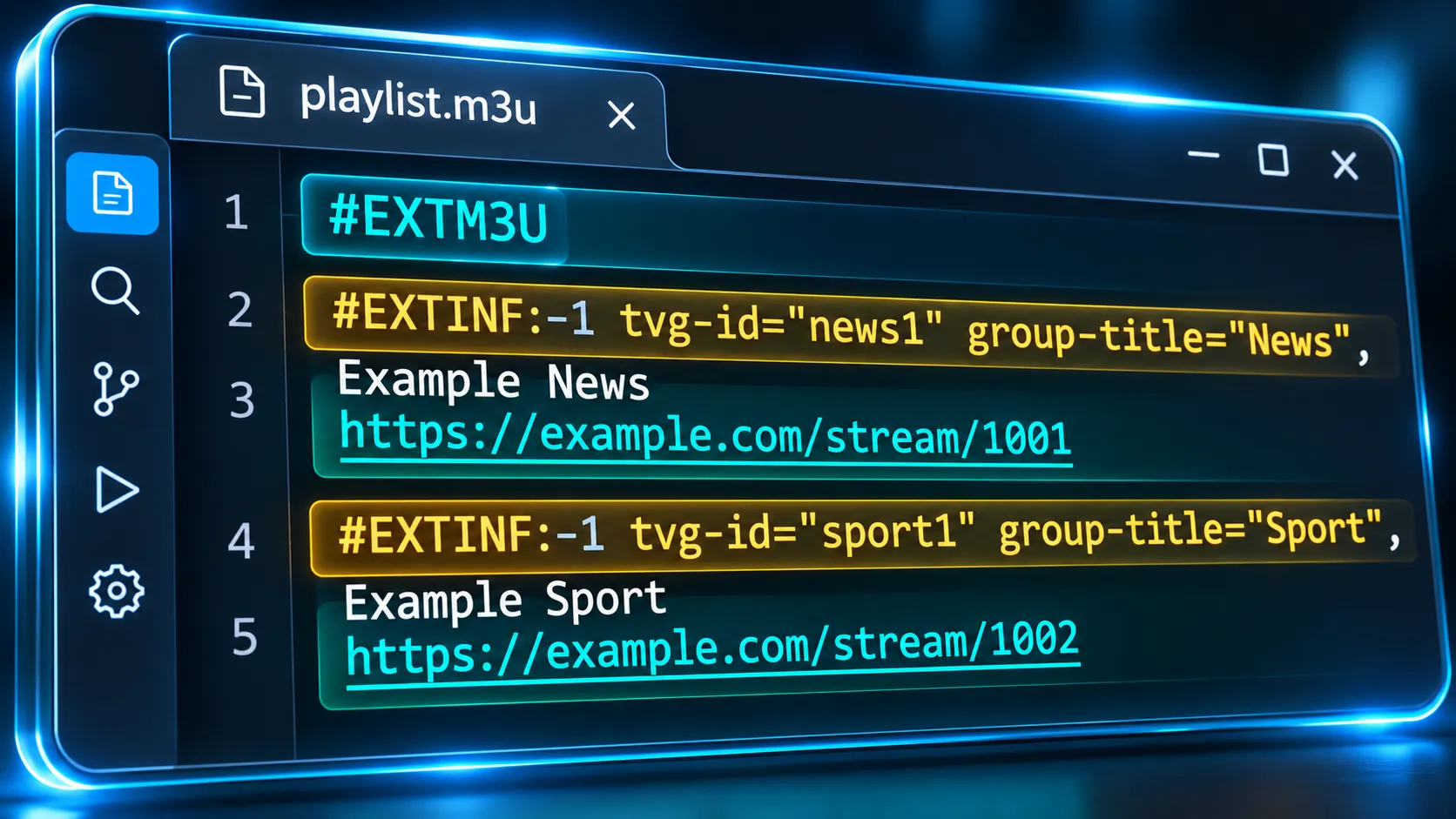
Structure of an M3U playlist: header, channel line and stream link
Three kinds of line do most of the work:
#EXTM3U: the header. It must be the first line, and it marks the file as an extended M3U playlist.#EXTINF: the information line that sits above each stream link. It starts with a duration in seconds. Live channels have no fixed length, so IPTV playlists usually show-1. After a comma comes the channel name the player displays.- The stream link: the line under each
#EXTINF. This is the address the player opens when you choose the channel.
IPTV playlists also add attributes inside the #EXTINF line. The three you’ll see most often are:
tvg-id: a guide ID that links the channel to its TV guide listingstvg-logo: a link to the channel’s logo imagegroup-title: the group the channel appears under, such as News or Sport
Here is a short example. The addresses are placeholders.
#EXTM3U
#EXTINF:-1 tvg-id="news1" tvg-logo="https://example.com/news.png" group-title="News",Example News
https://example.com/stream/1001
#EXTINF:-1 tvg-id="sport1" tvg-logo="https://example.com/sport.png" group-title="Sport",Example Sport
https://example.com/stream/1002
That’s a two-channel playlist. A playlist from a subscription works the same way but can hold thousands of entries.
These attributes aren’t part of a formal standard, so players read them in slightly different ways. A logo or group may show in one player and not in another.
M3U vs M3U8: What’s the Difference?
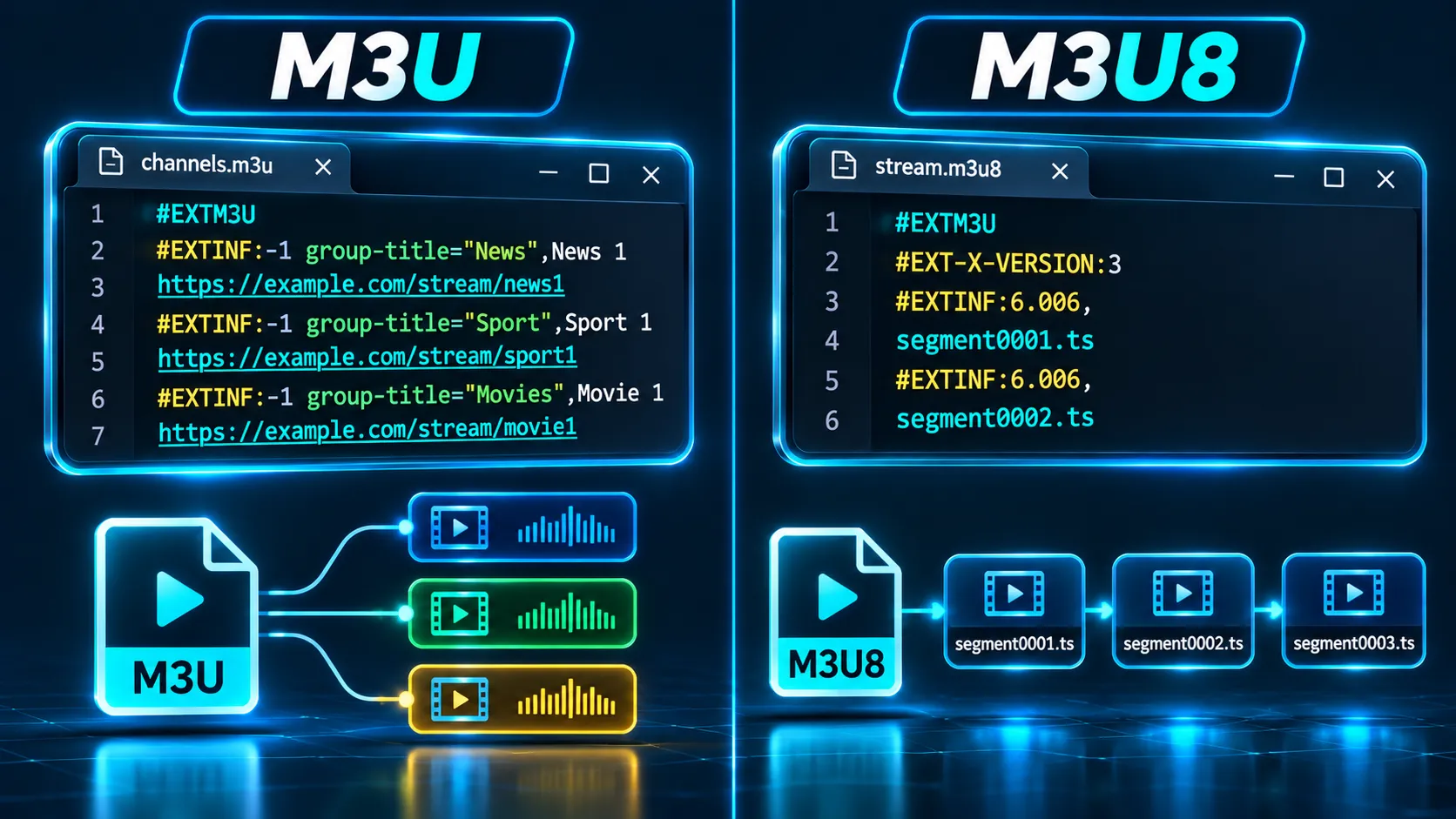
The basic difference is the text encoding. A file with the .m3u8 extension is an M3U playlist that must be saved in UTF-8, an encoding that handles accented letters and non-English scripts reliably.
A .m3u file, by contrast, may use different text encodings, including UTF-8. An IPTV channel list may come as either, and many players accept both.
The .m3u8 extension also has a second, separate use. HTTP Live Streaming (HLS), the streaming method developed by Apple, uses .m3u8 playlists to split a video into short segments that the player downloads one after another.
Apple’s own HTTP Live Streaming documentation describes it this way: the stream is broken into short media files, an index file lists them, and the player requests them in order. Apple’s HLS specification is published as RFC 8216. HLS playlists start with the same #EXTM3U header but add their own tags, which begin with #EXT-X-.
So a .m3u8 file isn’t automatically an IPTV channel list, and not every .m3u8 file is an HLS playlist. The extension tells you the encoding. The content tells you what the file is for. You don’t need to manage either: the player reads the list and handles the streams it points to.
M3U Playlist URL vs M3U File
An M3U playlist reaches a player in one of two forms:
- A playlist URL: a web address. The player downloads the list from it.
- A playlist file: a saved copy (
.m3uor.m3u8) stored on your device.
The difference matters when the channel list changes. With a URL, the player can request a fresh copy each time it reloads the playlist, so changes made on the provider’s side can appear.
Whether and when that happens depends on the server and on the player’s settings: many players let you refresh the playlist manually or choose how often it updates. A saved file stays exactly as it was when you downloaded it, until you replace it.
For an IPTV subscription, the M3U playlist URL is the usual and more practical form. A saved file mainly suits small personal lists or players that can’t load a link.
How Do I Get My M3U URL?
Your M3U URL comes from your IPTV subscription provider. It’s usually included with your access details: in a welcome email, in your account area or in a message from support. Some providers build the link from your account username and password, which makes it unique to your subscription.
If your subscription gave you a server address, a username and a password instead of a link, you have a different type of login. The player uses those details directly, and you may not need an M3U URL at all.
Only use a playlist link supplied by your own subscription. Lists passed around online come from unknown sources, can stop working without notice and may point to streams that nobody has permission to share. The Australian Cyber Security Centre also advises avoiding sites with pirated or illegal content, because they may carry malware.
Where the M3U Link Goes in a Player
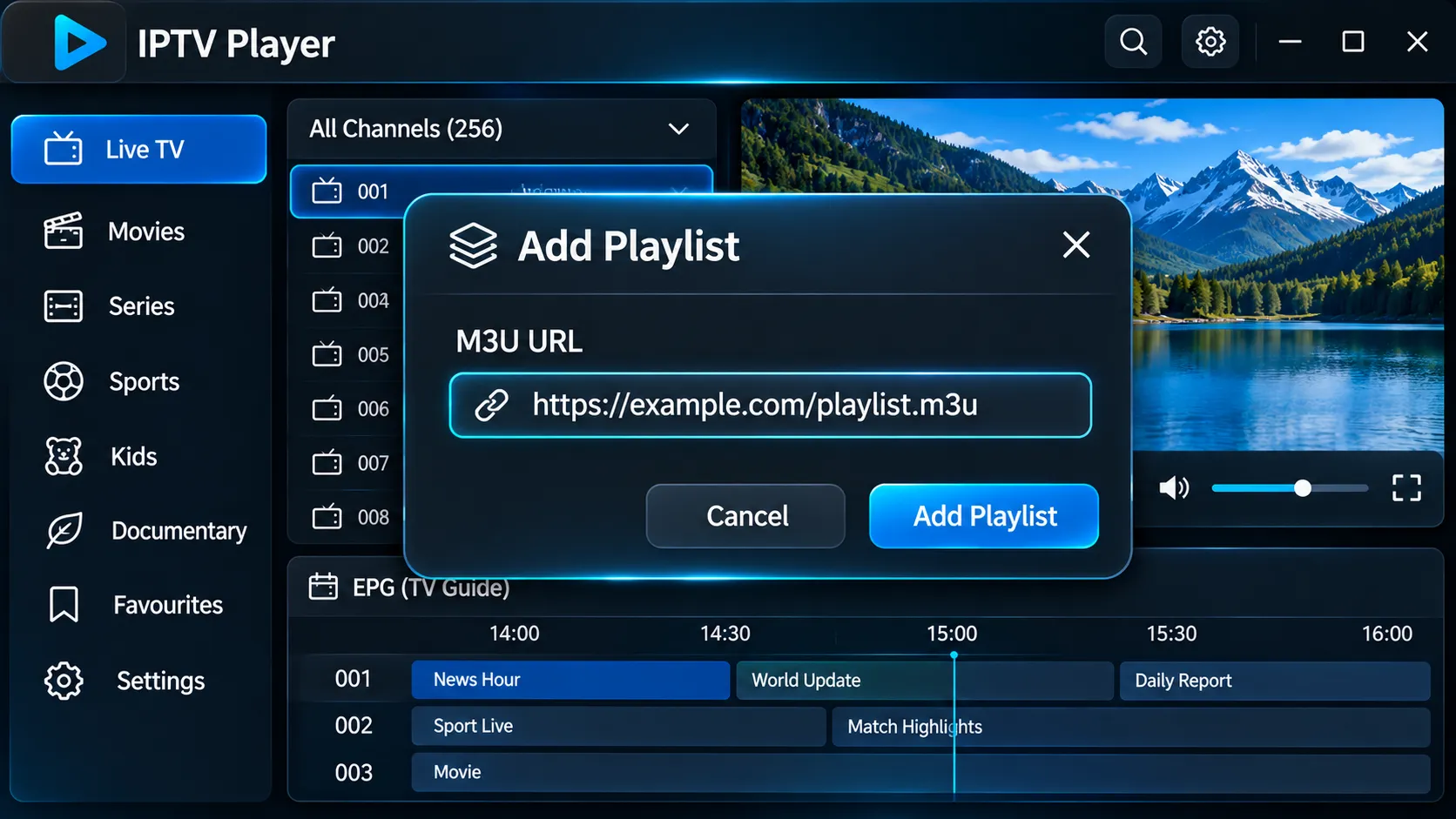
In players that support it, the option is usually labelled M3U, M3U URL, Playlist URL or Add playlist, and its name and place in the menus differ between apps.
You paste the full link, give the playlist a name, and the player loads the channel list. Not every player supports M3U links, so check that yours does first. Our guide to choosing an IPTV player explains the access methods each type of player supports.
Why You May Need a Separate TV Guide Link
An M3U playlist lists channels, not programs. The TV guide usually comes from a separate guide link, which some players ask for next to the playlist link.
The player matches the two using the guide ID (tvg-id) in each channel line. When the IDs match, the guide listings appear.
When they don’t, the channel still plays but shows no guide. Some players and services load guide data automatically, while others need the guide link added by hand.
M3U Is One of Several Login Types
An M3U link is only one way a subscription can deliver its channels. The same service may instead supply an Xtream Codes login (server, username and password), an activation code or a device registration, so use whichever your subscription gives you and your player supports.
Keep Your M3U Link Private
Treat your M3U link like a password. Playlist links often contain your username and password inside the address, so anyone who has the link can use your subscription. If other people use it, your connection limit can fill up and your own devices can start showing errors.
- Don’t post your link in forums, group chats or screenshots.
- Share it only with your provider’s support, through their official contact options, and only when they ask for it.
- If you think your link has been shared, ask support whether your access details can be changed.
Warning signs that someone else may be using your link include connection-limit errors when only one of your devices is on, or playback stopping when nobody else in your home is watching.
Quick Checks Before You Contact Support
- Copy the full link. A missing character at the start or end is a common reason a playlist doesn’t open. Paste it rather than typing it where you can.
- Check that your subscription or trial is still active. When access ends, the link stops returning channels.
- Give a large list time. Large playlists may take longer to load, depending on the player, the connection and the server.
If the playlist still doesn’t load, contact support with your device, the player you use and the checks you’ve already done. If you’re new to IPTV and want the bigger picture first, our IPTV for beginners guide explains how the service, the player and your device fit together.