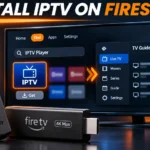

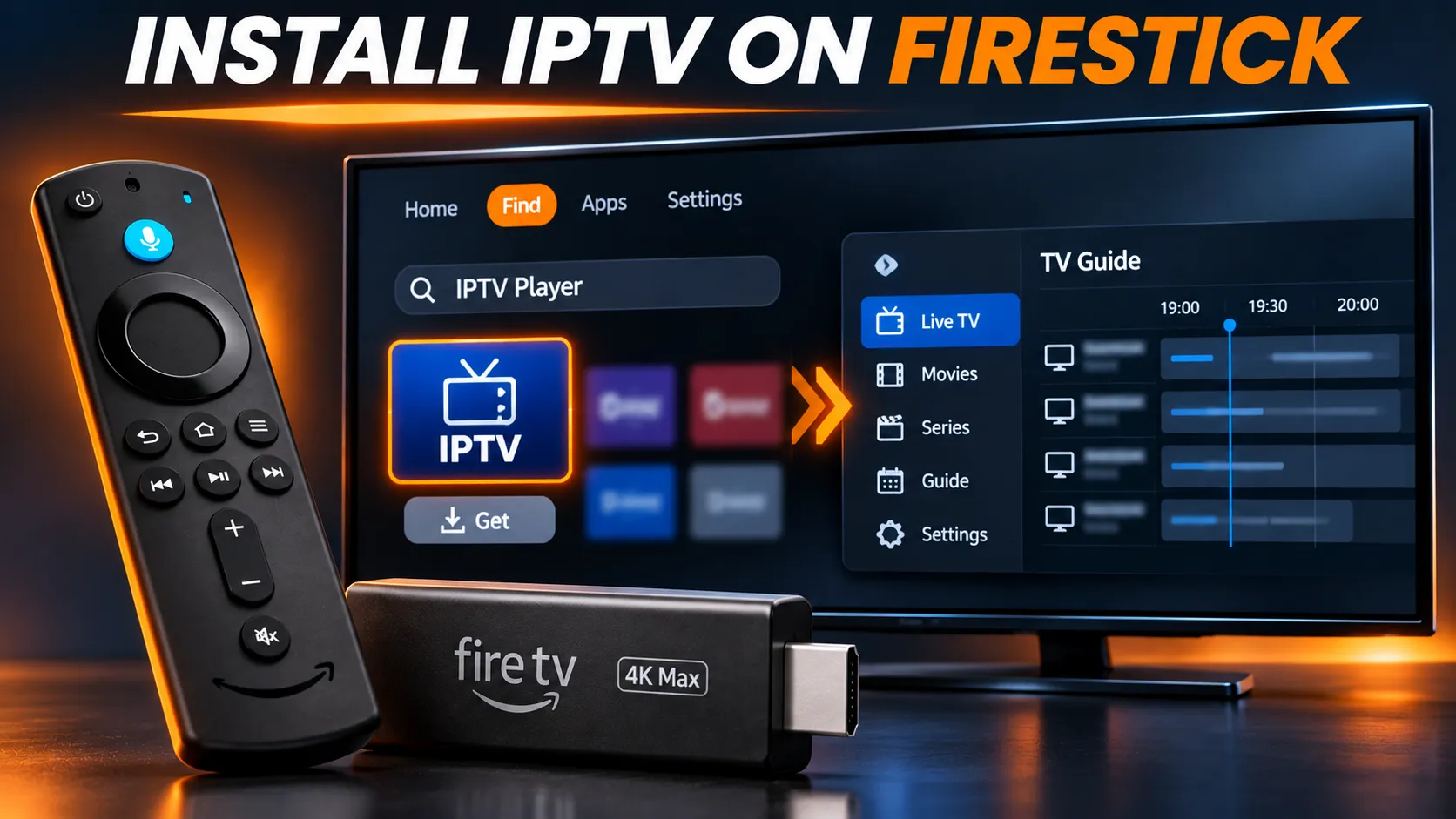
Install IPTV on Firestick: streaming stick and remote ready for setup
To install IPTV on Firestick, first check whether your Fire TV runs Fire OS or Vega OS. Then install an IPTV player app, either from the Amazon Appstore or, on Fire OS only, from the player developer’s official download page using the Downloader app. Finally, open the player, enter the access details from your subscription, and test a few channels and the TV guide.
You need three things: a Fire TV device, an IPTV player app that’s available for it, and the access details from your subscription.
This guide walks through both installation routes, then shows you how to add your login and check that everything plays.
Before You Start: Check Your Fire TV Model
Amazon now sells Fire TV devices on two operating systems, and the steps in this guide depend on which one you have.
- Fire OS devices, such as the Fire TV Stick 4K Max (2nd generation), Fire TV Stick 4K Plus (2025), Fire TV Stick 4K (2nd generation), Fire TV Stick HD (2024) and Fire TV Cube (3rd generation), can use both routes below.
- Vega OS devices, the Fire TV Stick 4K Select (2025), Fire TV Stick HD (2026) and Fire TV Stick 4K (3rd generation, 2026), can only install apps from the Amazon Appstore, so only Route A applies.
To check yours, go to Settings > My Fire TV > About (on a TV with Fire TV built in, Settings > Device & Software > About) and note the device name and generation. Compare your model with Amazon’s official Fire TV device specifications to confirm whether it runs Fire OS or Vega OS.
Which IPTV Player to Use on Firestick
The right player is one that’s available for your Fire TV’s operating system and supports the access details your subscription gave you. Check three things before you install:
- Availability for your model. On Vega OS models, you can only use players from the Amazon Appstore. On Fire OS models, you can also use a player whose developer publishes an official Fire OS installation file.
- Your access method. Check whether the player supports what your subscription supplies: an Xtream Codes login, an M3U playlist link, or a MAC address or activation code.
- Comfort on a TV. A player built for a remote, with a clear TV guide grid, is easier to use every day than one designed for phones.
Our guide on what to look for in an IPTV player explains these points in more detail. Ask your provider which players suit its service before you start a trial.
How to Install IPTV on Firestick: Two Routes
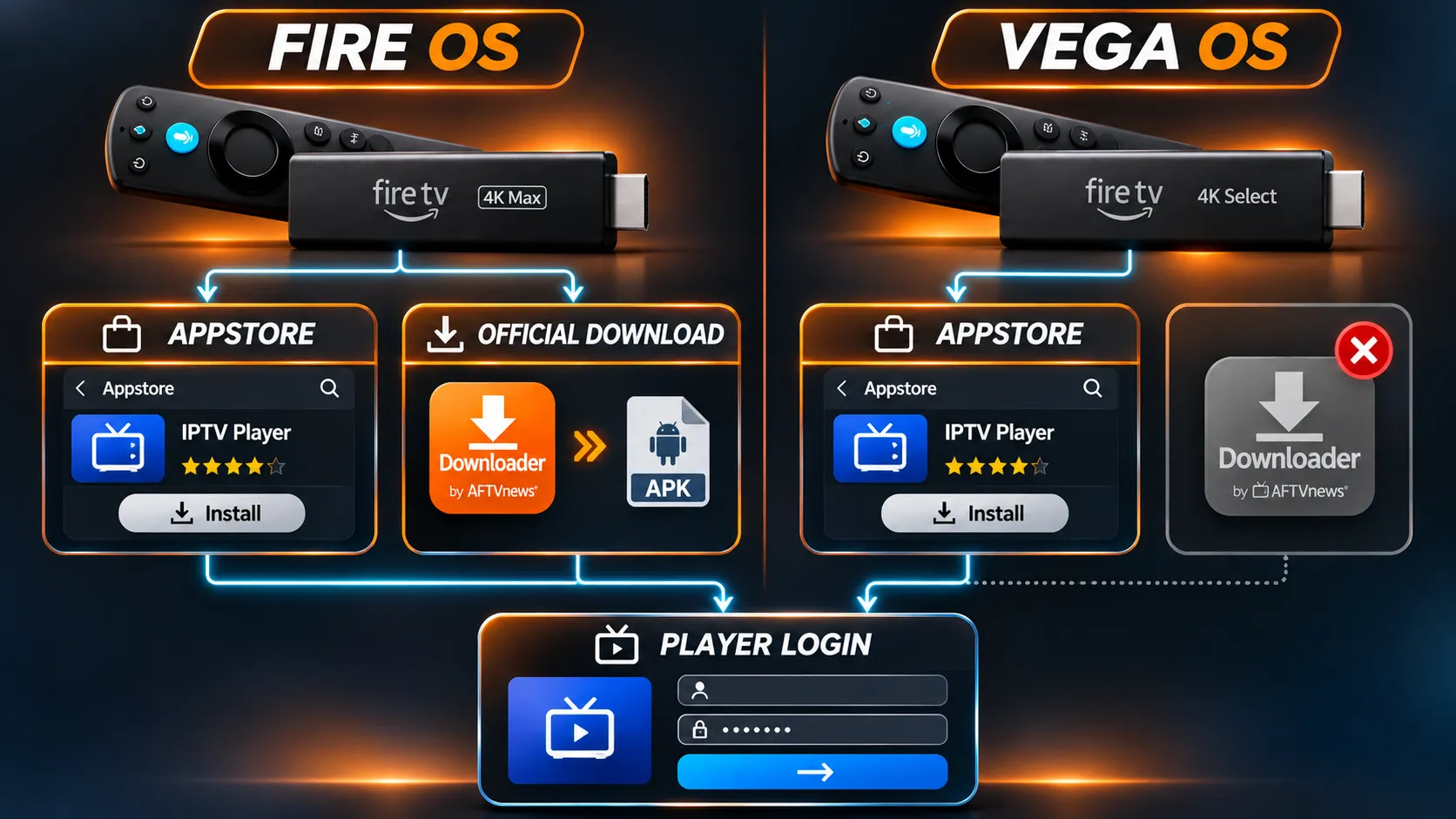
Two ways to install an IPTV player on a Firestick
- Route A: the Amazon Appstore. The simplest and safest route. Amazon says every app submitted to its Appstore must comply with its content policy and is rejected if it fails the submission criteria.
- Updates are managed through the Appstore, depending on your device settings and app availability. It works on every Fire TV, including Vega OS devices, as long as the player you want is in the Appstore.
- Route B: the developer’s official download. For players that aren’t in the Appstore but whose developer publishes an official installation file for Fire OS. Fire OS devices only.
Always try Route A first.
Route A: Install a Player From the Amazon Appstore
- From the Fire TV home screen, go to Find, then Search.
- Type the name of the player, or a general term such as “IPTV player”, using the on-screen keyboard.
- Select the app from the results and check its listing: the developer, what it supports and whether it charges for features.
- Select Get or Download and wait for it to install.
- Select Open.
One example of a player in the Amazon Appstore for Fire OS devices is VLC, made by VideoLAN.
It can play network streams and M3U playlist links, but it doesn’t support Xtream Codes logins and isn’t designed around a full TV guide, so it suits simple setups better than a whole IPTV service.
Other players appear and disappear from the Appstore over time, so search on your own device for the current choice.
If the player you want isn’t in the Appstore and your device runs Fire OS, Route B may be an option.
Route B: Install a Player From the Developer’s Website
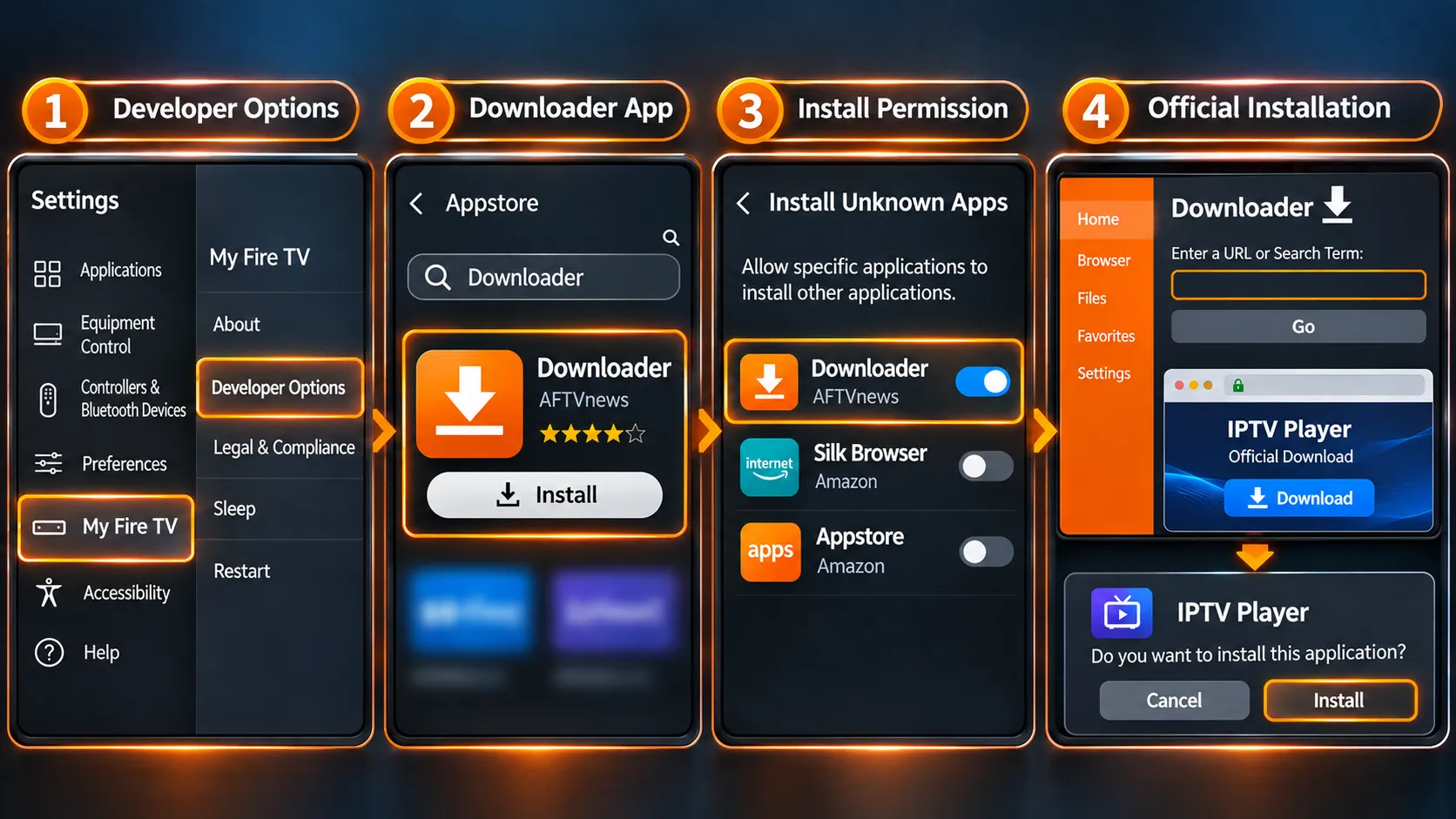
Only follow this method if your IPTV player’s developer provides an official Android installation file compatible with your Fire OS device. If no verified download is available, do not substitute a third-party APK or a Downloader shortcut code.
Installing an app from outside the Appstore is a security decision. Give permission only to the app that needs it, and only use a download page published by the player’s own developer.
Avoid modified copies of popular players: the FBI has warned that criminals infect TV streaming devices through malicious apps from unofficial marketplaces.
The steps below follow the method documented in player developers’ own Fire TV installation guides. Menu names can differ slightly depending on your model and Fire OS version.
Step 1: Turn on Developer Options
- Go to Settings > My Fire TV > About (or Settings > Device & Software > About).
- Highlight the first item, your device name, and press the centre button on your remote seven times.
- When a message confirms that you’re a developer, press Back once. Developer Options now appears under My Fire TV.
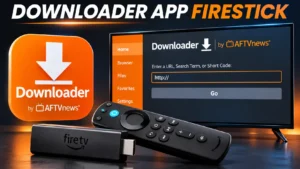
Step 2: Install the Downloader app
- Go to Find > Search and search for Downloader.
- Install Downloader by AFTVnews from the Amazon Appstore.
Downloader is a simple browser and file downloader. On its own it doesn’t install anything useful: it only fetches the file you point it to. Our guide to the Downloader app on Firestick covers its settings, safety and common problems.
Step 3: Allow Downloader to install apps
- Go to Settings > My Fire TV > Developer Options.
- Select Install Unknown Apps.
- Turn permission on for Downloader only.
On older Fire OS versions, the setting is called Apps from Unknown Sources and applies to the whole device.
Step 4: Download and install the player
- Open Downloader.
- In the address field, type the official download page address published by the player’s developer.
- Download the installation file, then select Install.
- When the app has installed, select Done, then delete the installation file when Downloader offers to, to free up storage.
Step 5: Tidy up permissions
Once the player is installed, you can go back to Install Unknown Apps and turn Downloader’s permission off again until you next need it.
Add Your IPTV Login to the Player
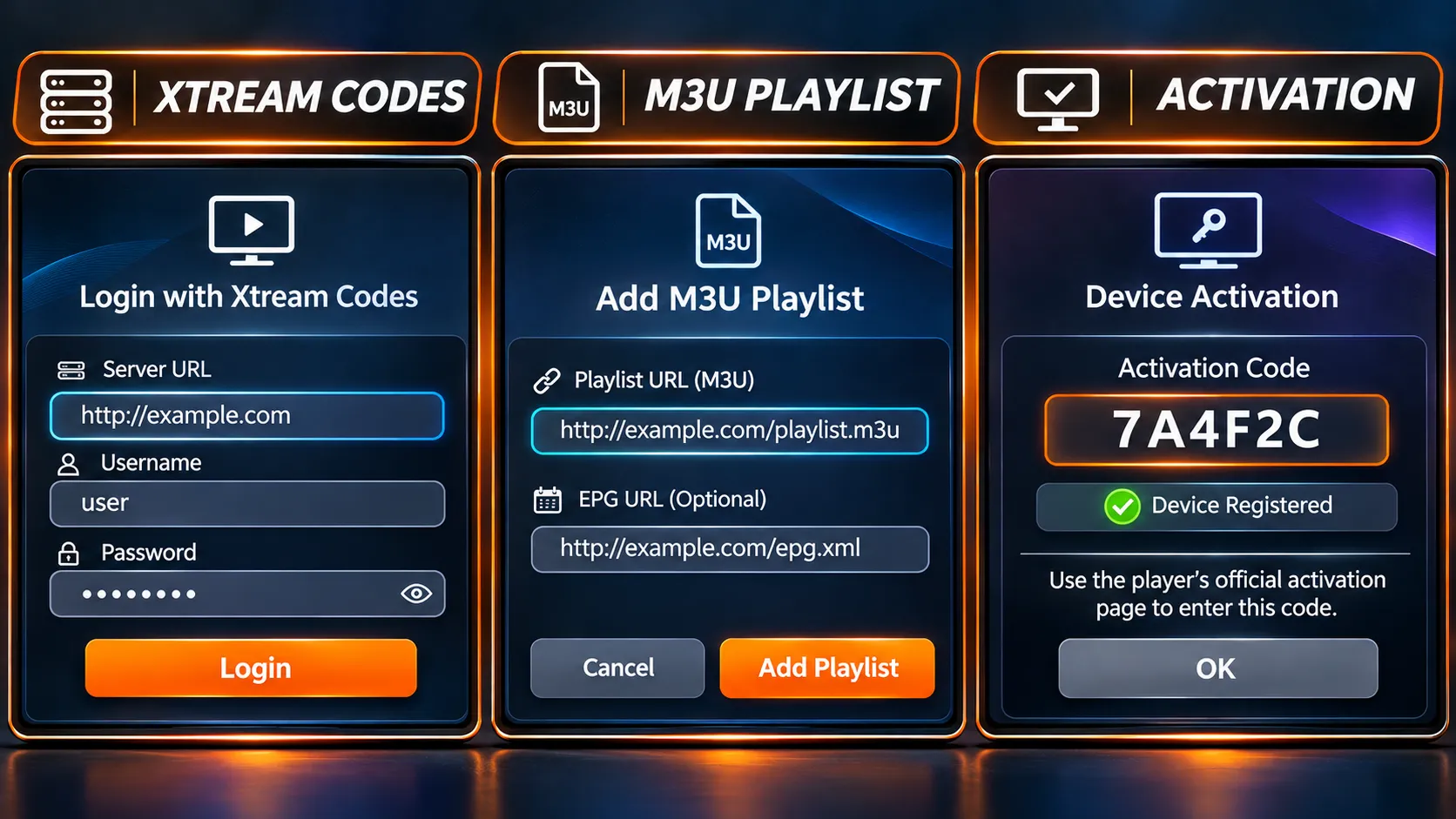
The login options you see depend on the player you installed. Not every player supports Xtream Codes, M3U playlists, MAC-based portals or activation codes. Choose the option that matches the access details your subscription supplied.
Xtream Codes login
If your subscription gave you a server address, username and password, choose the player’s Xtream Codes or “login” option and enter the three fields exactly as supplied.
M3U playlist link
If you received a single playlist link, choose the M3U or playlist URL option and enter the full link. Some players also ask for a separate TV guide (EPG) link. Our guide explains how an M3U playlist works and why the link should stay private.
MAC address or activation code
Some players show a MAC address and device key when they first open, which you register on the developer’s website. Others use an activation code. Follow the player’s own instructions for these methods.
Typing long details on a Firestick
Access details are long and case-sensitive. Type them slowly with the on-screen keyboard and check each field before saving. If your phone has the Amazon Fire TV app, its keyboard makes typing easier.
Watch for extra spaces and make sure the server address starts exactly as supplied (http:// or https://).
Test Playback and the TV Guide
- Play three or four live channels from different categories.
- Open an on-demand title if your service includes them.
- Check that the TV guide shows program names. It can take a few minutes to fill in the first time.
- Test again at the time you usually watch, when your home network is busier.
If playback works but the guide is empty, the setup is still working; the guide may need its own refresh or link.
Firestick Settings That Help IPTV
- Keep storage free. When a Firestick runs low on storage, apps can freeze or fail to load. Remove apps you don’t use and delete leftover installation files.
- Consider a wired connection. If your Wi-Fi is weak near the TV, a Fire TV Ethernet adapter can give a steadier connection. The Fire TV Cube has an Ethernet port built in.
- Restart after installing. A full restart (Settings > My Fire TV > Restart) clears anything left over from the installation.
If It Doesn’t Work
Check the access details first, then the player, then your network:
- Login error: re-enter the details and check for extra spaces or a wrong
http://orhttps://at the start of the server address. - Channels list but don’t play: try a second player, if your subscription allows it, to see whether the problem follows the player.
- Channels play but keep pausing: see our guide to IPTV buffering causes and fixes.
If you’re considering IPTVAUSSIE, contact us with your exact Firestick model and the player you plan to use before starting a trial, so we can confirm the setup options available. You can see plan lengths and prices on our IPTV subscription Australia page.