Fire TV Vega OS and what it means for IPTV apps
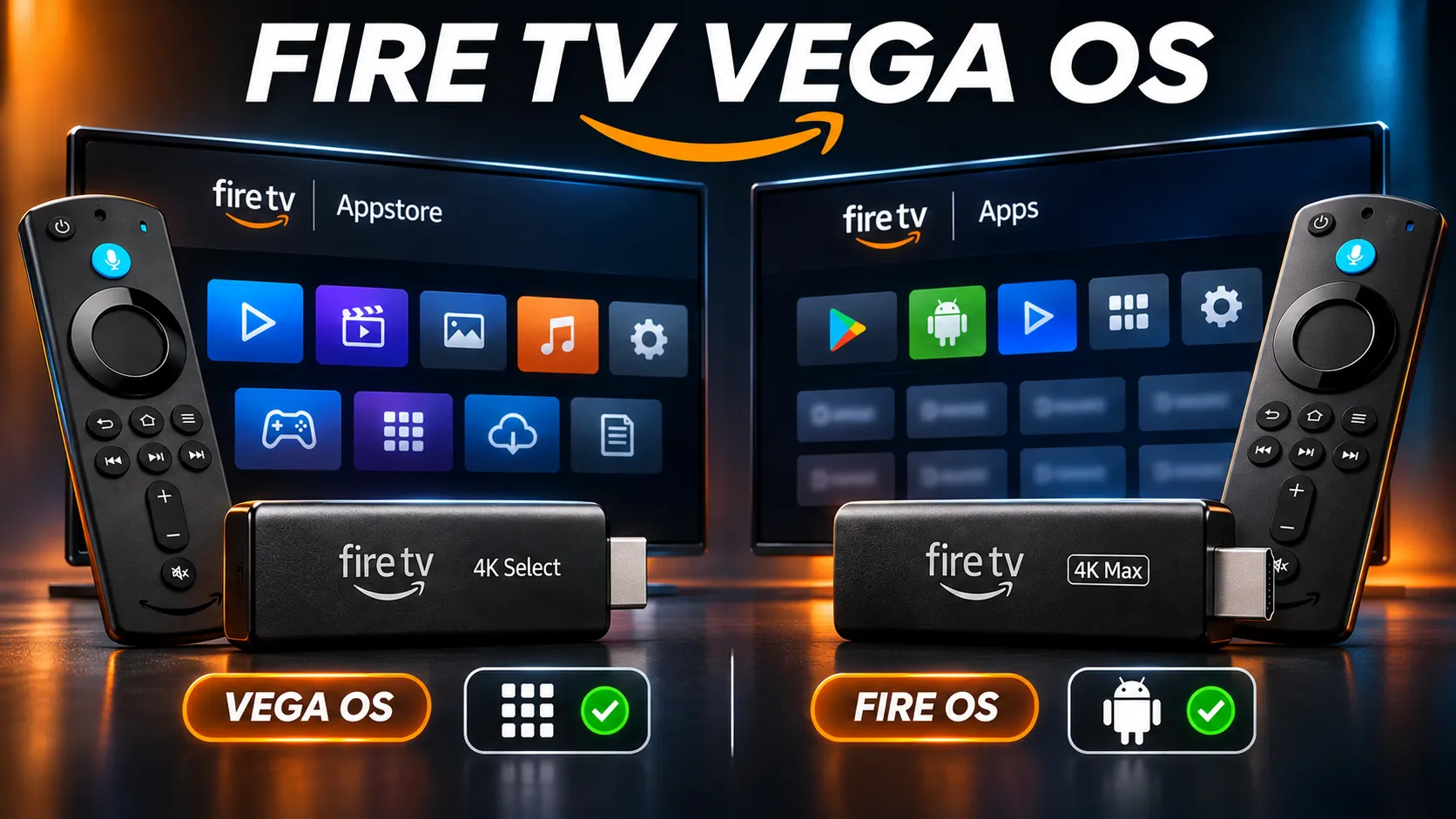
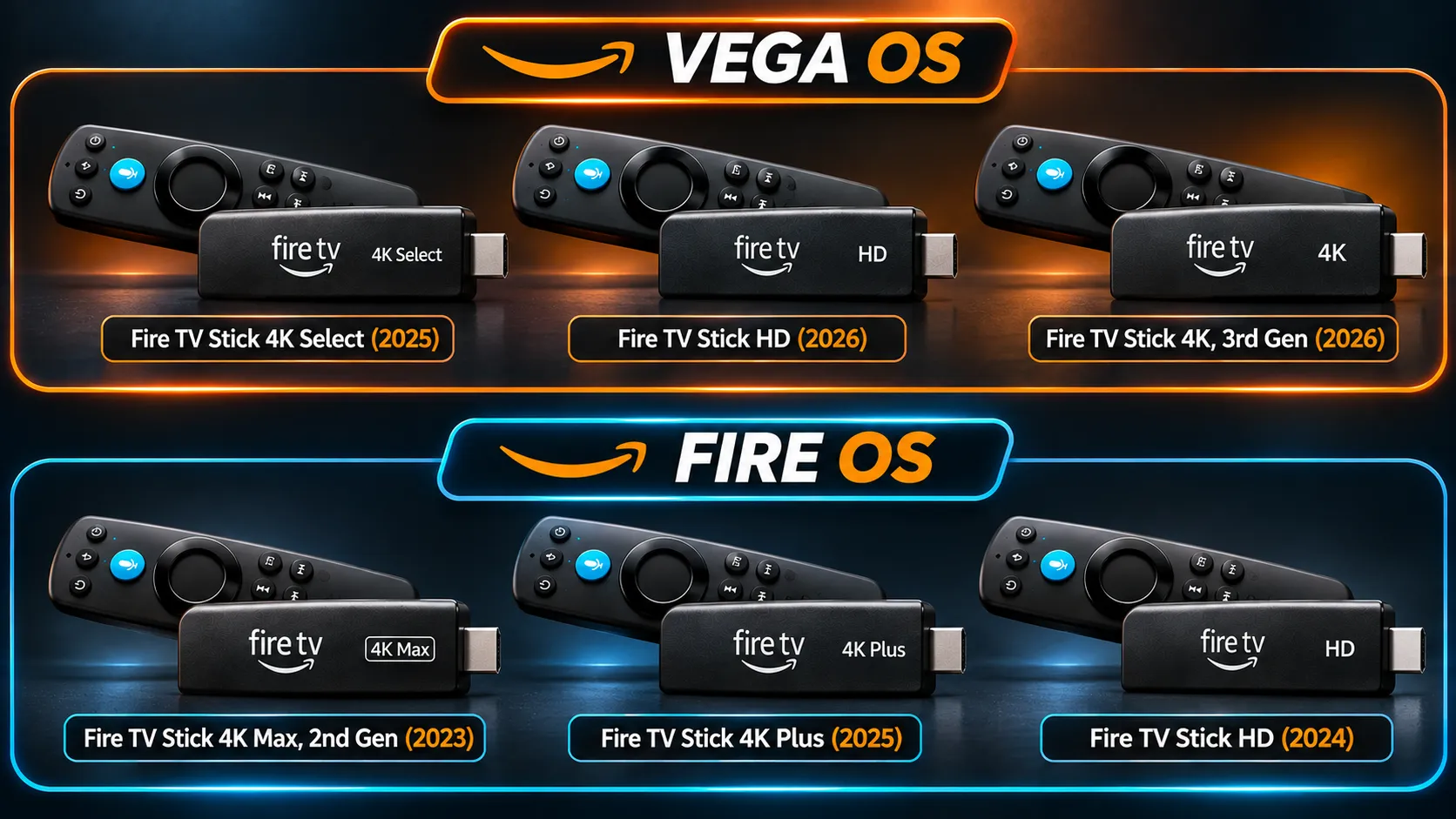
Fire TV Vega OS is Amazon’s newer, Linux-based operating system for some Fire TV Sticks: the Fire TV Stick 4K Select (2025), the Fire TV Stick HD (2026) and the Fire TV Stick 4K (3rd generation, 2026).
Unlike Fire OS, it doesn’t run Android apps, and apps can only be installed from the Amazon Appstore. For IPTV, you can only use a player whose developer has published a Vega OS version there.
That’s why it’s worth knowing which system your Fire TV runs before you set anything up or buy a subscription.
This guide explains what Vega OS is, how it differs from Fire OS, which Fire TV devices use it, how to check yours, and what it means if you want to watch IPTV.
What Is Fire TV Vega OS?
Vega OS is an operating system Amazon built for its newer devices. It is Linux-based, and apps for it are built with React Native and web technologies rather than as Android apps. Amazon introduced Vega OS in 2025 with the Fire TV Stick 4K Select, and in October 2026 it rolled out Vega OS 2.0 to all Vega-powered Fire TV devices.
On screen, a Vega OS device looks much like any other Fire TV: a similar home screen, the same remote and the same Amazon account. The difference is underneath, in how apps are built and where they come from.
Vega OS vs Fire OS: What’s Different
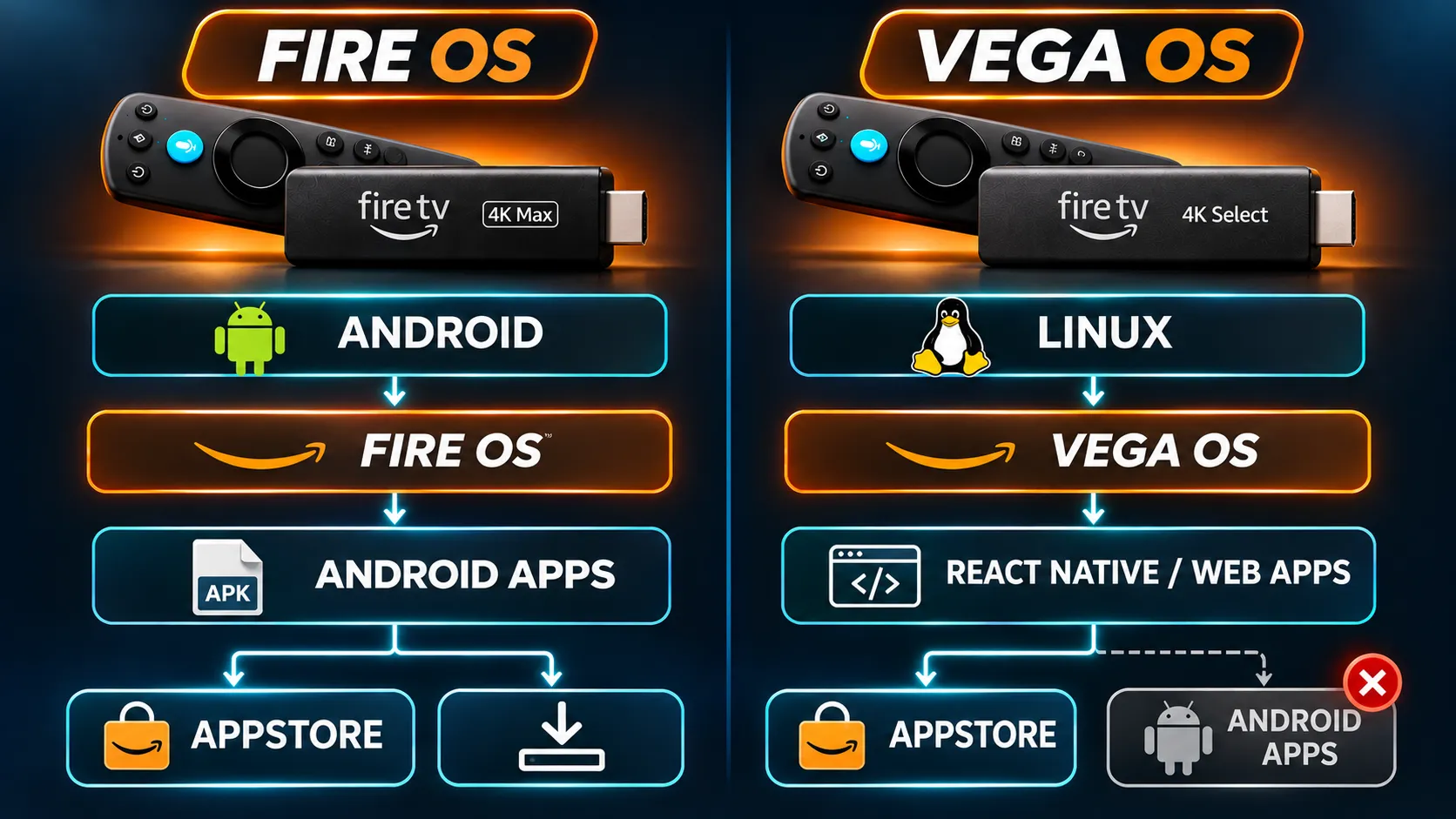
Vega OS vs Fire OS comparison for IPTV apps
| Fire OS | Vega OS | |
|---|---|---|
| Based on | Android | Linux |
| App format | Android apps | Apps built with React Native and web technologies |
| Where apps come from | Amazon Appstore, plus other sources on many models | Amazon Appstore |
| Installing apps from outside the store | Possible on many models after changing a setting | Not available to everyday users |
| Android apps | Run natively | Don’t run unless the developer rebuilds them for Vega OS |
For most streaming apps from major services, the difference is invisible: they’re available in the Appstore on both systems. T
he difference matters when an app you want isn’t in the Appstore, which is common with IPTV players.
Why is Amazon using Vega OS?
Amazon describes Vega OS as a platform for building fast, modern TV apps that work across its devices, and Vega now runs on Echo devices as well as Fire TV.
Amazon has not presented it as a replacement for every Fire OS device: when it announced Vega OS, it said it would keep launching devices on Fire OS and continue supporting Fire OS apps.
Which Fire TV Devices Run Vega OS?
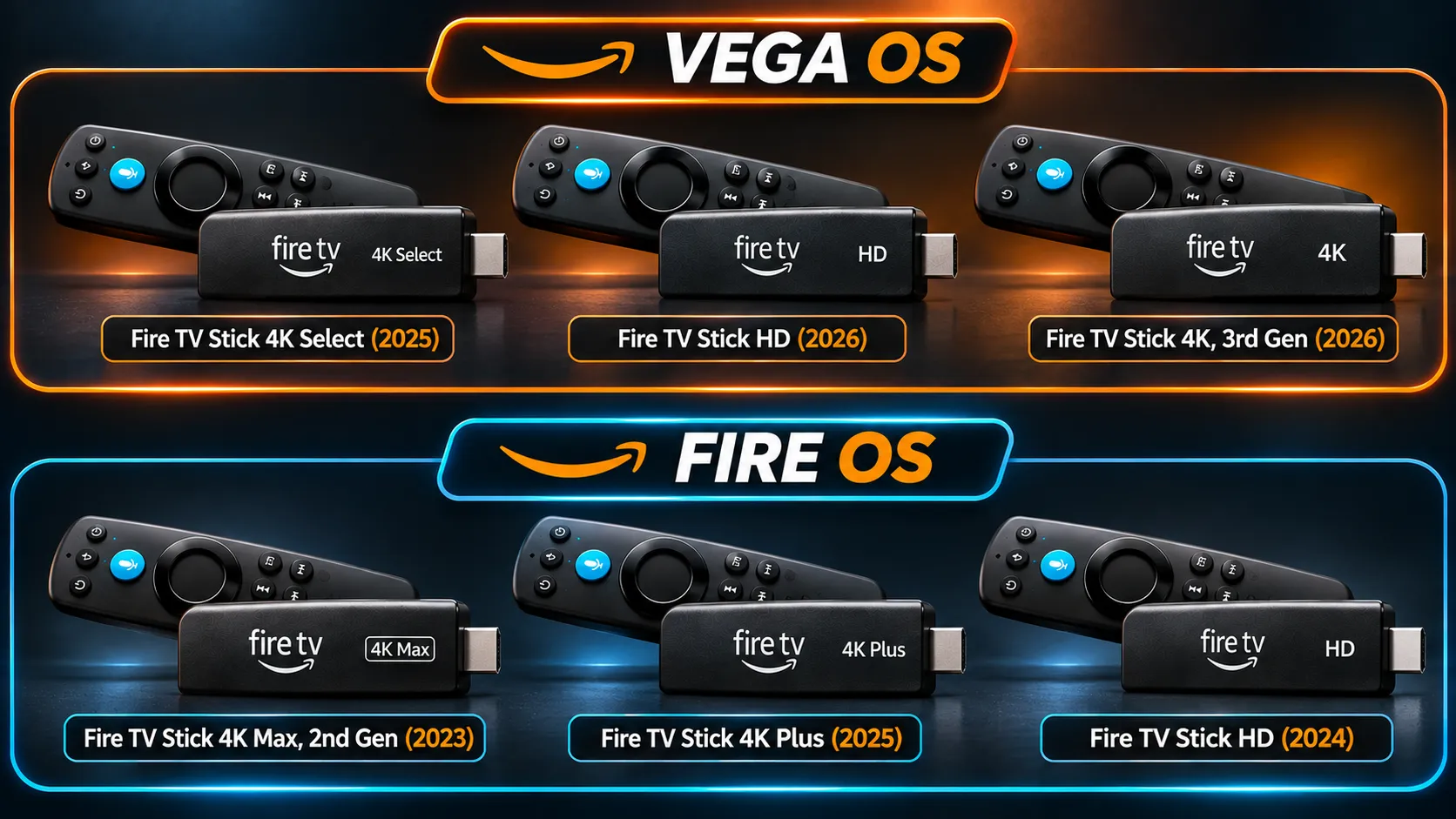
According to Amazon’s own device specifications, checked on 19 November 2026, these Fire TV devices run Vega OS:
| Device | Year | Operating system |
|---|---|---|
| Fire TV Stick 4K Select | 2025 | Vega OS |
| Fire TV Stick HD | 2026 | Vega OS |
| Fire TV Stick 4K (3rd generation) | 2026 | Vega OS |
Fire TV models that still run Fire OS
The same Amazon specifications list these current and recent models on Fire OS:
| Device | Year | Operating system |
|---|---|---|
| Fire TV Stick 4K Max (2nd generation) | 2023 | Fire OS 8 |
| Fire TV Stick 4K Plus | 2025 | Fire OS 8 |
| Fire TV Stick 4K (2nd generation) | 2023 | Fire OS 8 |
| Fire TV Cube (3rd generation) | 2022 | Fire OS 7 |
| Fire TV Stick HD | 2024 | Fire OS 7 |
Notice the names. There is a Fire TV Stick HD from 2024 on Fire OS and another from 2026 on Vega OS, and the Fire TV Stick 4K 2nd generation runs Fire OS while the 3rd generation runs Vega OS.
TVs with Fire TV built in vary by model, so check the exact TV rather than assuming.
Will all Fire Sticks get Vega OS?
Amazon has not announced a universal migration of existing Fire OS devices to Vega OS. Check the operating system of your exact model rather than assuming it will change.
How to Check Which System Your Fire TV Runs
The most reliable way is to match your exact model against Amazon’s specifications:
- On your Fire TV, go to Settings > My Fire TV > About. On a TV with Fire TV built in, the path may be Settings > Device & Software > About.
- Note the device name shown, including its generation and year if listed.
- Compare it with the tables above, or with Amazon’s list of Fire TV devices.
If you haven’t bought the device yet, check the exact product name and generation in the listing, and the operating system if the listing shows it. Two sticks with almost the same name can run different systems.
What Vega OS Means for IPTV Apps
Apps come from the Amazon Appstore only
On a Vega OS device, an IPTV player is only an option if its developer has built a Vega OS version and published it in the Amazon Appstore. Many IPTV players are Android apps that have never been rebuilt for Vega OS, so they aren’t available.
Downloader and “unknown sources” guides don’t apply
Many online guides for Fire TV tell you to install the Downloader app or turn on apps from unknown sources.
Those steps rely on Fire OS. On a Vega OS device they don’t apply, and there’s no consumer setting to switch them on.
Amazon offers developer tools for building and testing Vega apps, but that is a developer route, not a way for viewers to install players. On Fire OS devices, our guide explains how Downloader works on Fire OS and how to use it safely.
What about VLC?
VideoLAN, the team behind VLC, has released VLC for Vega OS through the Amazon Appstore, first as a beta in July 2026. It can play network streams and media from your home network.
That doesn’t make it a full IPTV player. VideoLAN describes the Vega version as a pre-release that isn’t yet feature-complete, and its announcement doesn’t mention M3U playlists, Xtream Codes logins or a TV guide.
It may play a single stream link, but it isn’t designed to load and browse a whole IPTV service.
What to look for in the Appstore
Search the Appstore on your device for an IPTV player, and check three things in the listing before installing:
- It says it supports your device.
- It supports the access method your subscription uses, such as an Xtream Codes login or an M3U playlist.
- It comes from a developer you can identify.
App availability on Vega OS is changing as more developers build for it, so a player that isn’t available today may appear later. Our guide to the features that matter in an IPTV player helps you judge a listing.
If You Already Own a Vega OS Device
You have four practical options:
- Search the Appstore for a player that supports your access method, as above.
- Use your TV’s built-in apps. If your TV is a recent Samsung, LG, Google TV or Android TV model, its own app store may offer a suitable player.
- Use another device you already own, such as a Fire OS stick, an Android TV box or an Apple TV.
- If you bought it recently, check the seller’s return policy. Return terms depend on the retailer and the timing.
If you’re considering IPTVAUSSIE, tell us your exact Fire TV model before starting a trial, so we can confirm the setup options available on it. You can see plan lengths and prices on our IPTV subscription Australia page.
Buying a Fire TV for IPTV: What to Check
If you’re buying a Fire TV device to watch IPTV, check two things before you pay:
- The exact model name, generation and year. Not just “Fire TV Stick 4K”, but which generation.
- The operating system. Fire OS devices give you a wider choice of player apps; Vega OS devices limit you to the Appstore.
Once you know which system your device runs, our step-by-step guide to installing IPTV on a Fire TV Stick covers both Fire OS and Vega OS models.