Downloader app Firestick: setting up a streaming stick safely
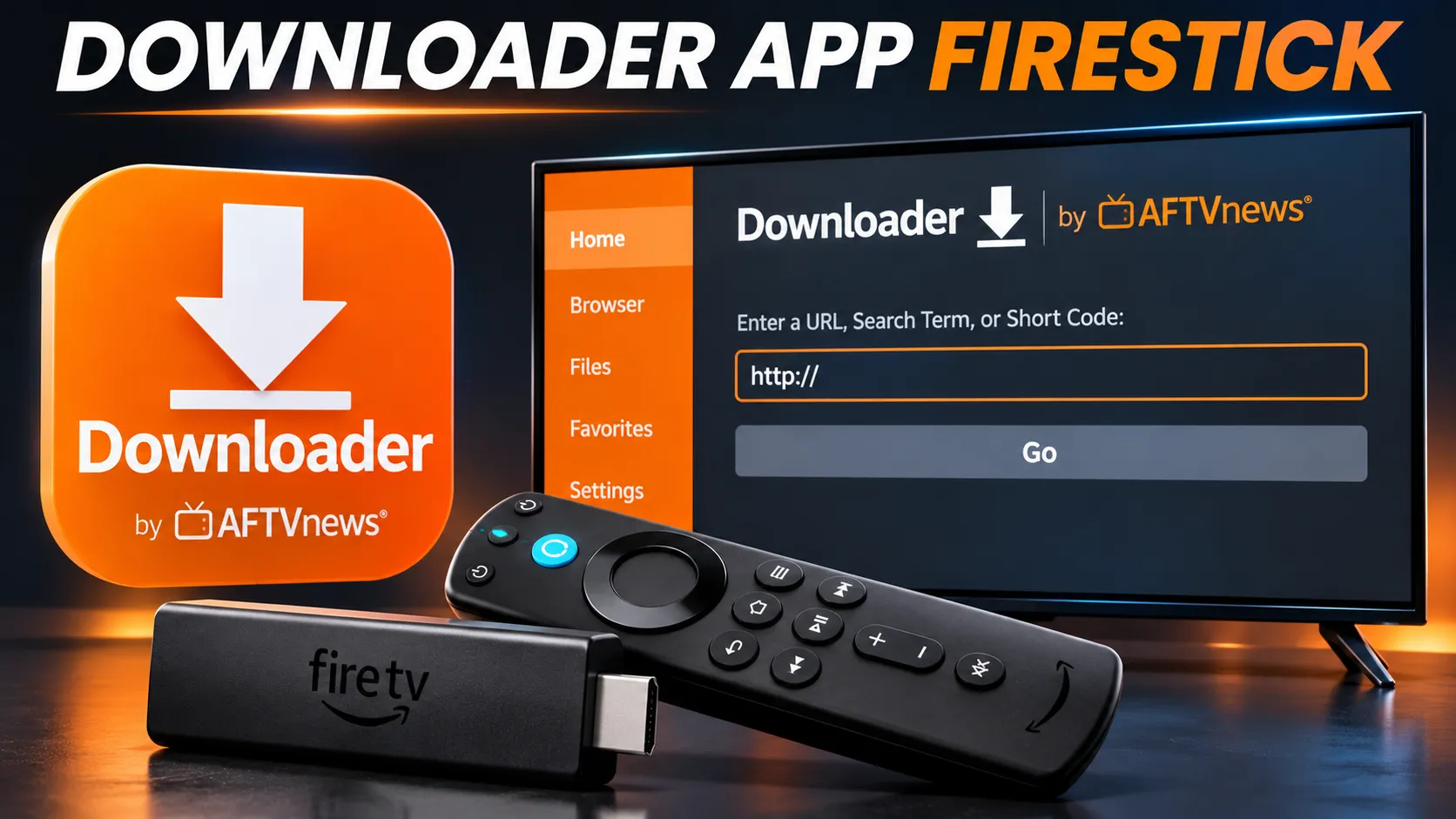
Downloader app Firestick, in short: Downloader is a free app made by AFTVnews that lets Fire TV devices running Fire OS download files from the web, including app installation files. You install it from the Amazon Appstore, then allow it to install apps under Developer Options. It contains no apps or content of its own, and it doesn’t work on Fire TV models that run Vega OS. Use it only with addresses published by an app’s official developer.
This guide explains what Downloader does, which Fire TV devices can use it, how to install it and manage its install permission, how to use it safely and how to fix common problems.
If you haven’t chosen a player yet, our guide to picking an IPTV player for your device explains what to look for.
What Is the Downloader App on Firestick?
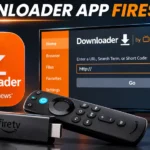
Downloader is made by AFTVnews, a long-running Fire TV news site, and is free to download. It is also available for Google TV, Android TV and Android phones and tablets through Google Play, but on Fire TV it comes from the Amazon Appstore.
Its job is simple: you give it the address of a file or website, and it downloads or opens it. On a Fire OS device, if the file is an app installation file and you’ve given Downloader permission, it can then hand the file to the system to install.
What Downloader doesn’t do is just as important. It doesn’t include any apps, channels or streams, and it doesn’t check whether a file is safe or legitimate. That judgement is yours.
Which Fire TV Devices Can Use Downloader?
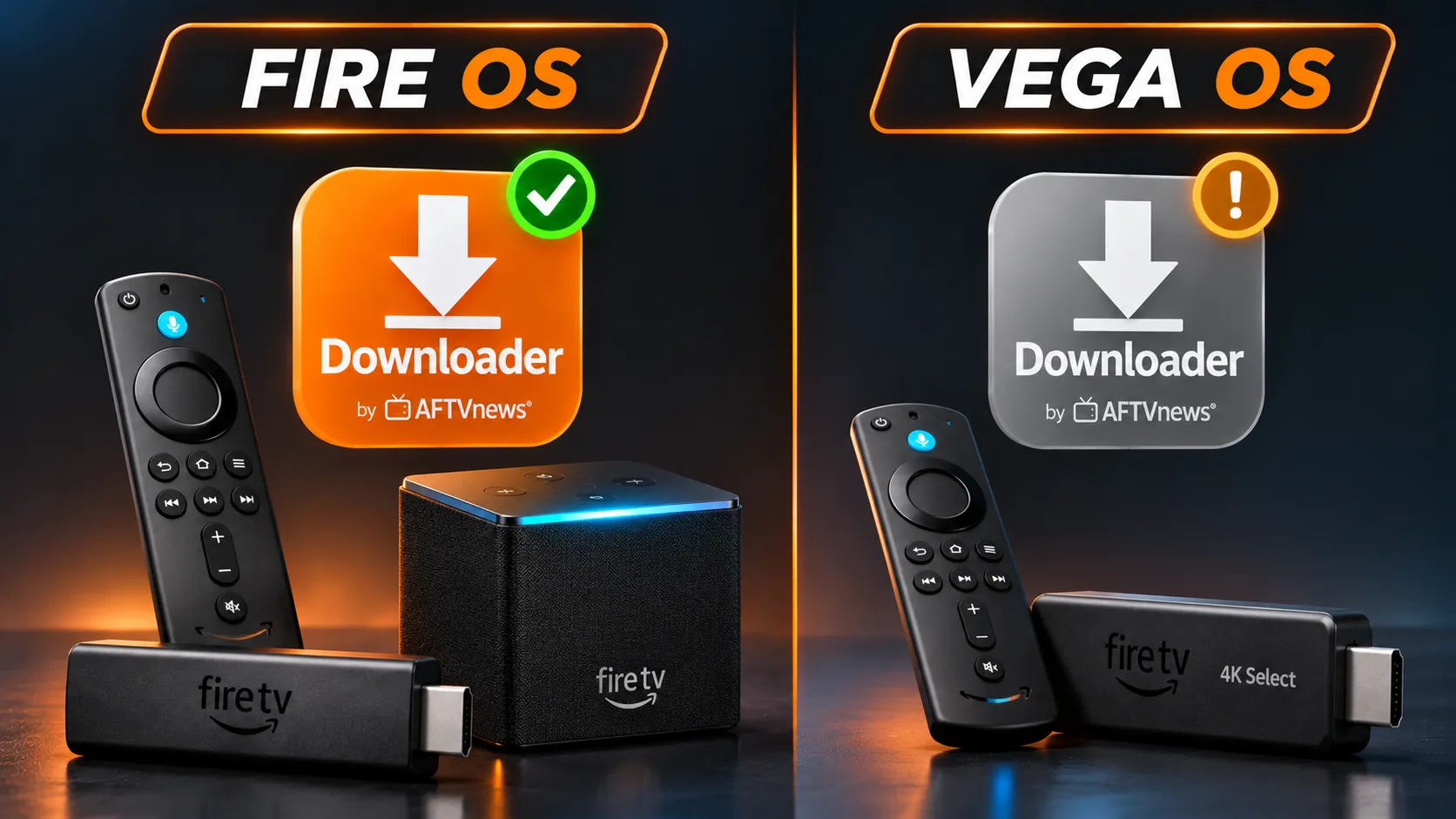
Whether you can use Downloader depends on your Fire TV’s operating system.
- Fire OS devices can install Downloader from the Amazon Appstore. These include the Fire TV Stick 4K Max (2nd generation), Fire TV Stick 4K Plus (2025), Fire TV Stick 4K (2nd generation), Fire TV Stick HD (2024) and Fire TV Cube (3rd generation).
- Vega OS devices, the Fire TV Stick 4K Select (2025), Fire TV Stick HD (2026) and Fire TV Stick 4K (3rd generation, 2026), don’t support the Fire OS version of Downloader, so it won’t appear for them.
Amazon’s own list of Fire TV devices and their operating systems shows whether each model runs Fire OS or Vega OS. To find your model, go to Settings > My Fire TV > About on the device.
If Downloader doesn’t appear on a Fire OS device
If your device runs Fire OS and you still can’t find Downloader, Vega OS isn’t the explanation. Possible reasons to check:
- The search spelling. Search for “Downloader” and look for the app by AFTVnews.
- Your Amazon account and store region. Appstore availability can depend on the region linked to your account. This is something to check, not a guaranteed fix, and changing your account region has other effects on your Amazon services.
- Software updates. Install any pending Fire OS update, restart, and search again.
What app replaced Downloader on Fire Stick?
On Vega OS devices, there is no equivalent supported sideloading route through Downloader. Apps must be installed through the device’s supported Appstore. On Fire OS devices, Downloader is still available.
How to Install Downloader on Firestick
- From the Fire TV home screen, go to Find, then Search.
- Type Downloader.
- Select Downloader by AFTVnews from the results.
- Select Get or Download, and wait for it to install.
How to find the real Downloader
Several apps in app stores use similar names. Before you install, check the listing:
- The developer shown is AFTVnews.
- It’s listed in the Amazon Appstore, not downloaded from a website.
- It doesn’t ask you to pay.
If any of these don’t match, don’t install it.
Managing Downloader’s Install Permission
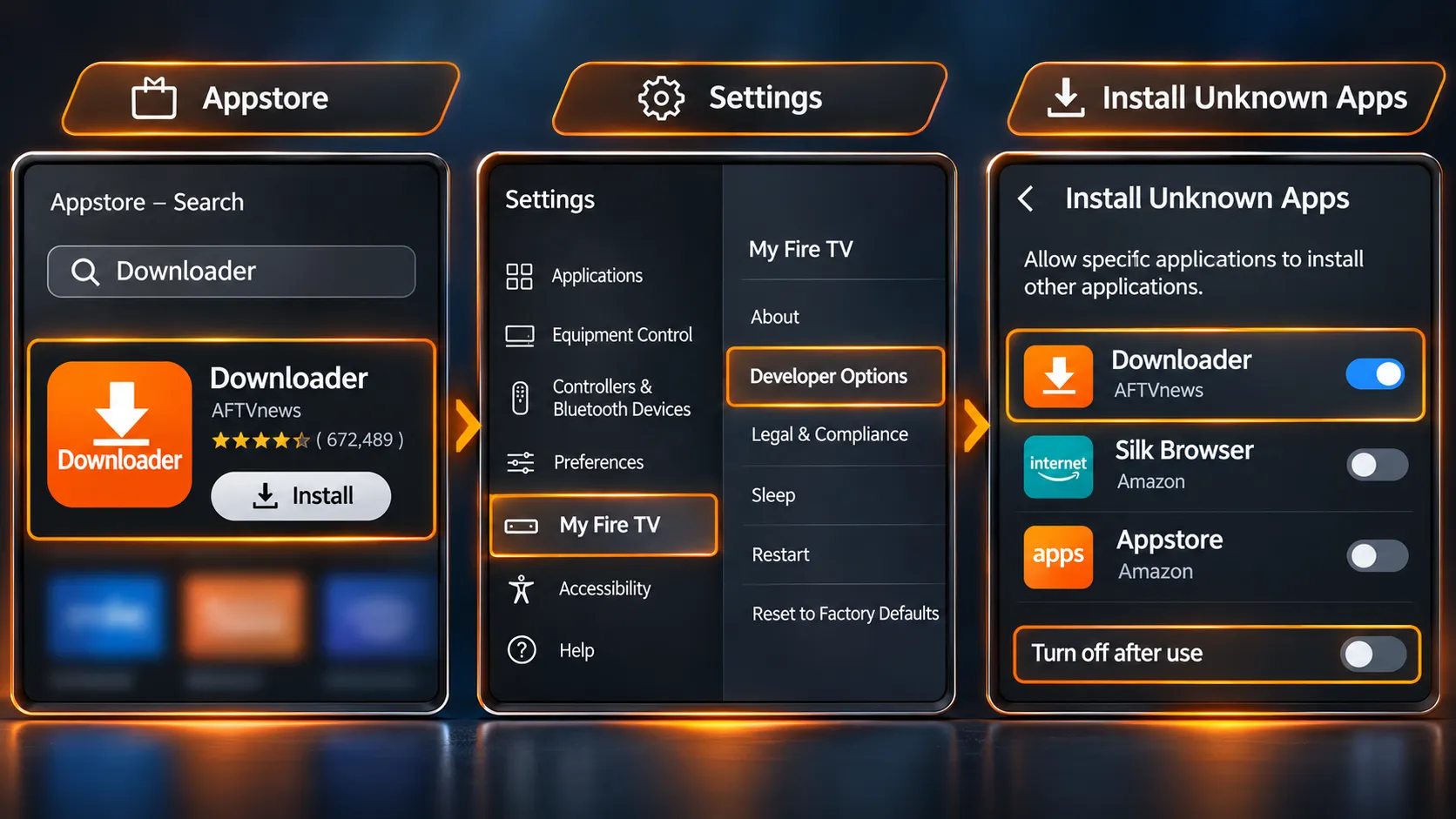
Installing Downloader doesn’t, by itself, let it install other apps. That needs a separate permission, and it’s worth understanding what you’re turning on.
What the permission means
Giving Downloader permission to install apps means any installation file it downloads can be installed on your device.
That’s a security decision: an unsafe file installed this way can access your network and the data on your device. Give the permission only when you need it, and only to Downloader.
Where the setting lives
The permission is inside Developer Options, which is hidden on Fire TV until you reveal it:
- Go to Settings > My Fire TV > About (or Settings > Device & Software > About).
- Highlight the first item, your device name, and press the centre button on your remote seven times.
- When a message confirms that you’re a developer, press Back once. Developer Options now appears under My Fire TV.
The setting has two names, depending on your Fire OS version:
- Install Unknown Apps (newer Fire OS): lists apps individually, so you can turn permission on for Downloader only.
- Apps from Unknown Sources (older Fire OS): a single switch for the whole device.
How to check and turn it off
- Go to Settings > My Fire TV > Developer Options.
- Open Install Unknown Apps and look at Downloader’s status, or check the Apps from Unknown Sources switch on older versions.
- When you’ve finished installing what you need, turn it off. You can turn it back on later in seconds.
Downloader’s Main Features
According to AFTVnews, Downloader offers:
- Address entry. Type the address of a file or website to download or open it.
- Built-in search. Find files using the app’s built-in Google search.
- Short codes. Instead of typing a long address, enter a numeric code created with the AFTVnews URL shortener, which points to a longer address.
These features work the same way on Fire TV, Google TV and Android TV devices, although only Fire OS among Amazon’s devices can use them.
Using Downloader Safely
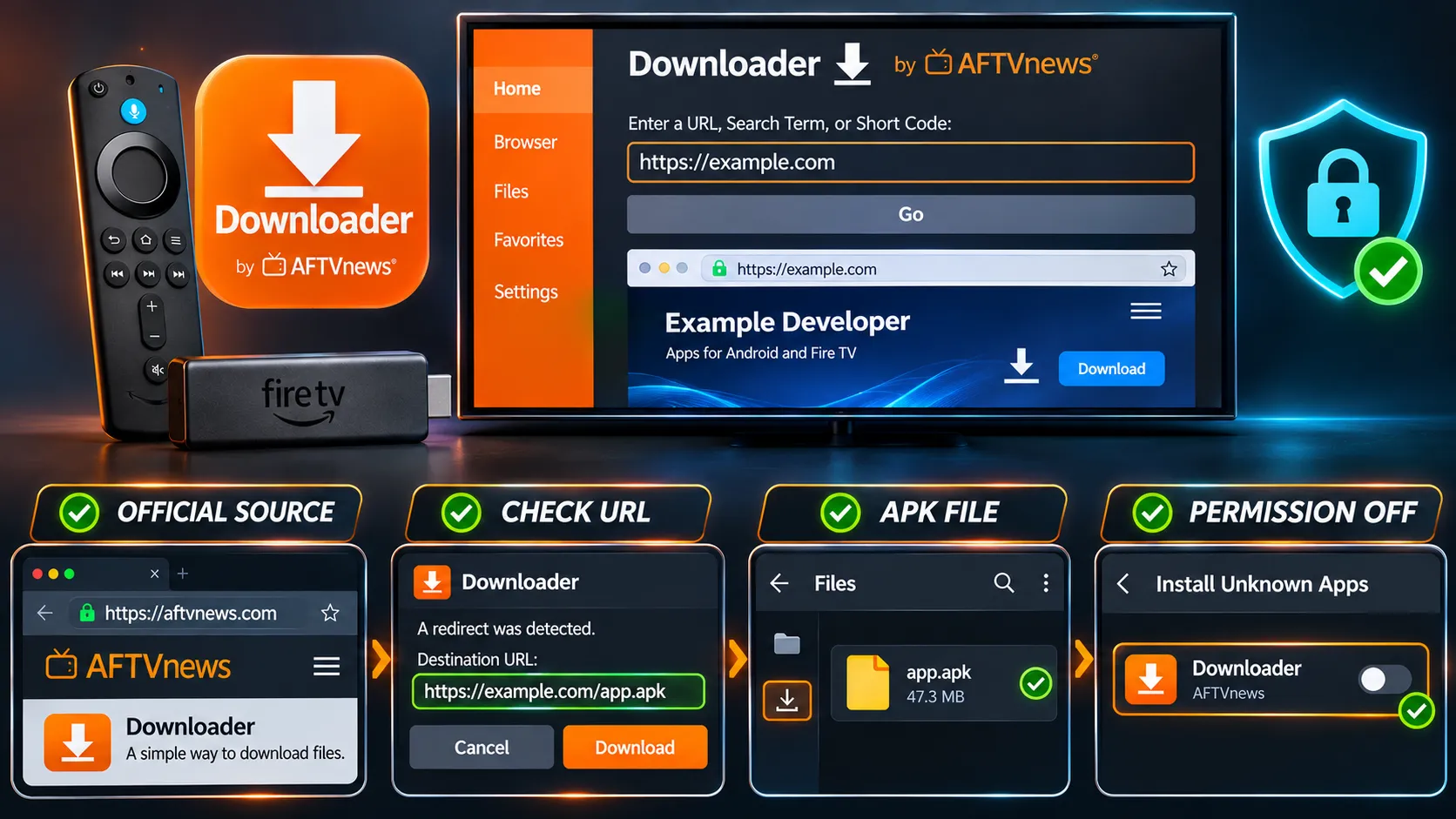
How to use the Downloader app on Firestick safely
Use addresses from the app’s own developer
Only download installation files from an address published by the app’s own developer, on their official website.
A file found through a search, a forum or a video description may be an old, modified or malicious copy.
Treat short codes with care
When AFTVnews introduced its URL shortener, it explained that anyone can create a short code, and a code can point to any address. A code appearing in a guide or video doesn’t mean the app’s developer published it.
When you enter a code, a redirect page briefly shows the full address before the download starts. Seeing the address isn’t a guarantee of safety on its own.
Check that the domain really belongs to the app’s official developer and hasn’t been replaced with an unfamiliar site, and stop the redirect if anything looks wrong. If an app’s developer doesn’t publish a code on their own site, type their official address instead.
Never install modified copies
Avoid “premium unlocked”, “pre-configured” or “mod” versions of popular apps. The FBI has warned that criminals infect TV streaming devices through malicious apps from unofficial marketplaces, and advises avoiding marketplaces that advertise free streaming content. Pay the developer for paid features and install the official version only.
Delete Installation Files After Installing
Installation files take up storage, and Fire TV devices have limited space. When storage runs low, apps can freeze or fail to install.
After an app installs, if Downloader offers to delete the installation file, choose Delete. Keeping storage free helps every app on the device run smoothly, and low storage is also one of the device causes covered in our guide to IPTV buffering.
Downloader App Firestick Not Working? Common Fixes
These are possible causes and checks, not certain diagnoses. Work through the ones that match what you see.
Downloader doesn’t appear in the Appstore
- Check whether your device runs Vega OS (see above). If it does, Downloader isn’t supported.
- On a Fire OS device, check the search spelling, your account and store region, and pending software updates.
“Not allowed to install” or the install is blocked
- Check that Install Unknown Apps is on for Downloader, or Apps from Unknown Sources on older Fire OS.
- If Developer Options isn’t visible, it needs to be revealed first.
A download fails
- Check the address for typing mistakes, and confirm it’s still the developer’s current download page.
- Test your internet connection with another app.
- Check you have enough free storage.
- The file itself may have been moved or removed by its publisher.
“App not installed” after the download
- The file may not be compatible with your device or Fire OS version.
- The download may be incomplete or damaged; delete it and download again from the official address.
- A different version of the same app may already be installed; check with the app’s developer before uninstalling anything.
Downloader crashes or freezes
- Update Downloader from the Appstore.
- Restart your Fire TV from Settings > My Fire TV > Restart.
- If the problem continues, clearing Downloader’s cache may help.
Once Downloader is working and your player is installed from its developer’s official address, the next step is adding your access details in the player.
If your subscription gave you a playlist link, our guide explains what an M3U playlist link contains. If you’re stuck, contact support with your Fire TV model and what you’ve tried.